Add a competition or convention
The event is on your schedule with its dates, ready for the schedule and the results whenever you have them.
- About 2 minutes
Before you start
All you need is the dates. Most families start there and add the full schedule once the studio sends it.
-
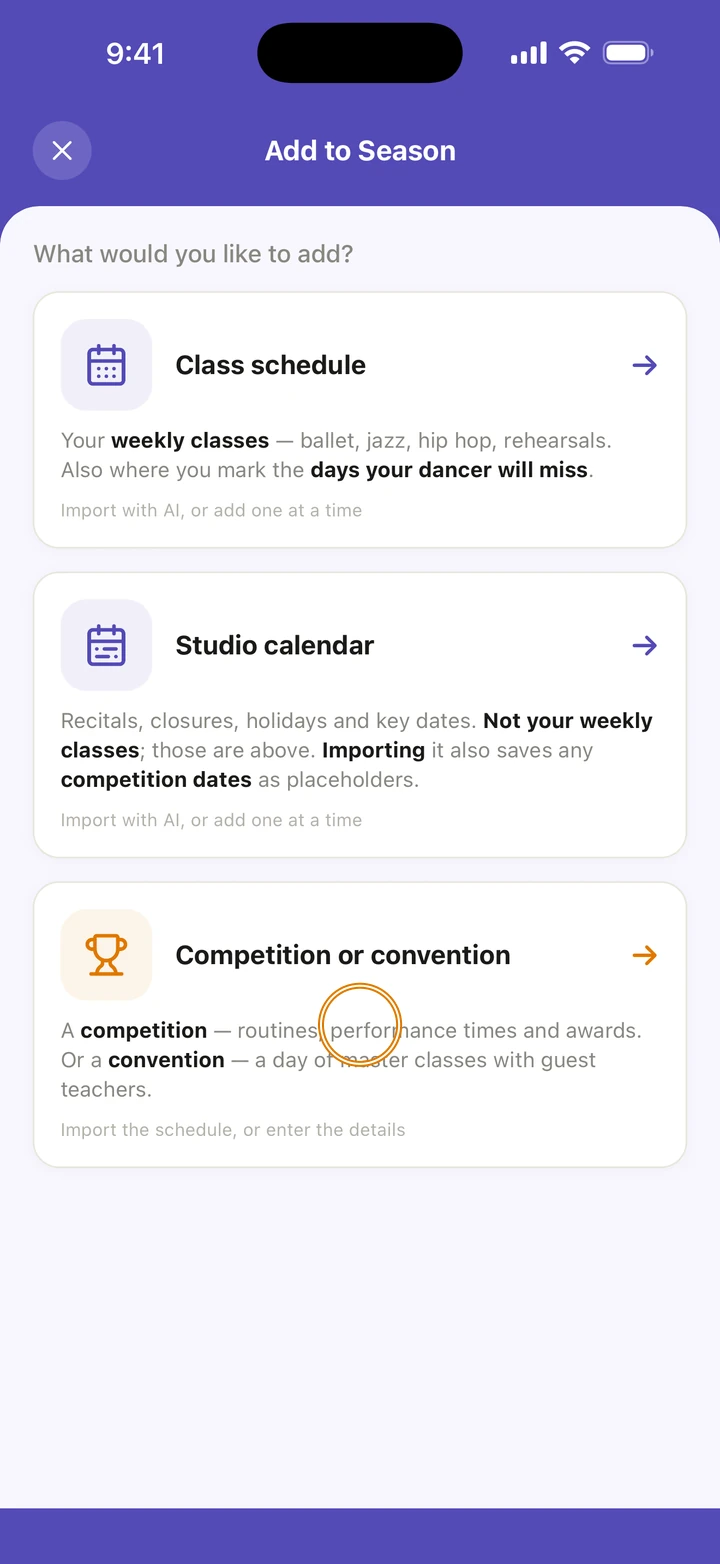
On the Schedule tab, tap +, then Competition or convention.
-
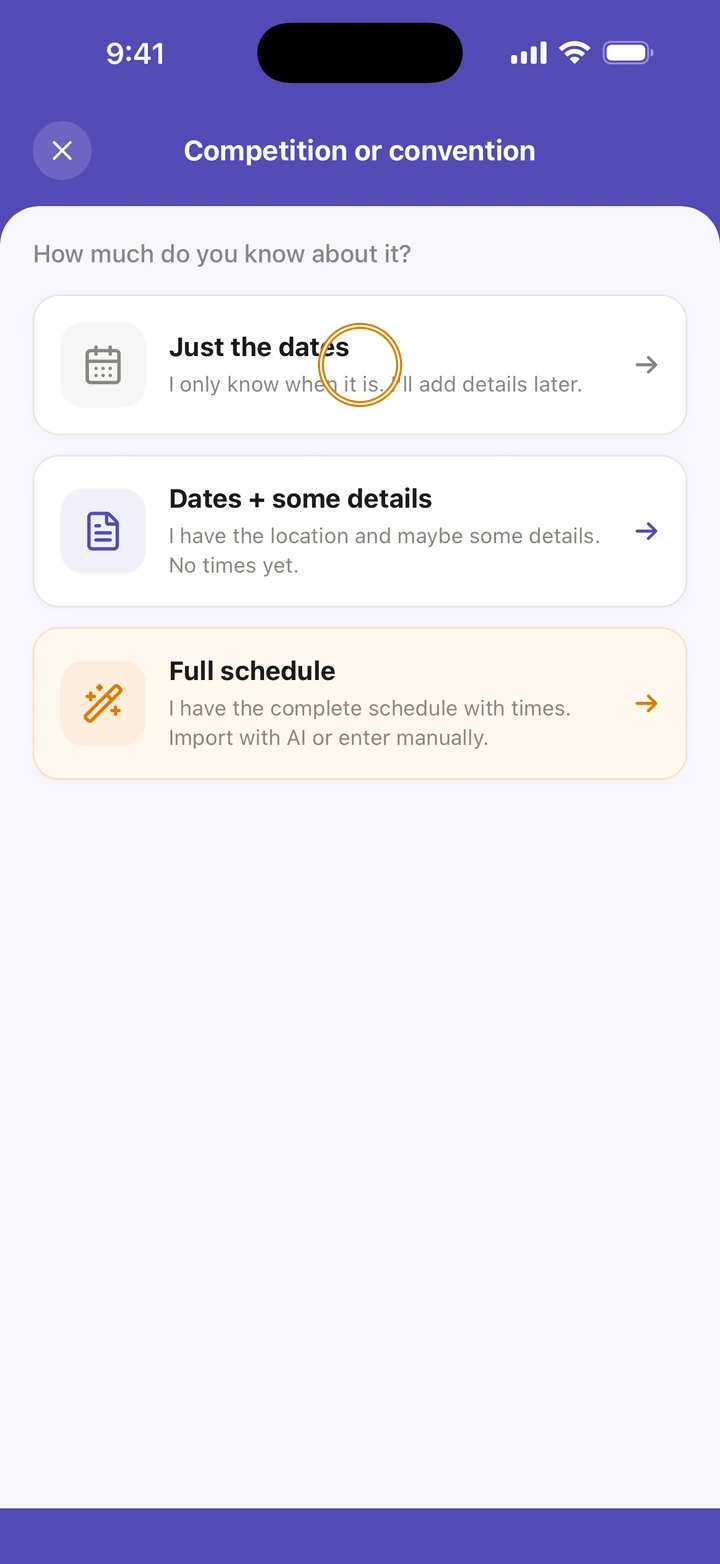
Choose how much you know: Just the dates, Dates + some details or Full schedule. These steps follow Just the dates.
-
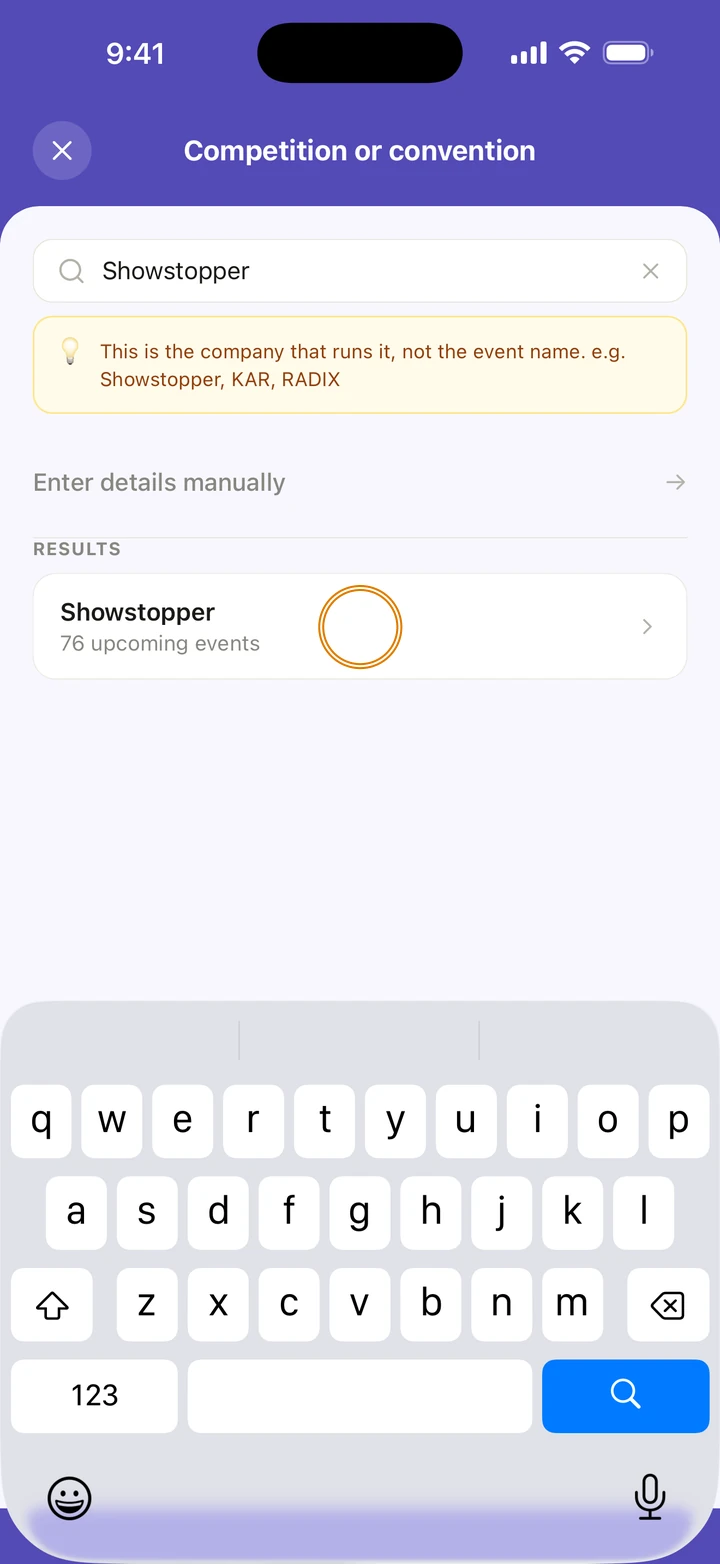
Search for the company that runs it, not the event's name (for example Showstopper or KAR), and tap it. Not in the list? Tap Enter details manually.
-
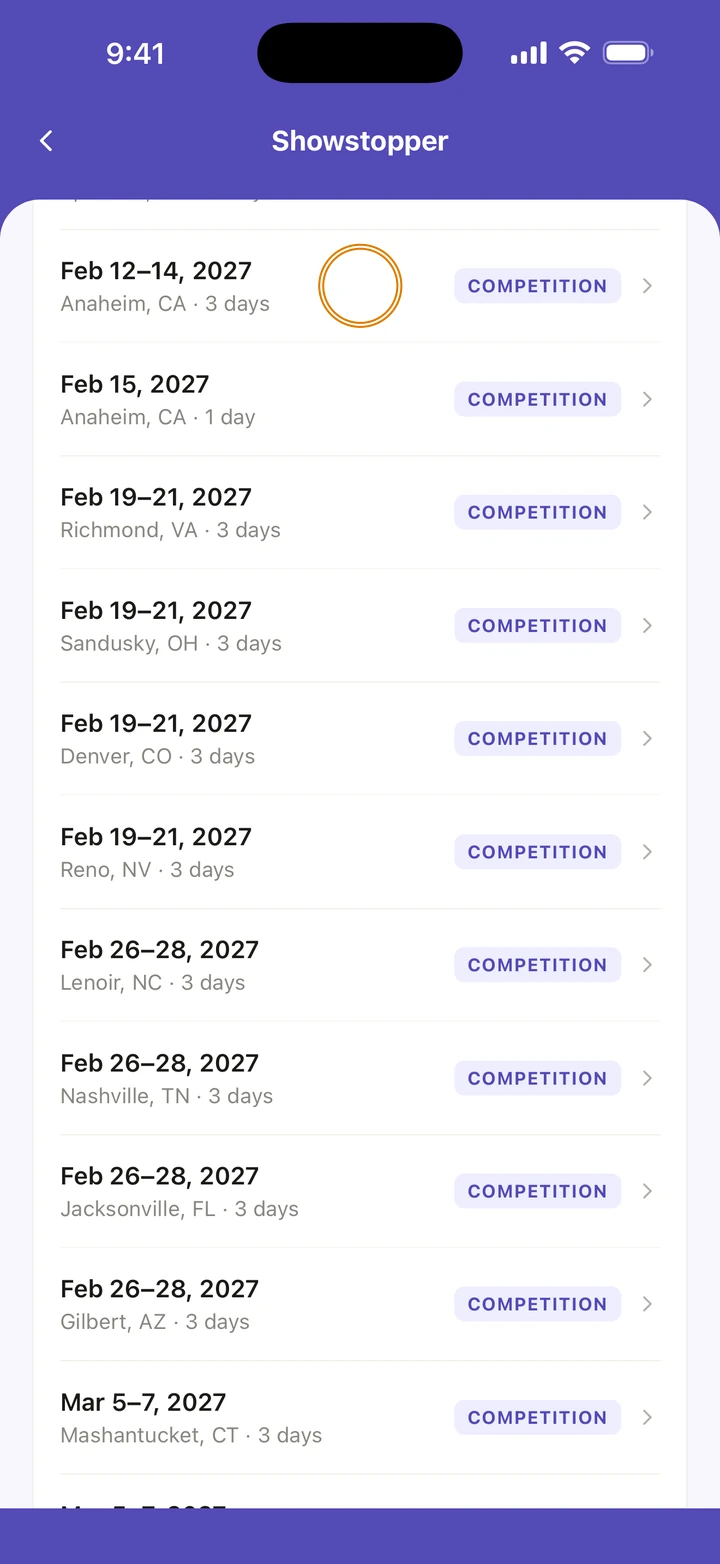
Tap your event under UPCOMING EVENTS, and its dates and venue are filled in for you. Not listed? Tap Skip — enter dates manually.
-
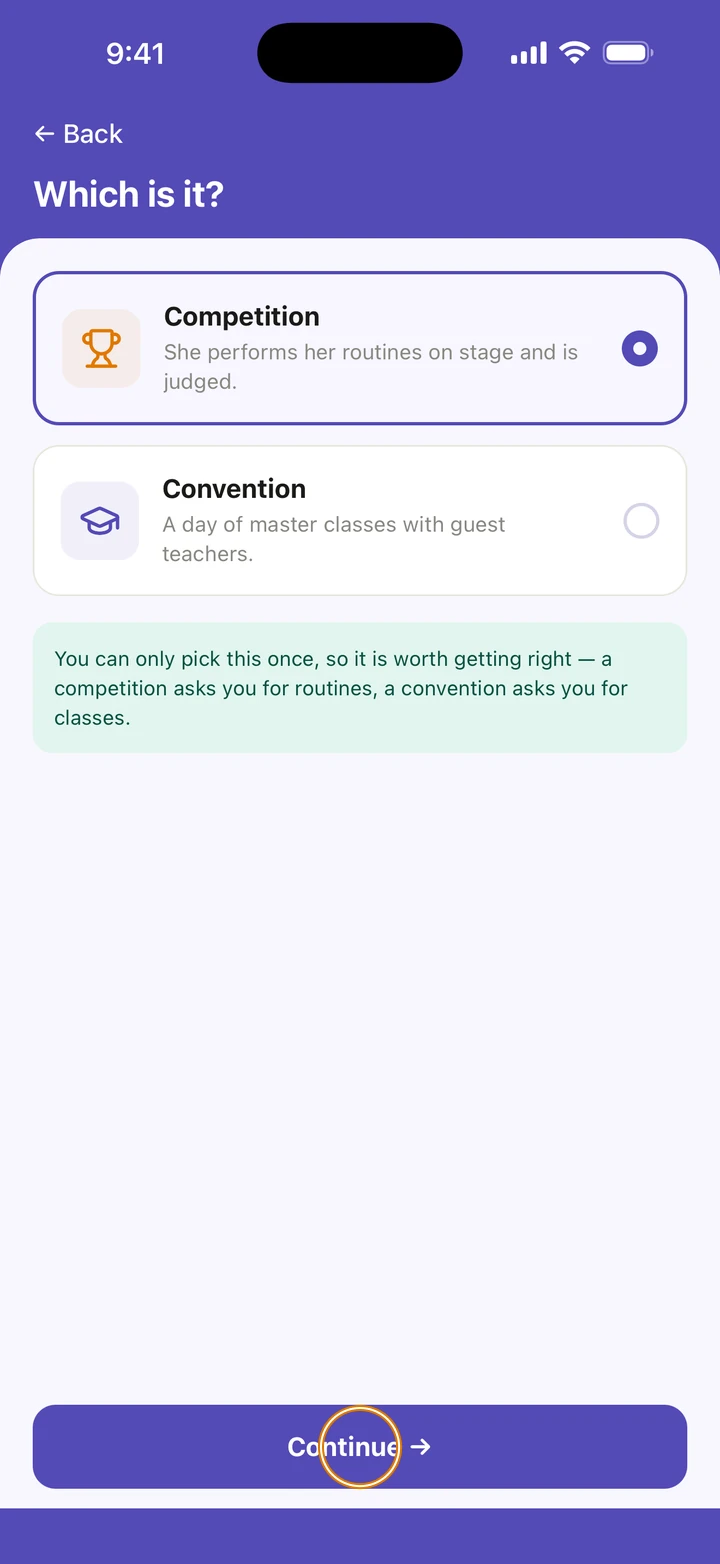
If Ovation asks Which is it?, choose Competition or Convention, then tap Continue →. You can only pick this once: a competition asks you for routines, a convention for classes.
-
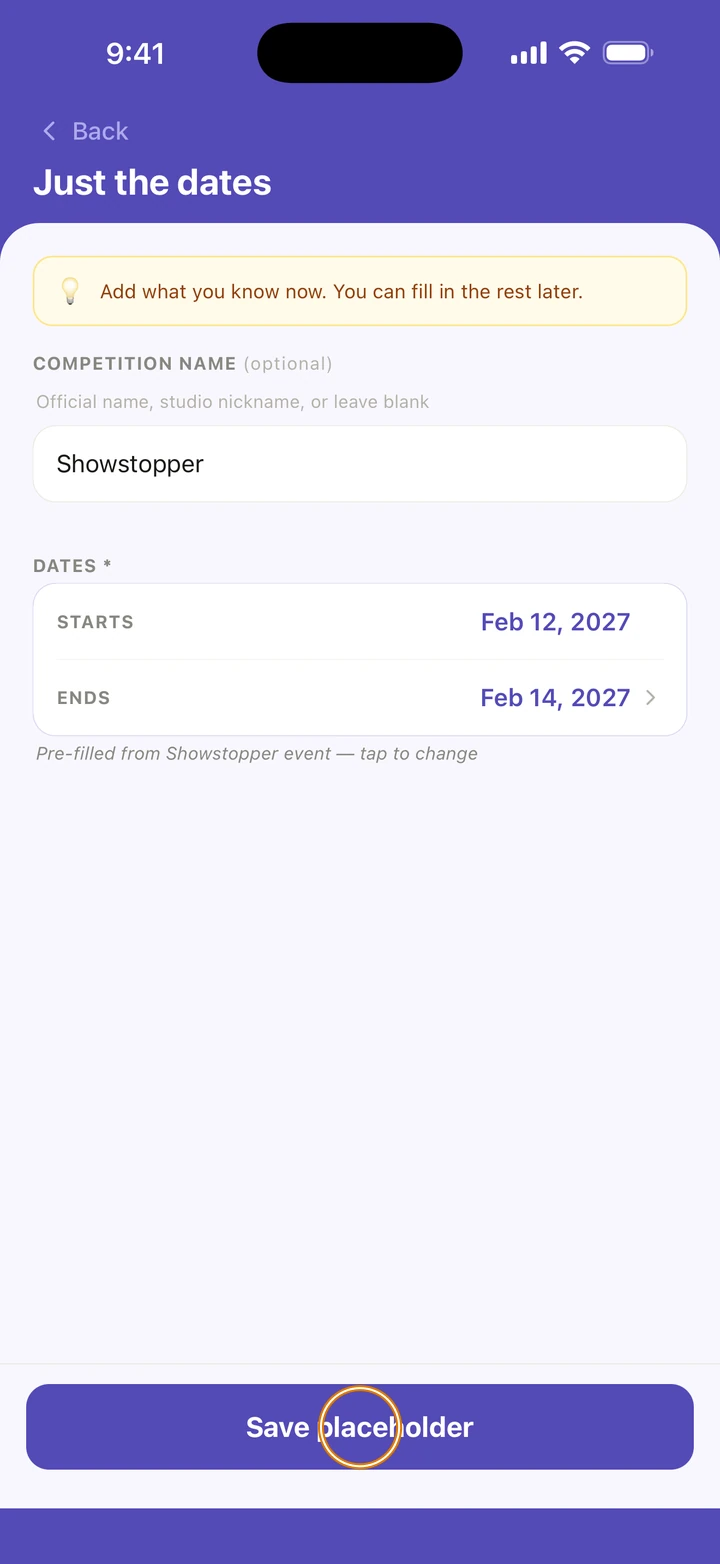
Check the dates, and the name if you like; tap either one to change it. Then tap Save placeholder.
-
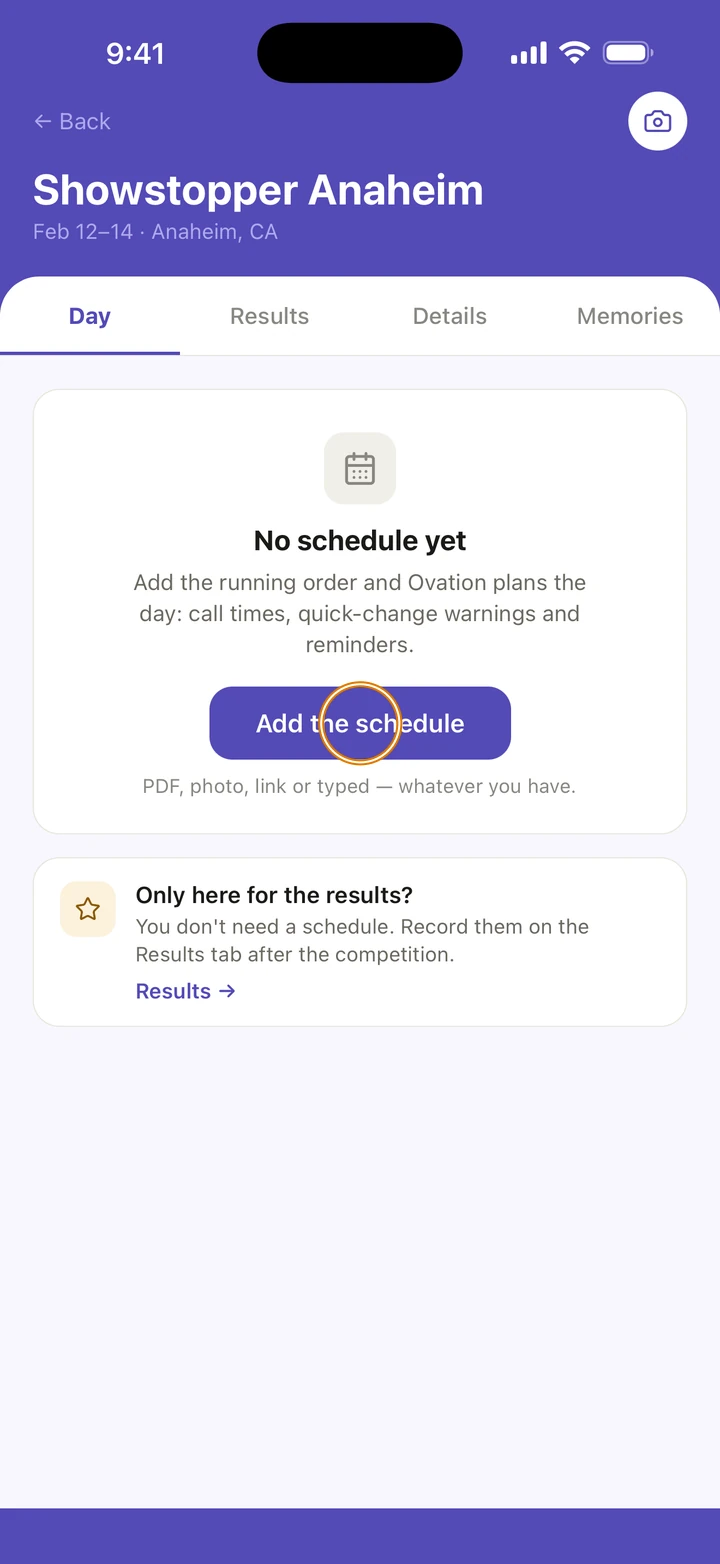
Ovation opens the event's page. When the running order arrives, tap Add the schedule on its Day tab.
Good to know
- Dates + some details adds the location and, for a competition, any routines you already know, with times left for later.
- Full schedule imports the running order from a PDF, a photo or pasted text, or lets you type it in. An import counts as one of the free plan's two AI imports; adding just the dates does not.
- A convention's schedule goes in one day at a time: the page for one day now, the next one after.
- Event dates and venues are there to help you plan and may change. Always confirm with your studio or the company.
- With reminders on, Ovation reminds you 3 days out, and the night before each day.
If something goes wrong
- Can't find the company or the event? Use Enter details manually or Skip — enter dates manually and type it in.
- Added the wrong one, or the dates changed? Go to Manage → Competitions to edit or remove it.
- For anything else, go to Manage → Get help. A real person reads every message.
Related
Checked on Ovation 1.1.5