Add the competition schedule
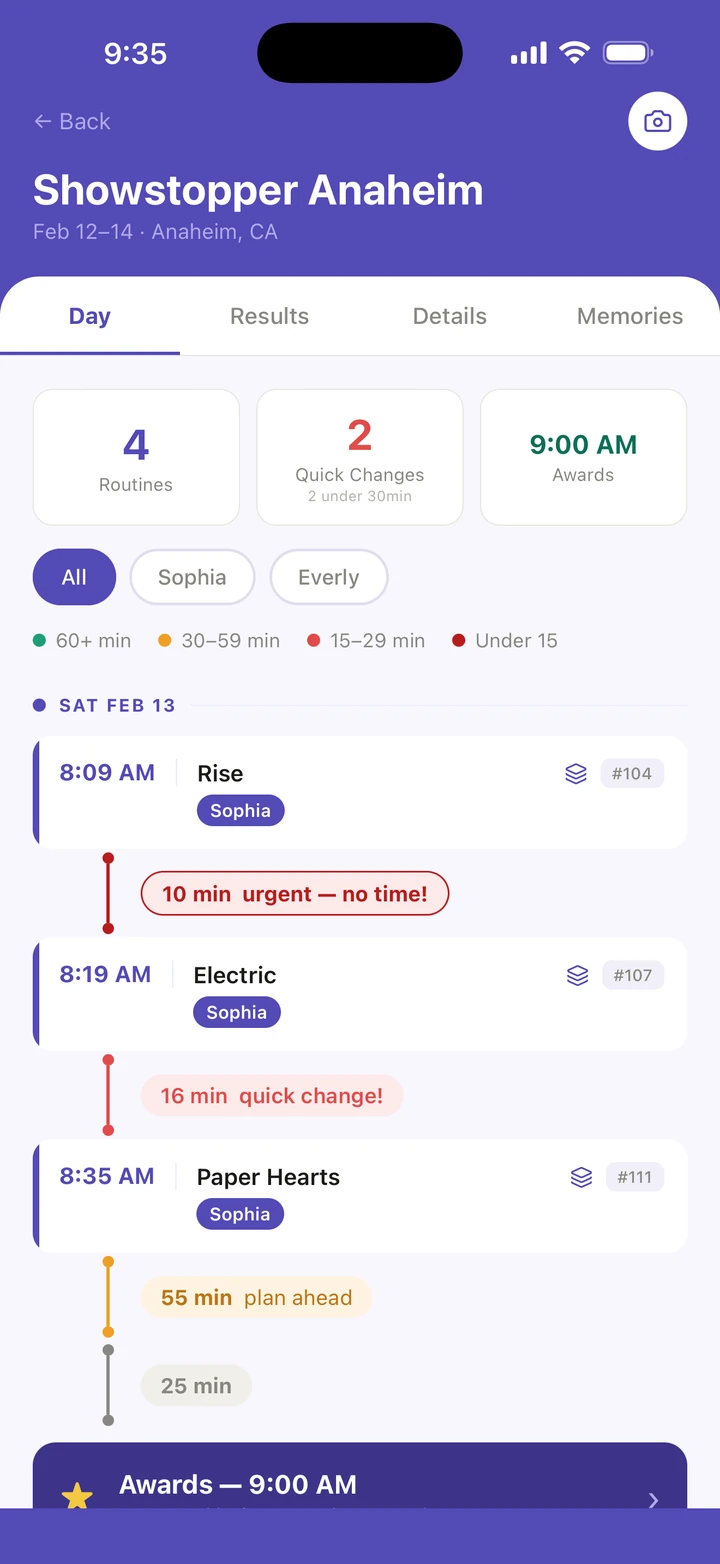
When the running order arrives, send it to Ovation and pick your dancer's entries, and their times, call times and entry numbers fill in the Day tab.
- About 3 minutes
- Photo
- Paste text
Before you start
A schedule import is one of the free plan's first two AI imports; Ovation Pro has no limit. Typing the routines in yourself is free. Pasted text can be up to 5,100 characters, so paste only the sessions with your studio's routines.
-
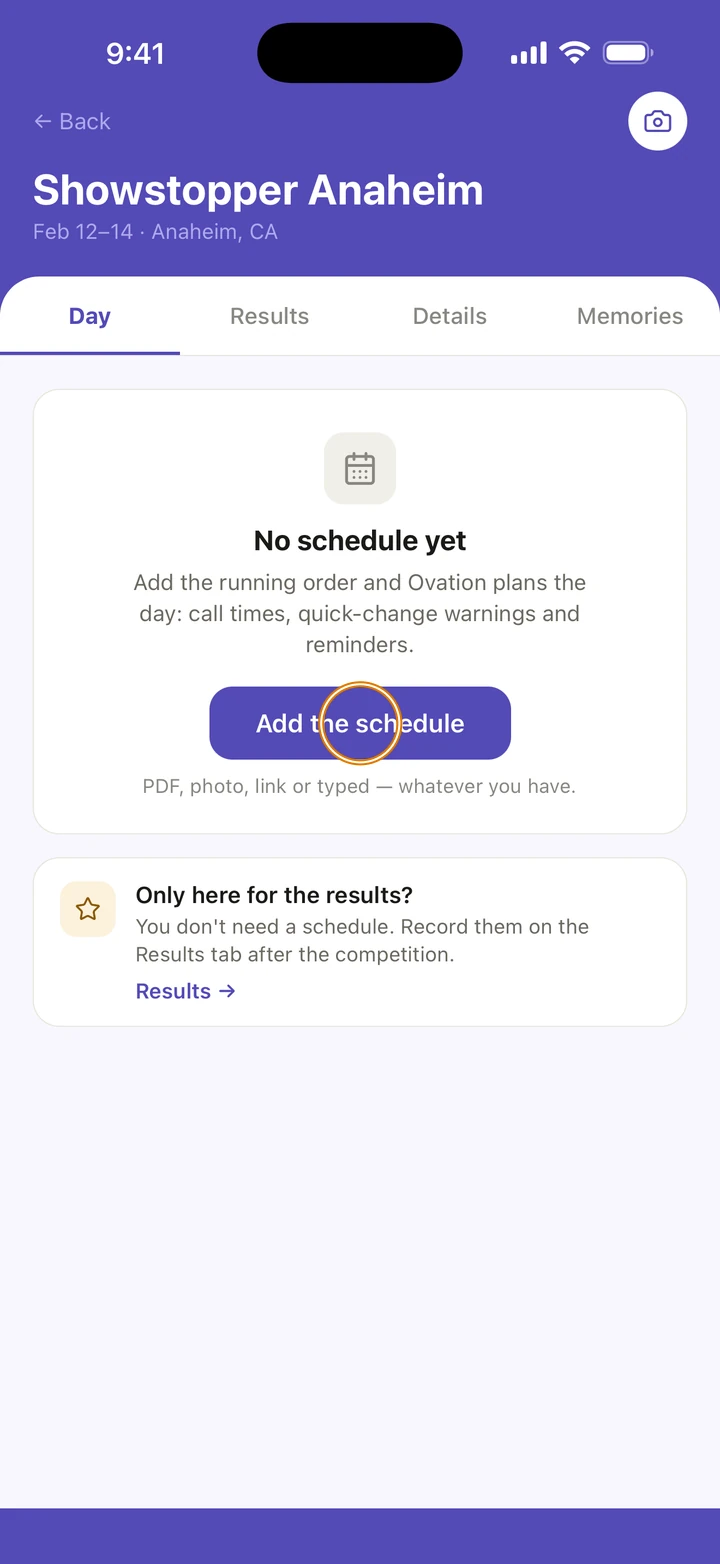
Open the competition and, on its Day tab, tap Add the schedule. Adding a new competition? Choose Full schedule, and after its dates and place you reach the same step.
-
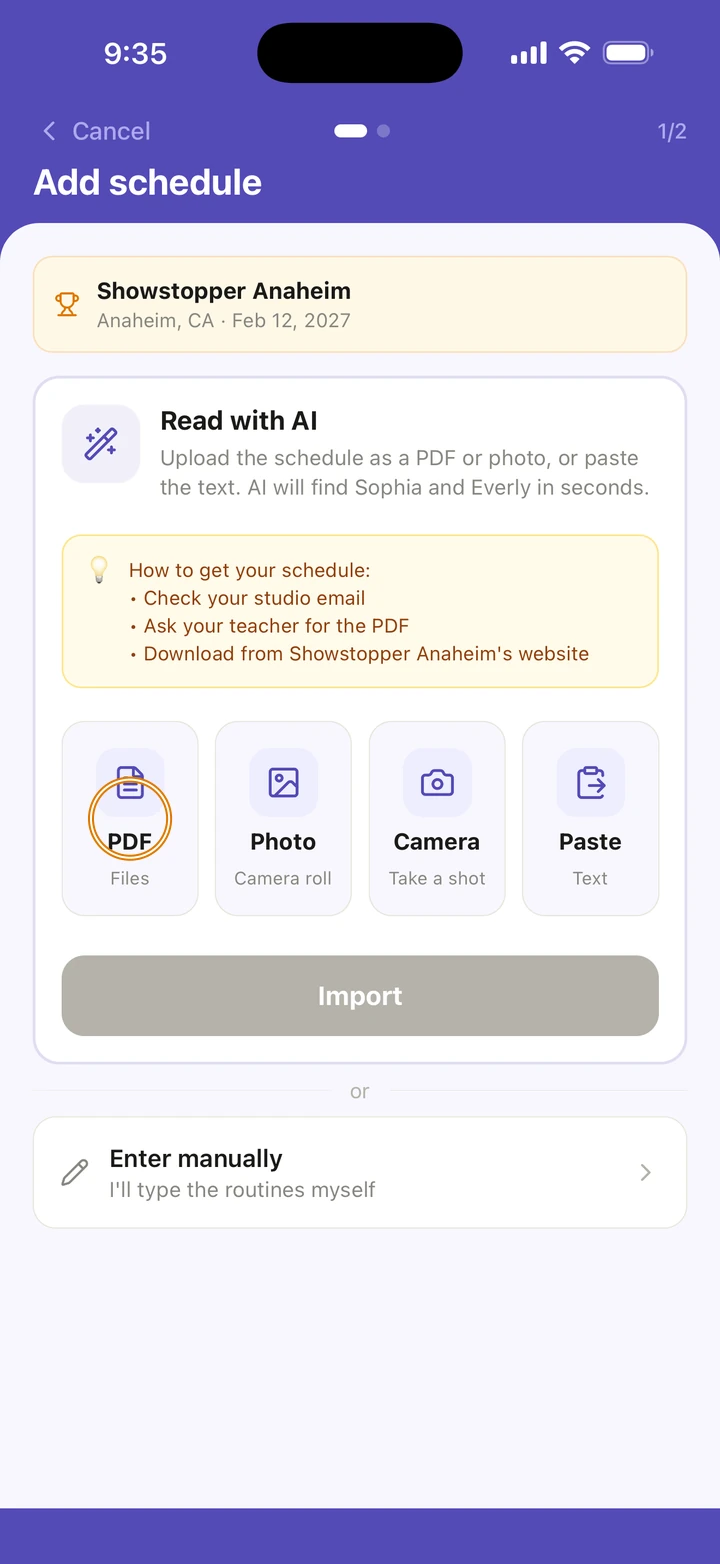
Under Read with AI, tap PDF, Photo or Camera, or tap Paste and paste the running order from the studio's email.
-
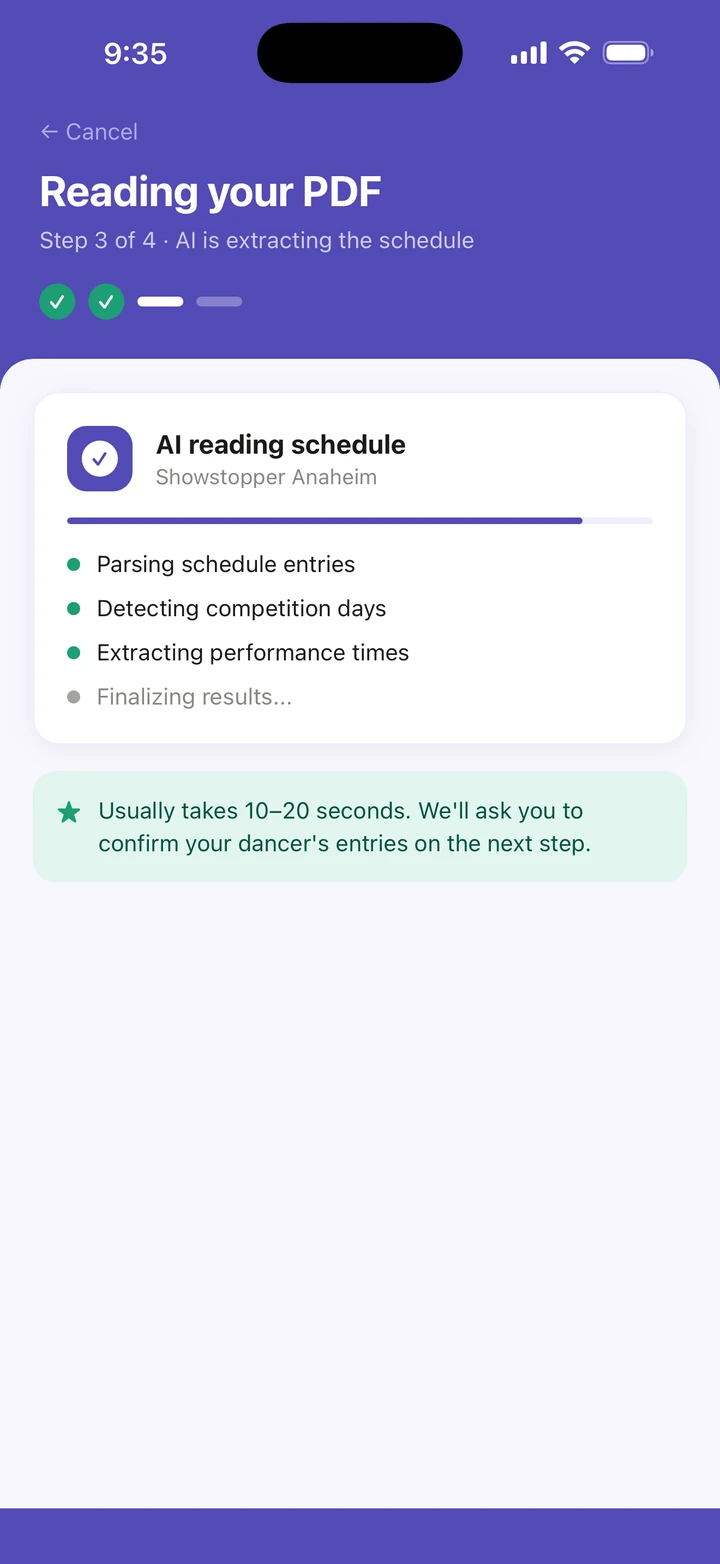
Tap Import, and wait while Ovation reads it. It usually takes 10–20 seconds.
-
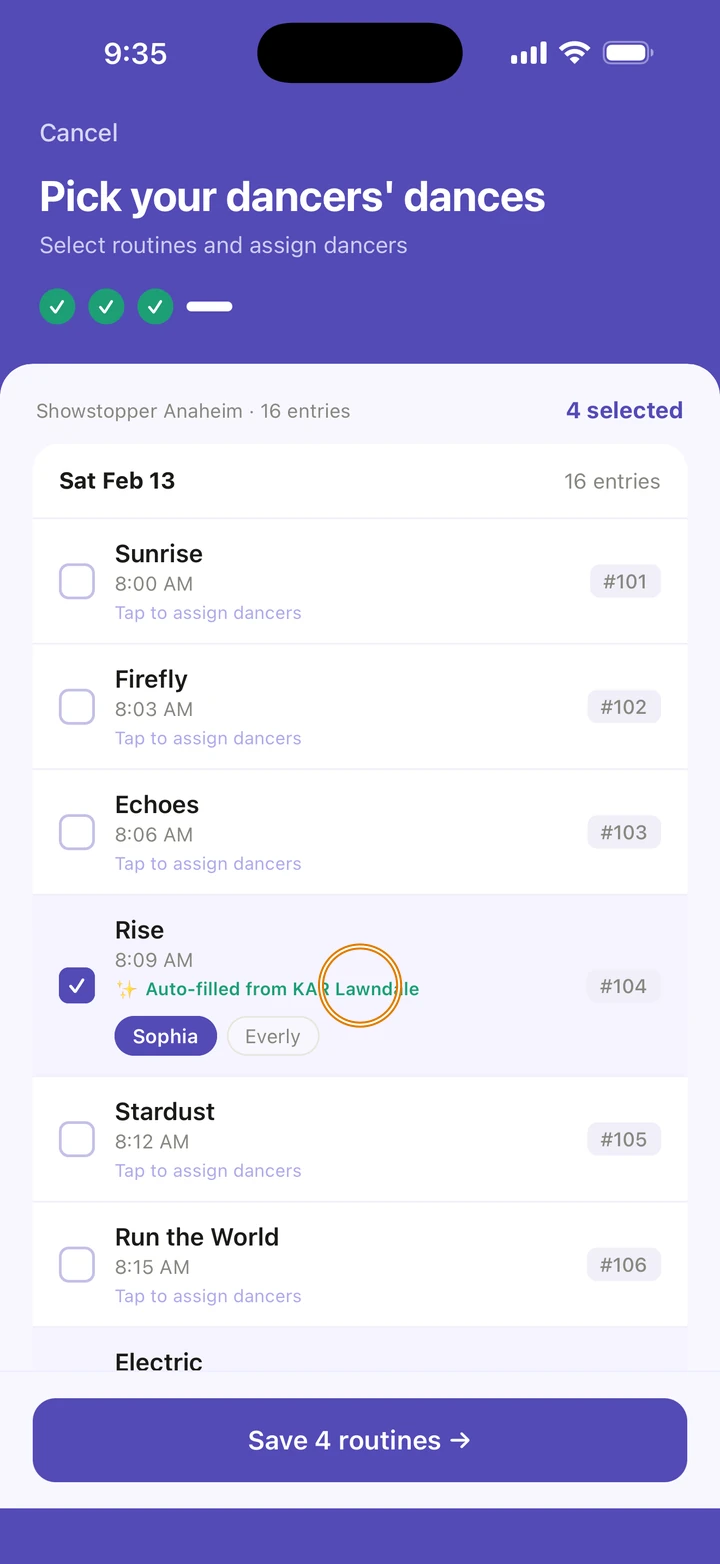
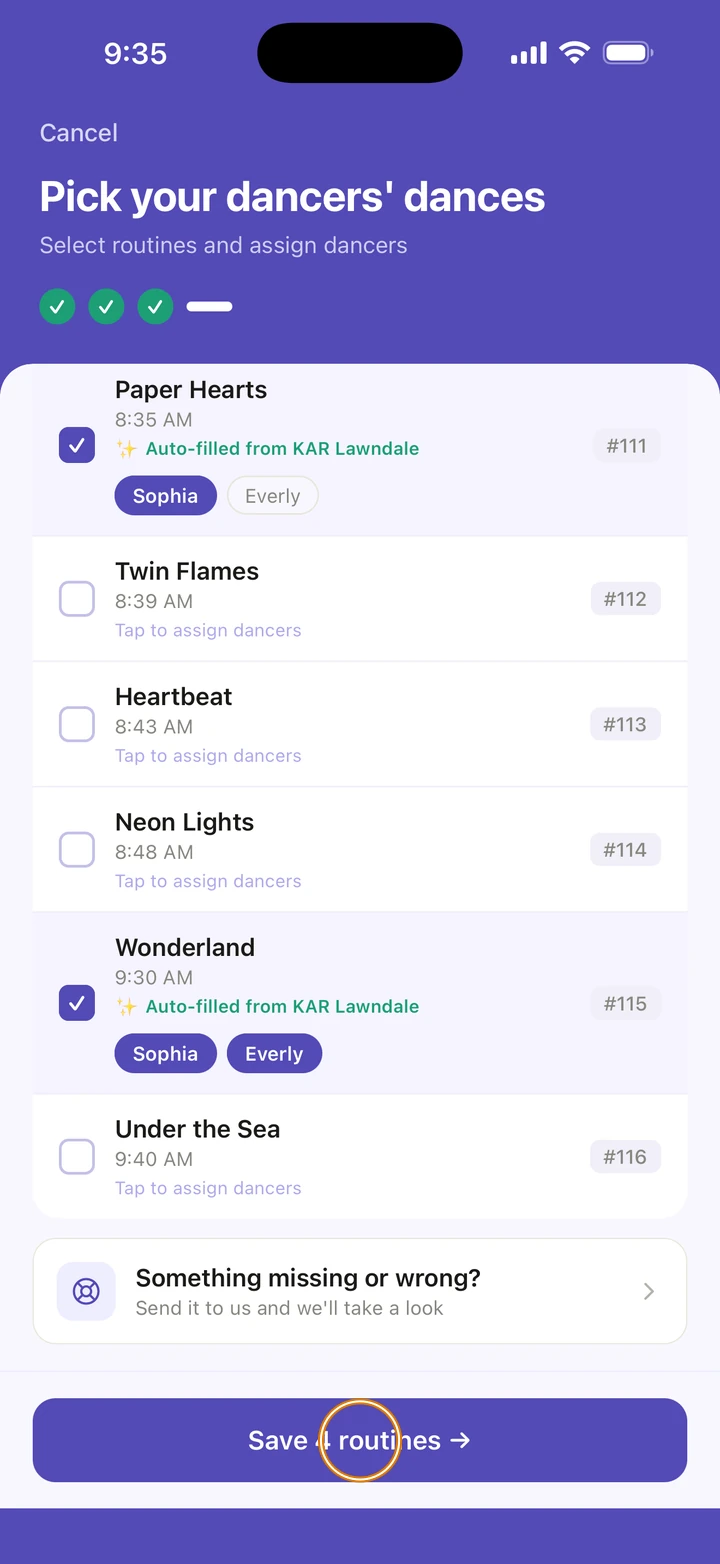
On Pick your dancer's dances, tap every entry that is your dancer's. With more than one dancer, tap each of their routines, then the dancers who perform it.
-
Tap the save button, which counts the entries, for example Save 4 dances — I'll remember these →.
-
For a new competition, Ovation shows All set!: tap the button to view the schedule. Otherwise you go straight back to the Day tab, with the times filled in.
Good to know
- Ovation remembers which entries were your dancer's. Next time, matching entries are ticked for you and marked Auto-filled.
- Adding the schedule to a competition you already have never removes anything. Its results, photos and packing list stay, and routines you don't tick keep what they had.
- Rather type it? Tap Enter manually under Read with AI, and add each routine with its entry number, performance time and call time.
- To change times or entries later, go to Manage → Competitions and tap the pencil beside the competition.
- A convention's schedule goes in one day at a time, and works differently.
If something goes wrong
- If an entry is missing or wrong, tap Something missing or wrong? at the end of the list. It opens a message to us with your schedule attached.
- If Ovation finds no routines or the import stops, tap Send this to us on that screen, or Add routines manually.
- If the pasted schedule is too long, paste only the sessions with your studio's routines. Please don't import it in parts: each part would become a separate competition.
- For anything else, go to Manage → Get help. A real person reads every message.
Related
Checked on Ovation 1.1.5