Import your studio's season calendar
Send Ovation your studio's season calendar, and its closures, events and competition dates are on your schedule once you have checked them.
- About 3 minutes
- Photo
- Paste text
- Link
Before you start
This is for the studio's season calendar, not your weekly classes. A calendar import is one of the free plan's first two AI imports; Ovation Pro has no limit.
-
On the Schedule tab, tap +, then Studio calendar.
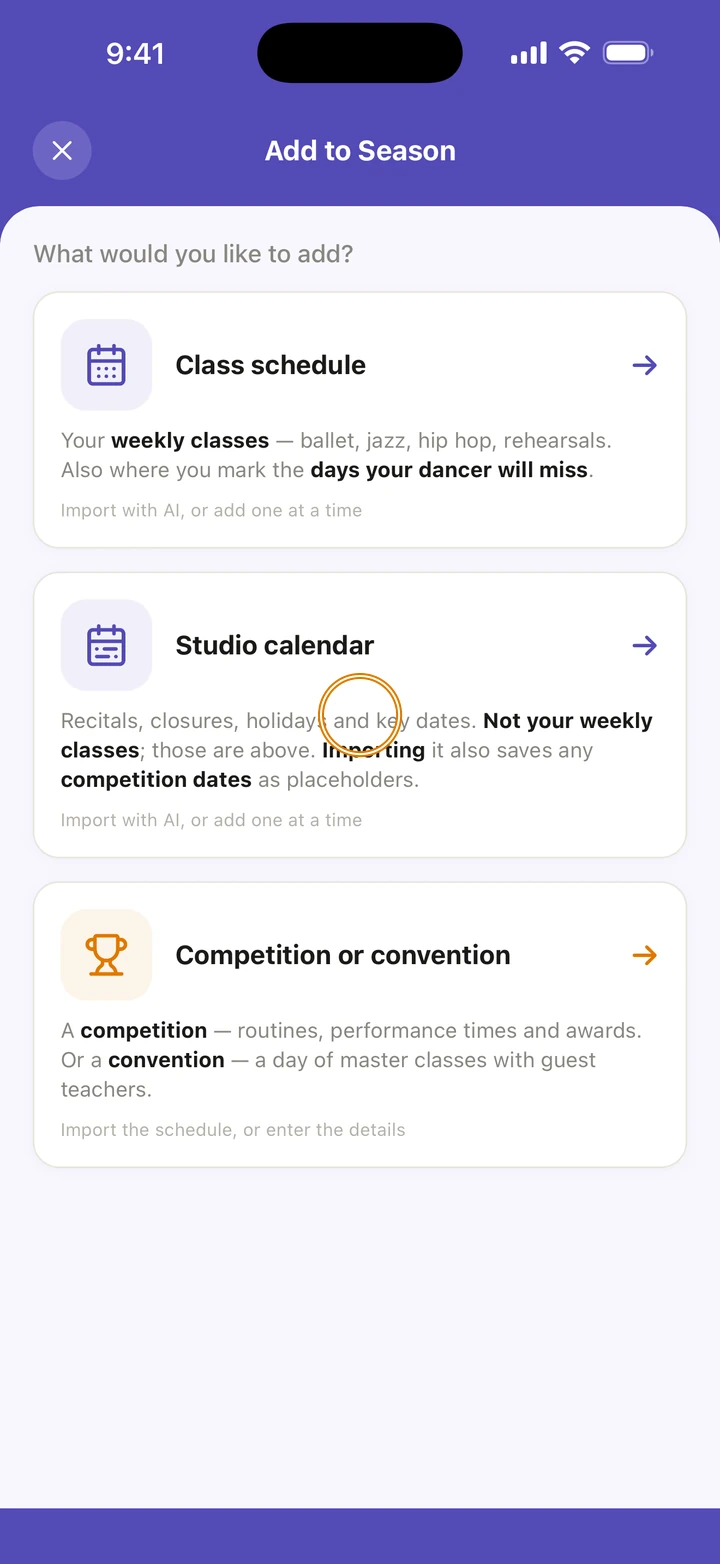
-
Tap Import the calendar.
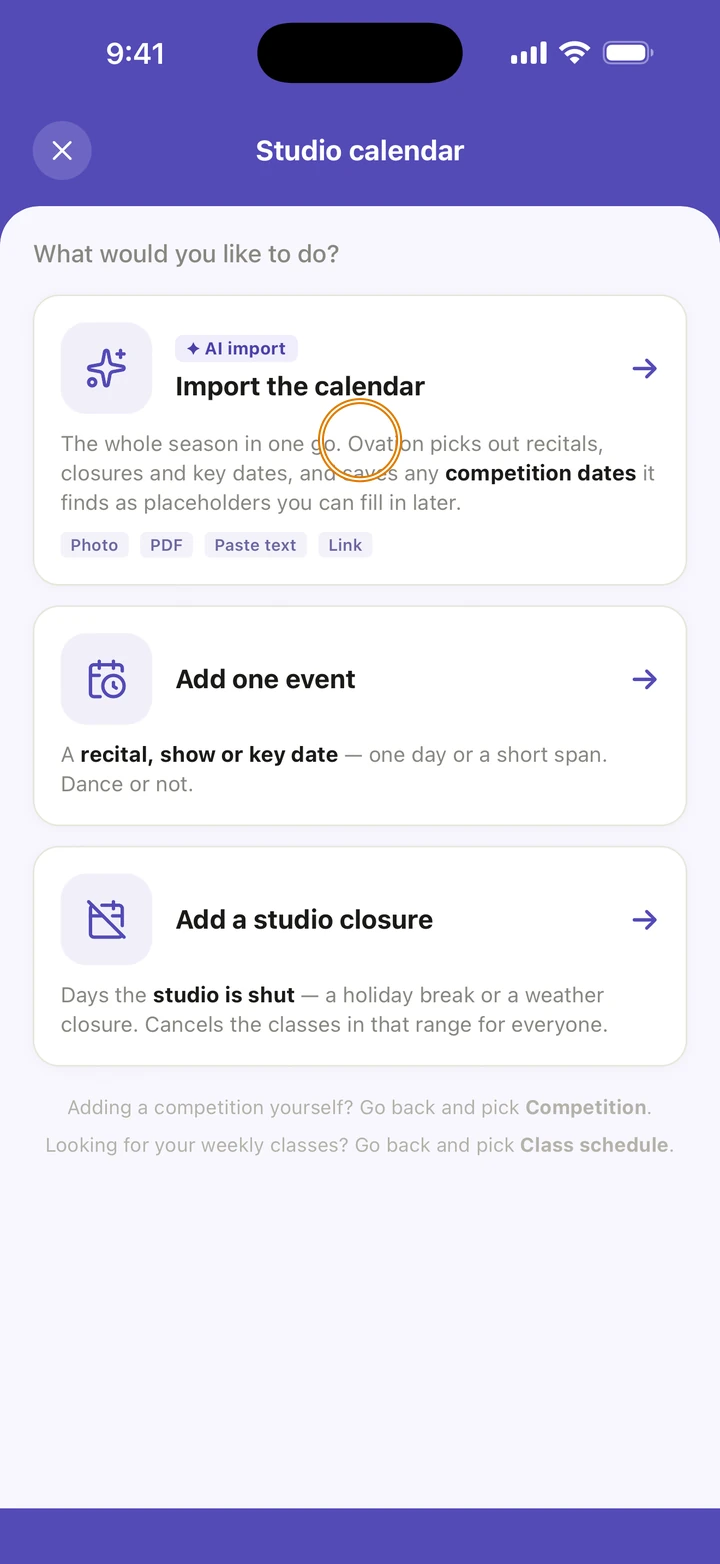
-
Under SELECT FILE, tap PDF, Photo or Camera. Or tap Paste the text and paste it from the studio's email, or Use a link for the page on the studio's website.
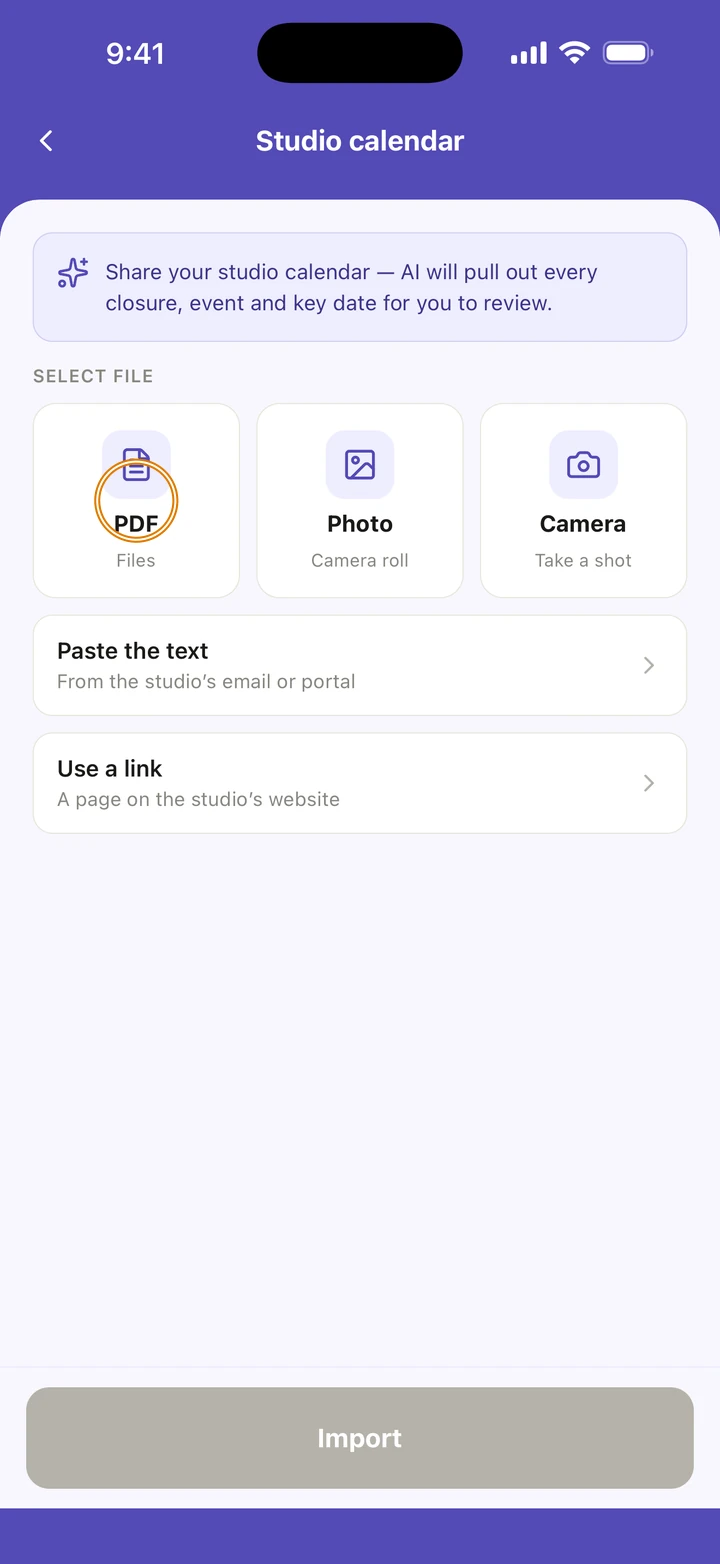
-
Tap Import. Choosing a file only selects it; nothing is read until you tap Import.
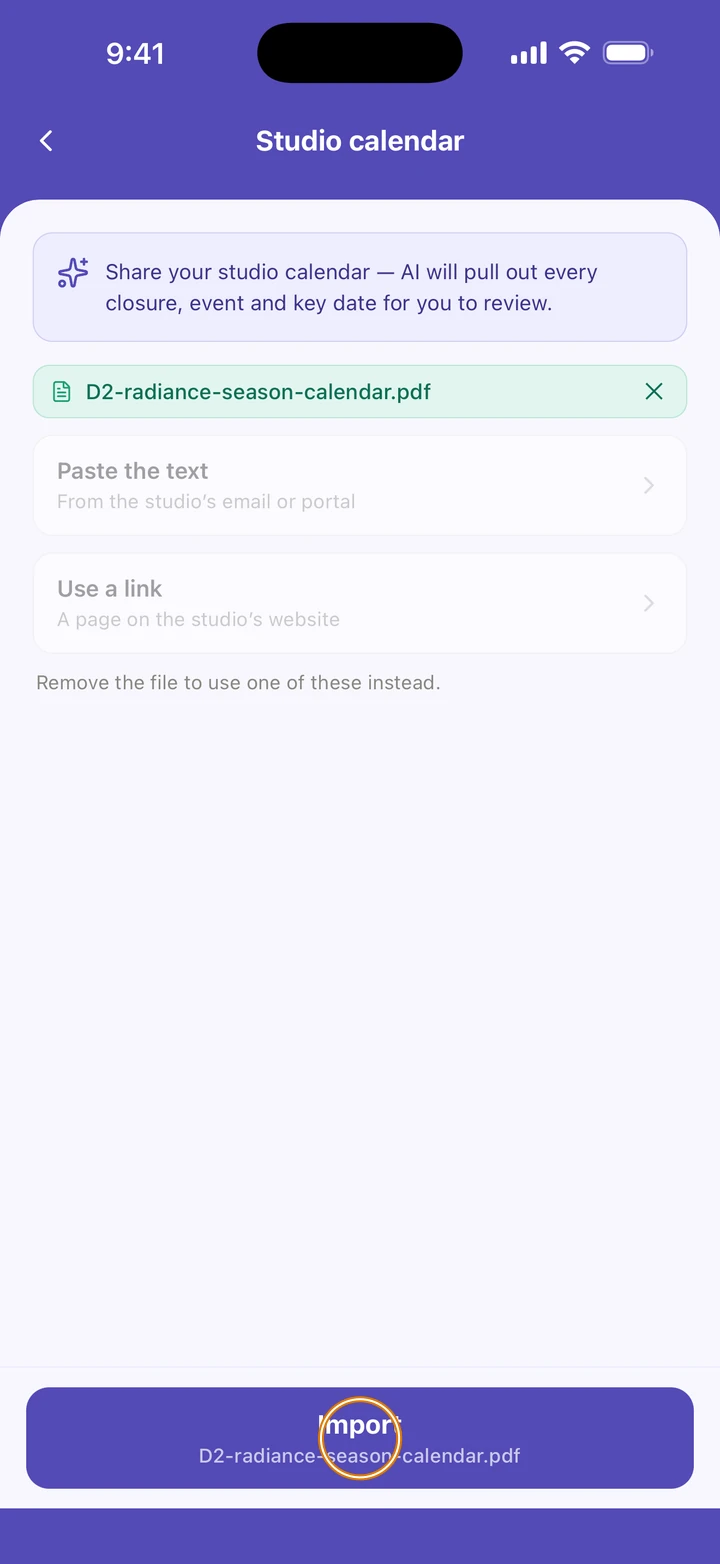
-
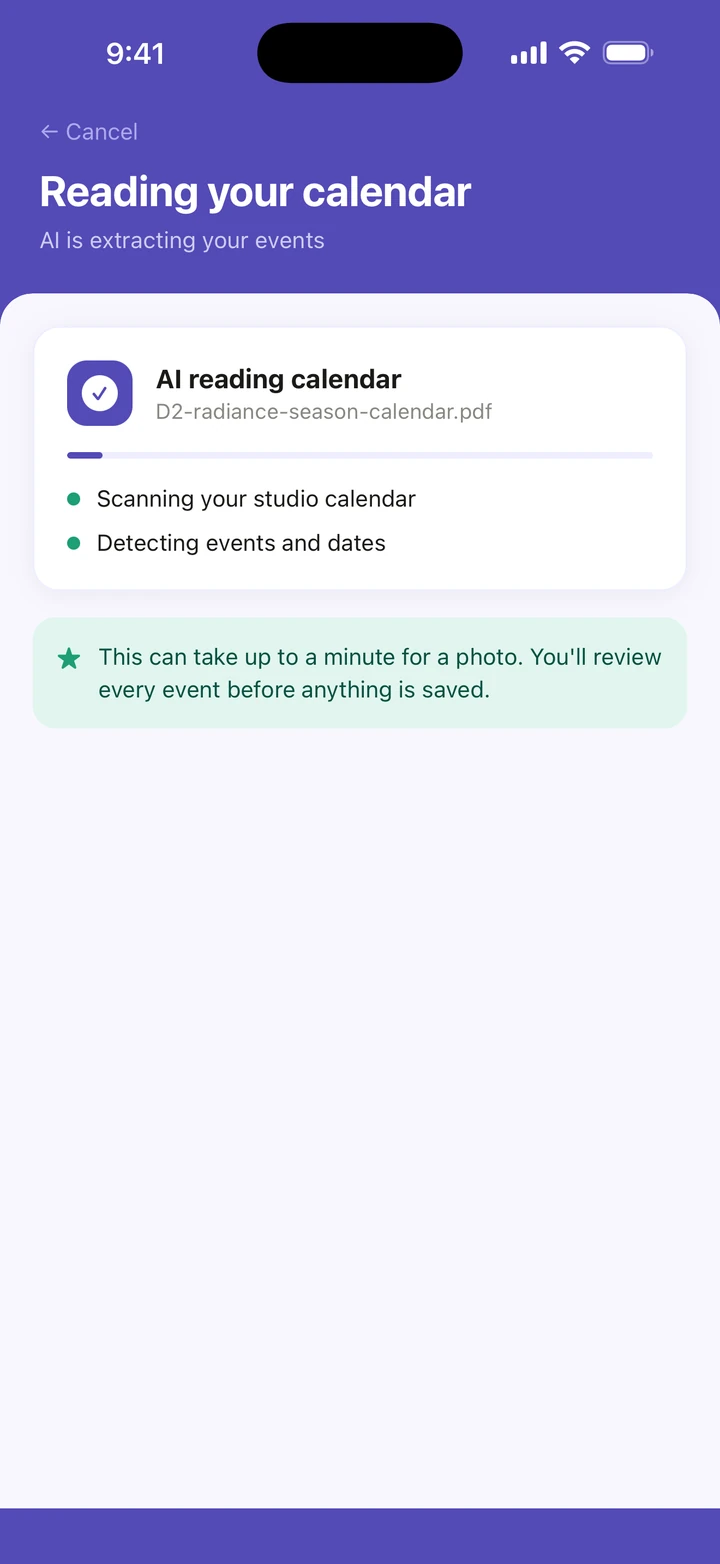
Wait while Ovation reads it. A photo can take up to a minute.
-
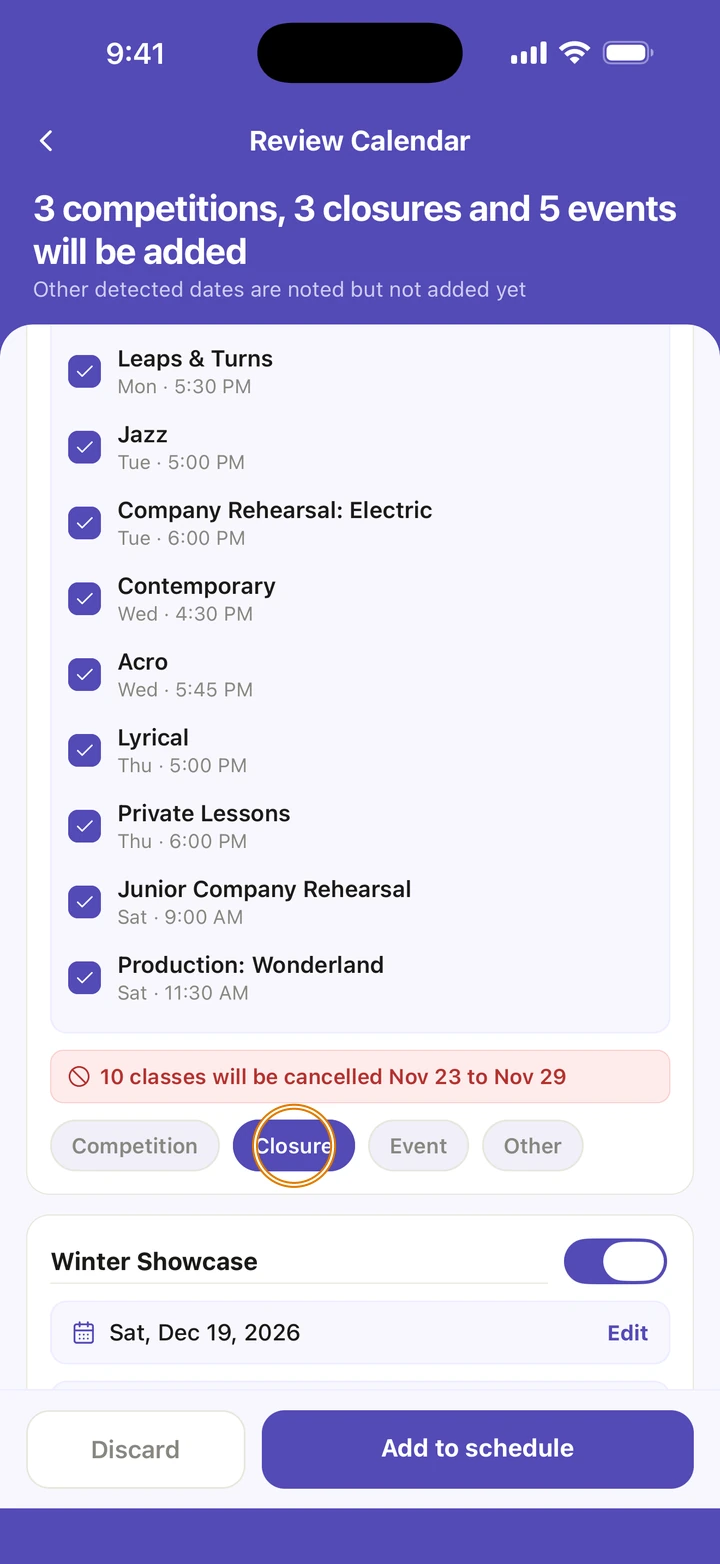
On Review Calendar, check each date. Each one is marked Competition, Closure, Event or Other; tap another to change it, and switch off anything you don't want.
-
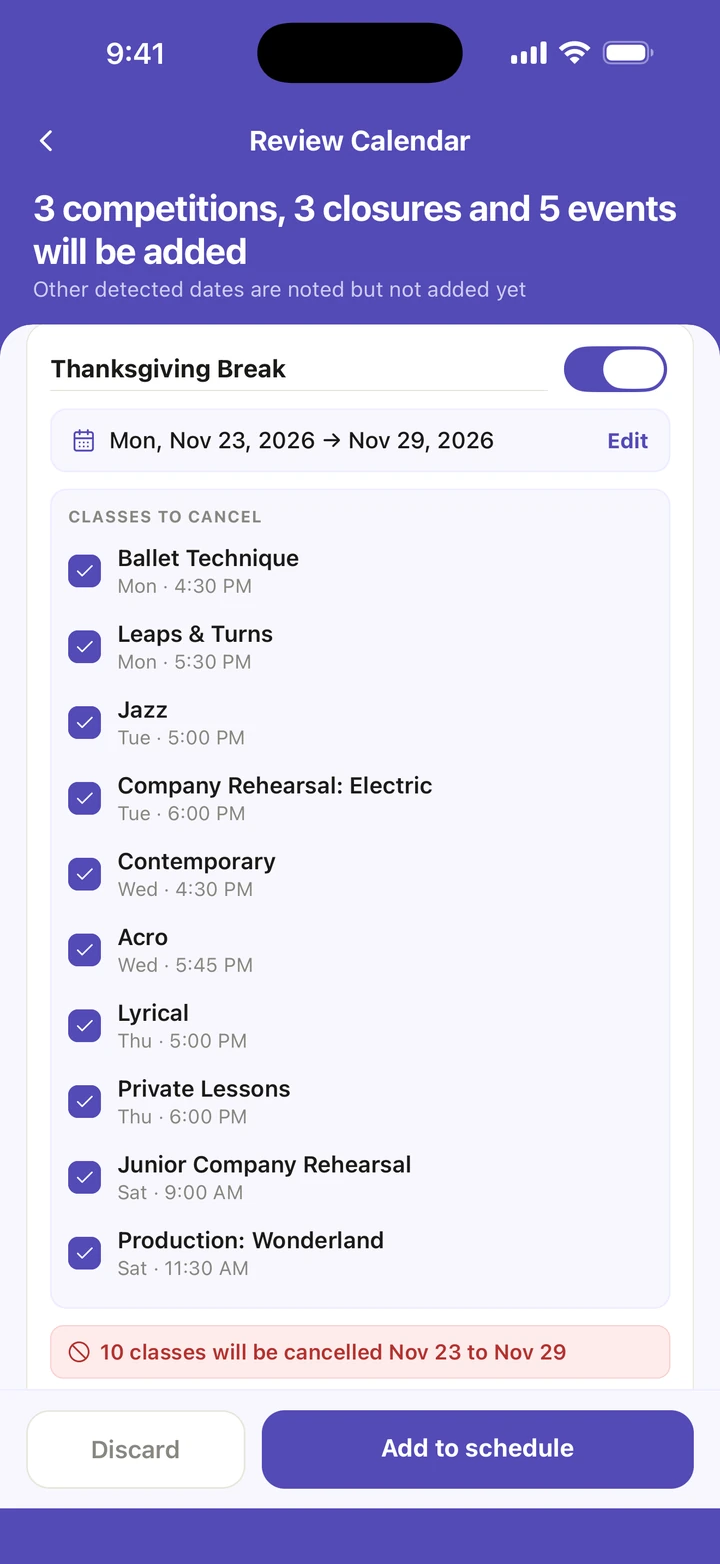
For each closure, check the classes under CLASSES TO CANCEL. They are all ticked to start with; untick any that still meet.
-
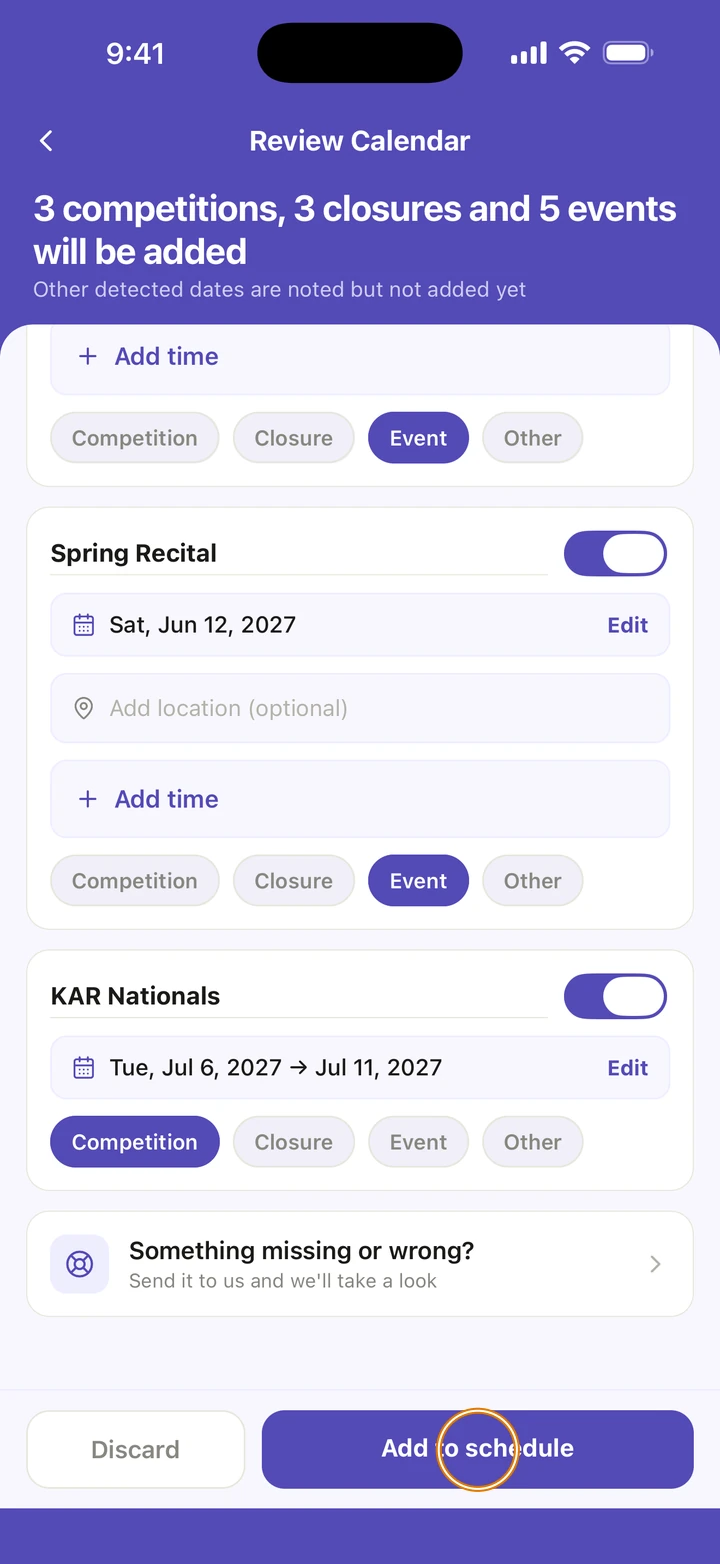
Tap Add to schedule. Ovation takes you to your schedule.
Good to know
- A PDF works best. For a photo, use good lighting and lay it flat.
- Competitions become placeholders with their dates, ready for the schedule when it arrives. Closures cancel the classes you ticked. Events are added for the whole family.
- Dates marked Other, such as the first day of classes, are noted but not added.
- A date marked Add a date needs one before it can be added. Tap it to choose the dates.
- A closure from the studio calendar also applies to classes you add later on those dates.
- Imported events are in Manage → Events, and closures in Manage → Unavailable dates.
- A long pasted calendar is imported in parts. Up to five parts, imported within an hour, count as one import.
If something goes wrong
- If a date is missing or wrong, tap Something missing or wrong? at the end of the review list. It opens a message to us with your calendar attached.
- If the import stops or finds nothing, tap Send this to us on that screen.
- If Ovation says This looks like a class schedule, tap its button to start again with Class schedule; weekly classes import better there.
- For anything else, go to Manage → Get help. A real person reads every message.
Related
Checked on Ovation 1.1.5