Recitals, picture day and other events
Add the dates that are not classes, such as a recital, a showcase or picture day, for one dancer or the whole family.
- About 2 minutes
-
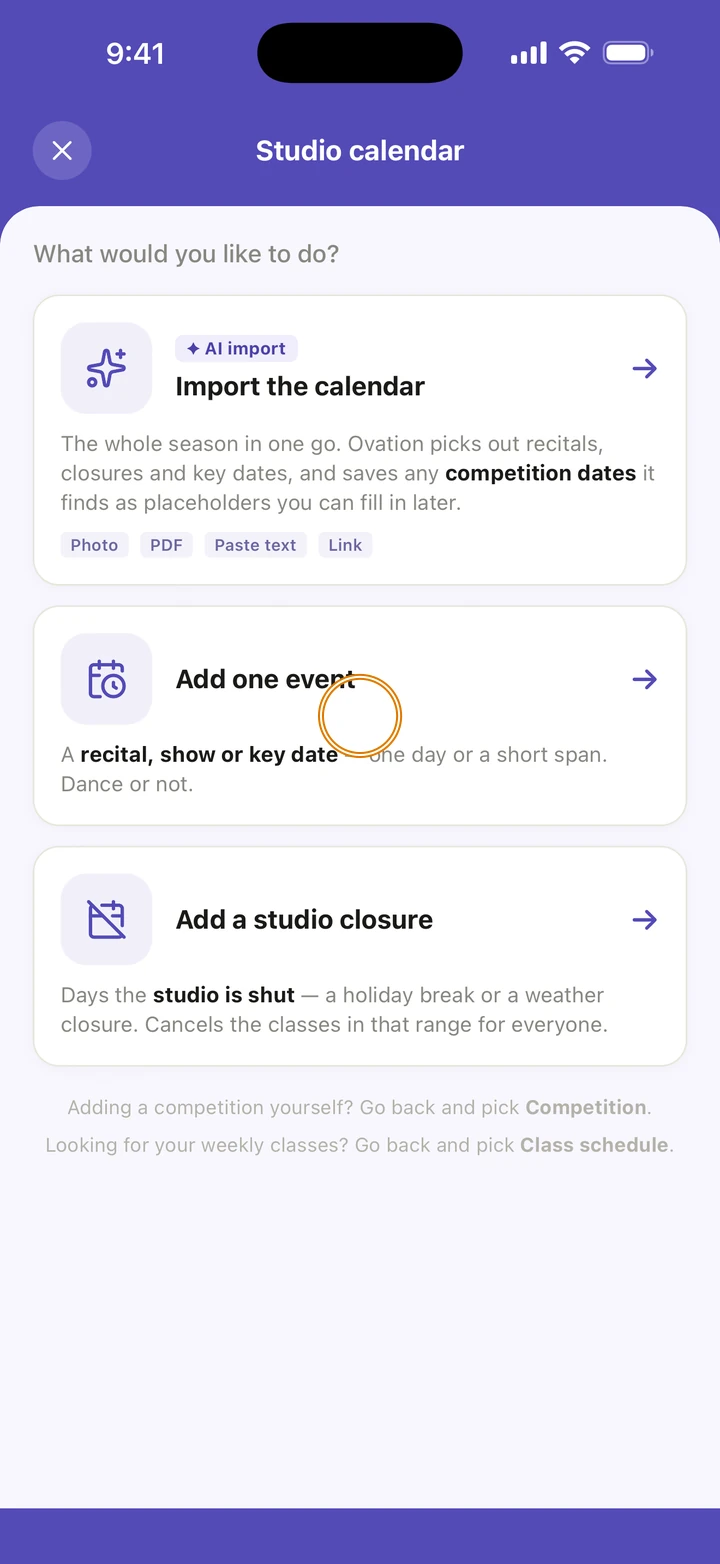
On the Schedule tab, tap +, then Studio calendar, then Add one event. Or go to Manage → Events and tap +.
-
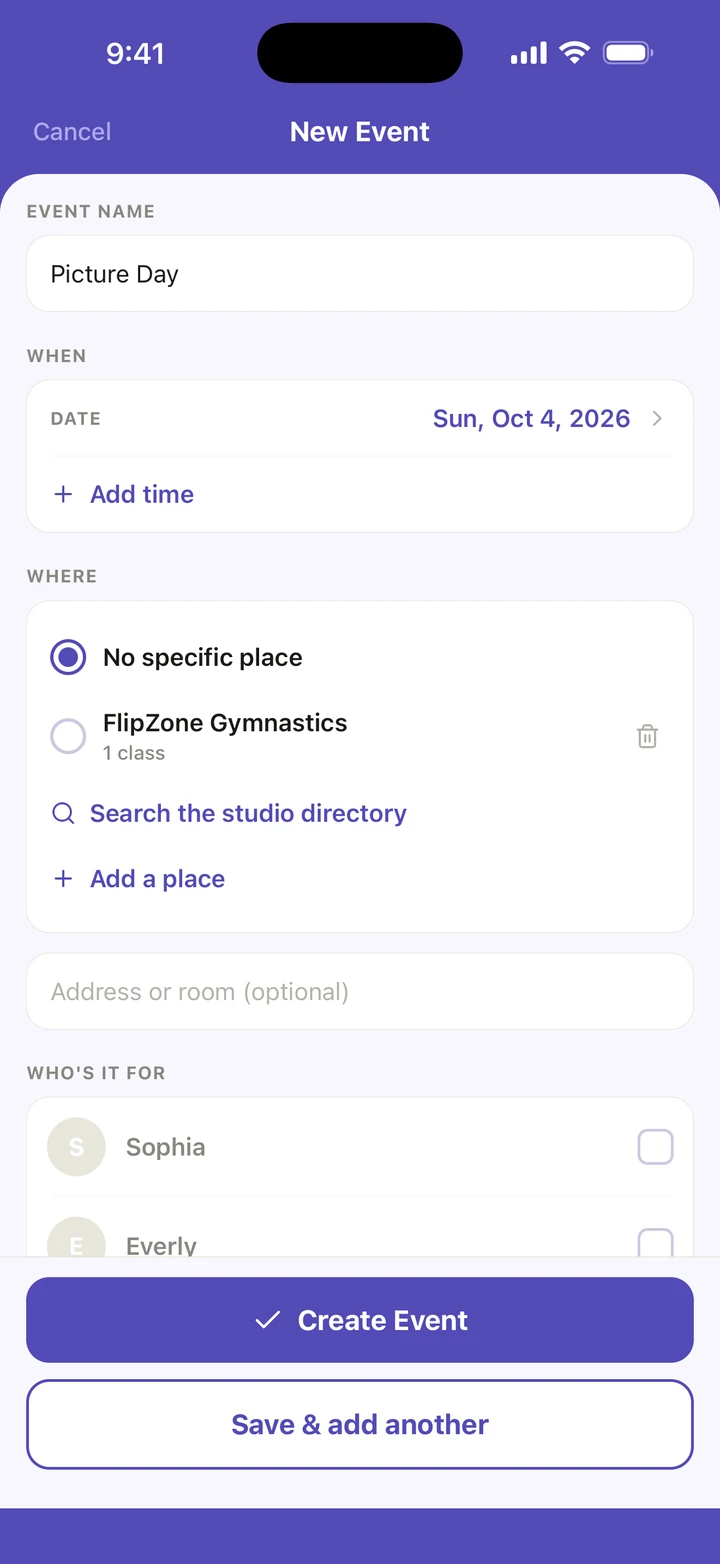
Under EVENT NAME, type what it is, for example Picture Day.
-
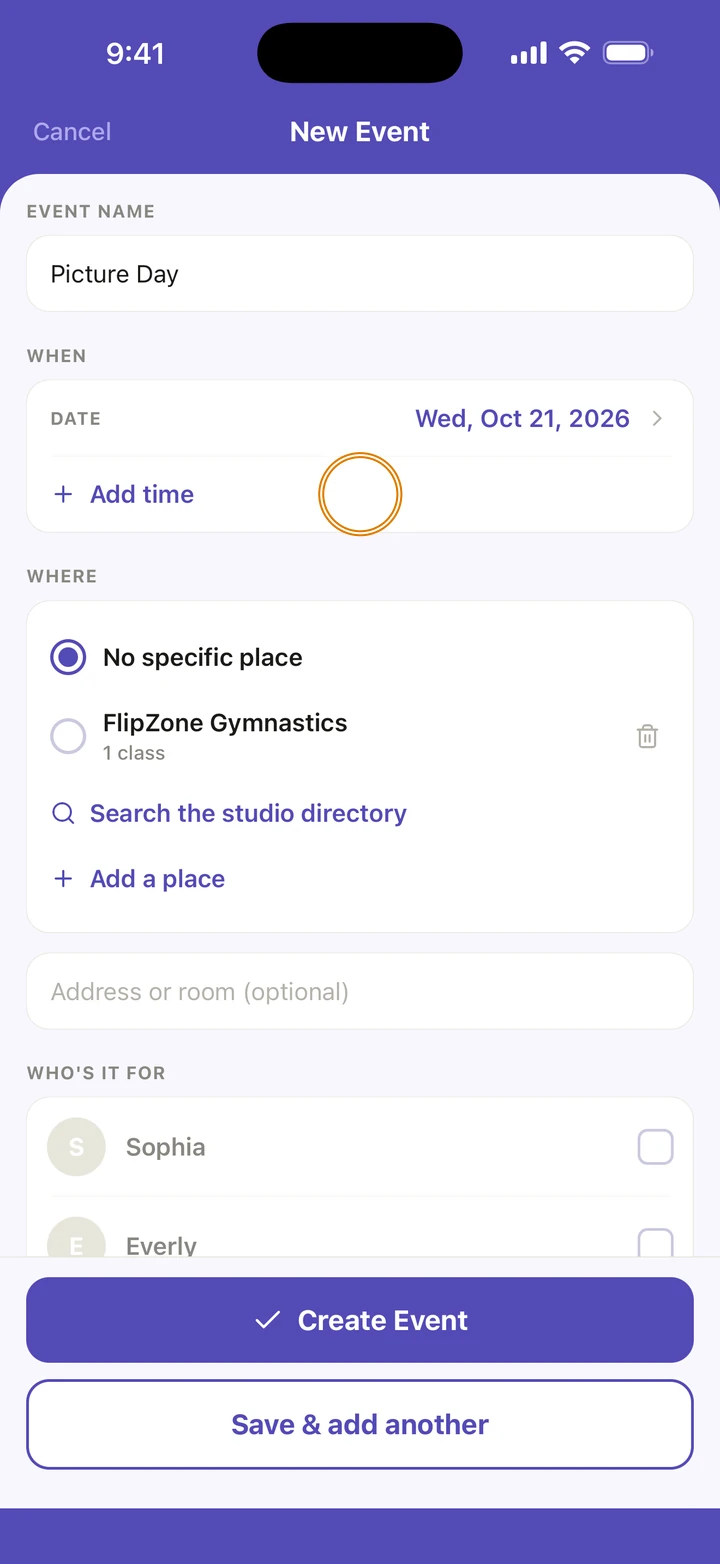
Under WHEN, choose the date, or the first and last day of a few days in a row. It is all day unless you tap Add time and set the start time.
-
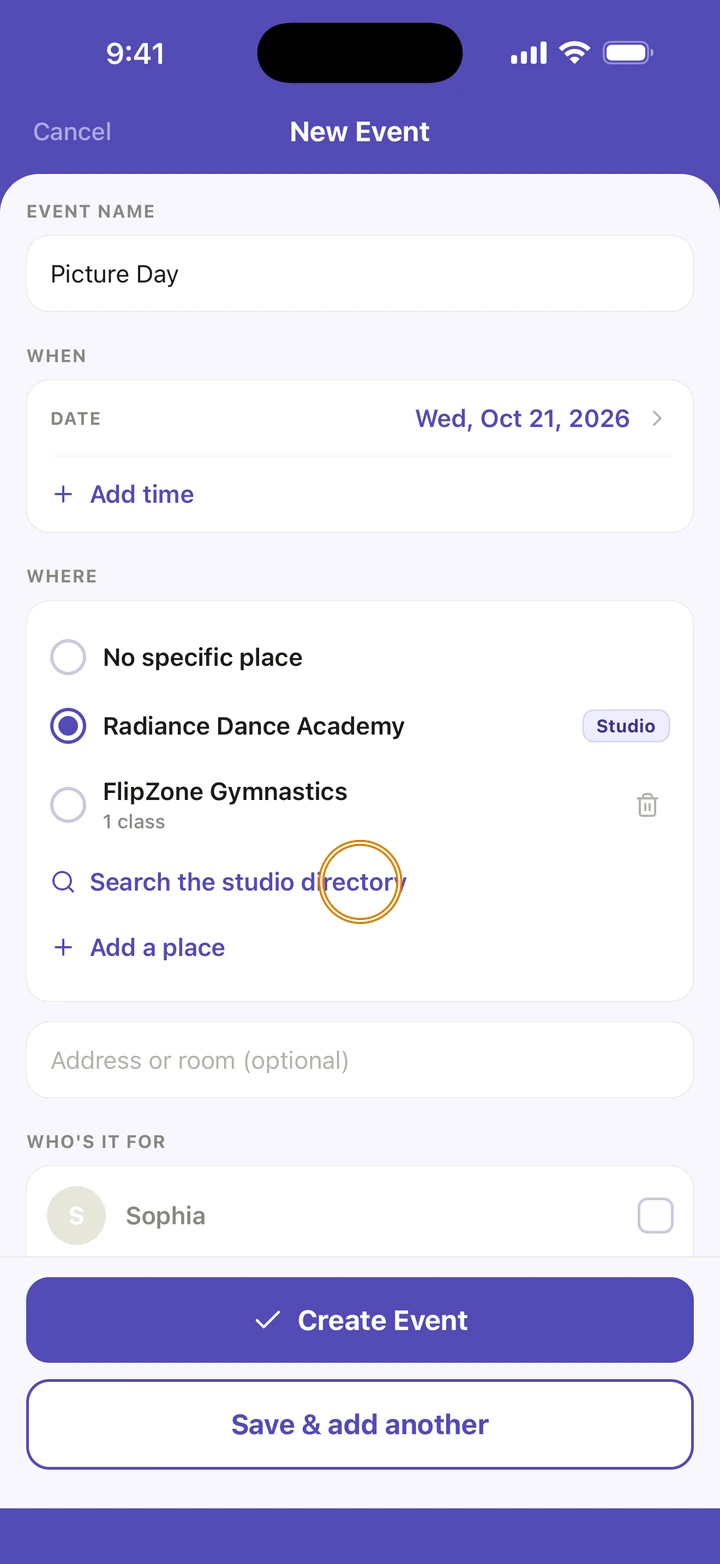
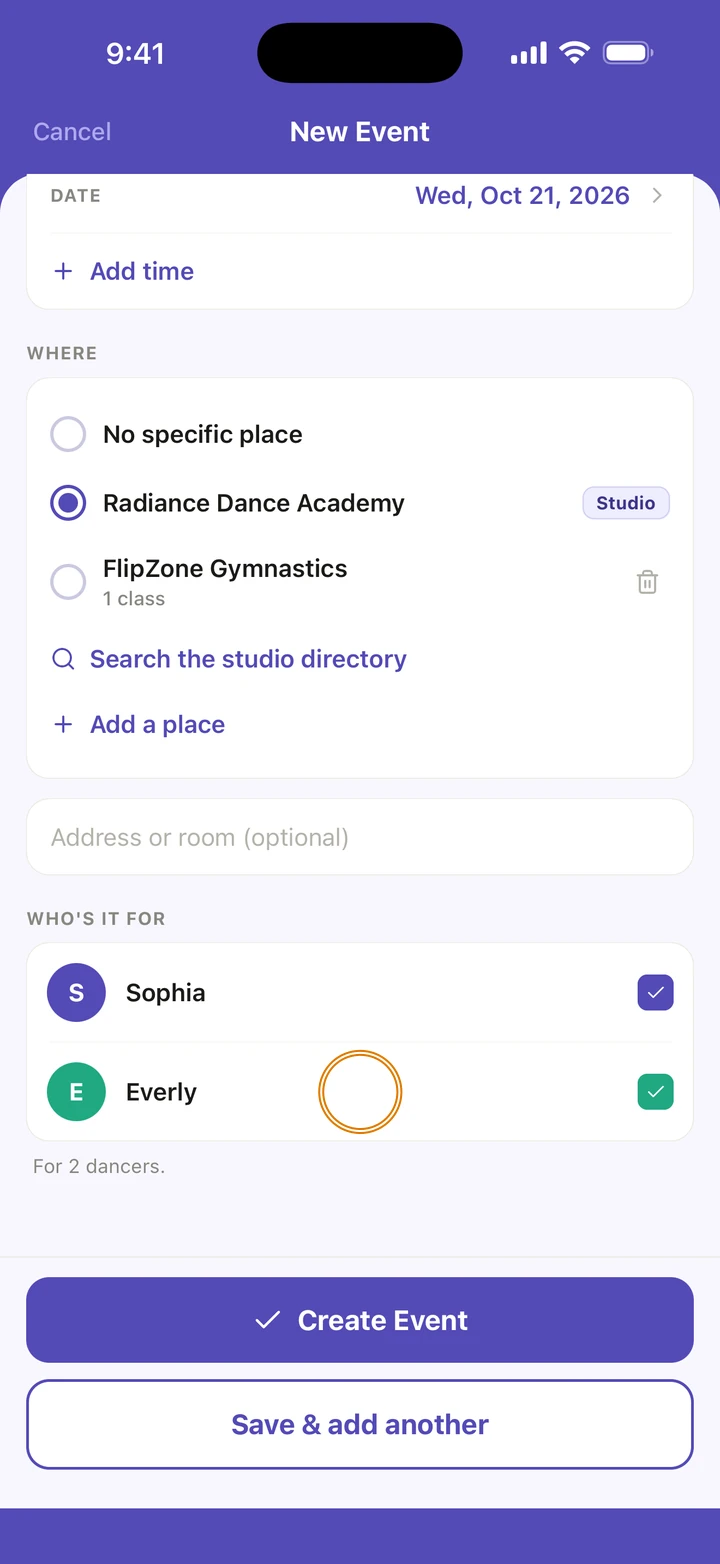
Under WHERE, choose No specific place, Search the studio directory or Add a place. You can add an address or a room too.
-
Under WHO'S IT FOR, tick the dancers it is for. Leave them all unticked if it is for the whole family.
-
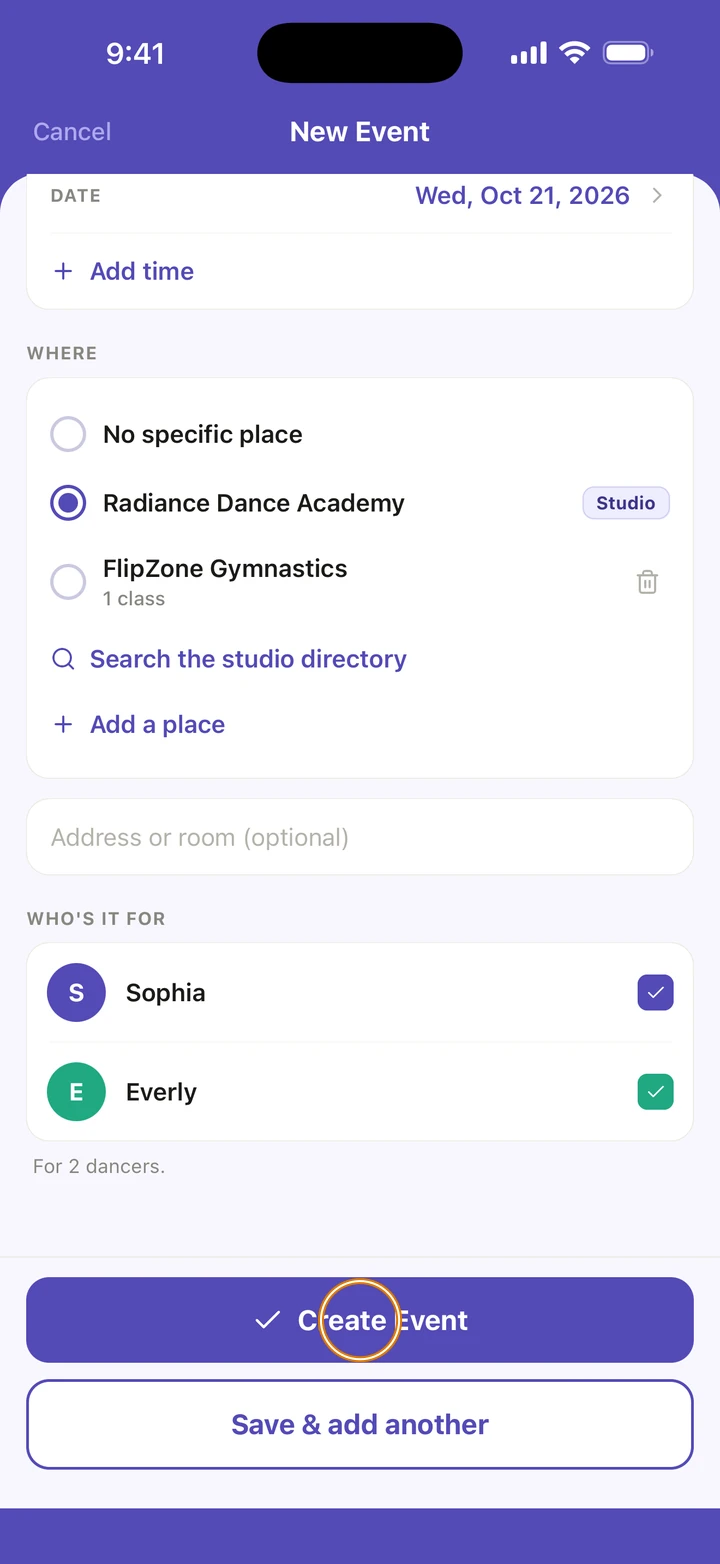
Tap Create Event. To add another straight away, tap Save & add another.
Good to know
- Events show on the Schedule tab on their date, marked EVENT.
- Events from an imported studio calendar are here too, marked From your studio's calendar. They are for the whole family, and you can change them like any other.
- To change or delete an event, tap it on the Schedule tab, then Edit this event → or Delete event. Manage → Events lists them all in date order.
If something goes wrong
- Can't find an event? Look in Manage → Events, which lists every one.
- For anything else, go to Manage → Get help. A real person reads every message.
Related
Checked on Ovation 1.1.5