Today, Week and Month
See today's classes on Home, and the whole week or month on the Schedule tab, for one dancer or everyone.
- About 2 minutes
-
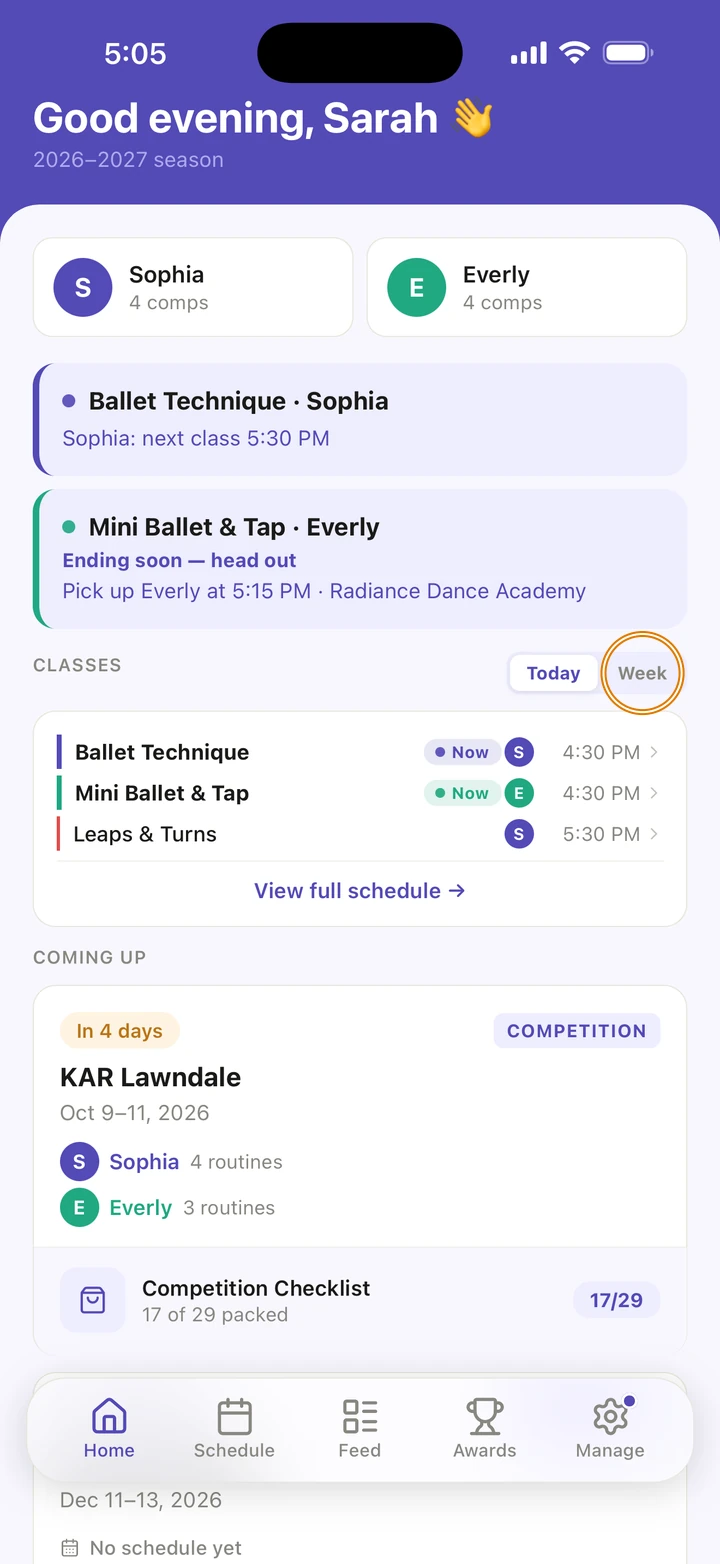
On Home, under CLASSES, tap Today for today's classes or Week for the rest of this week. Tap View full schedule → to open the Schedule tab.
-
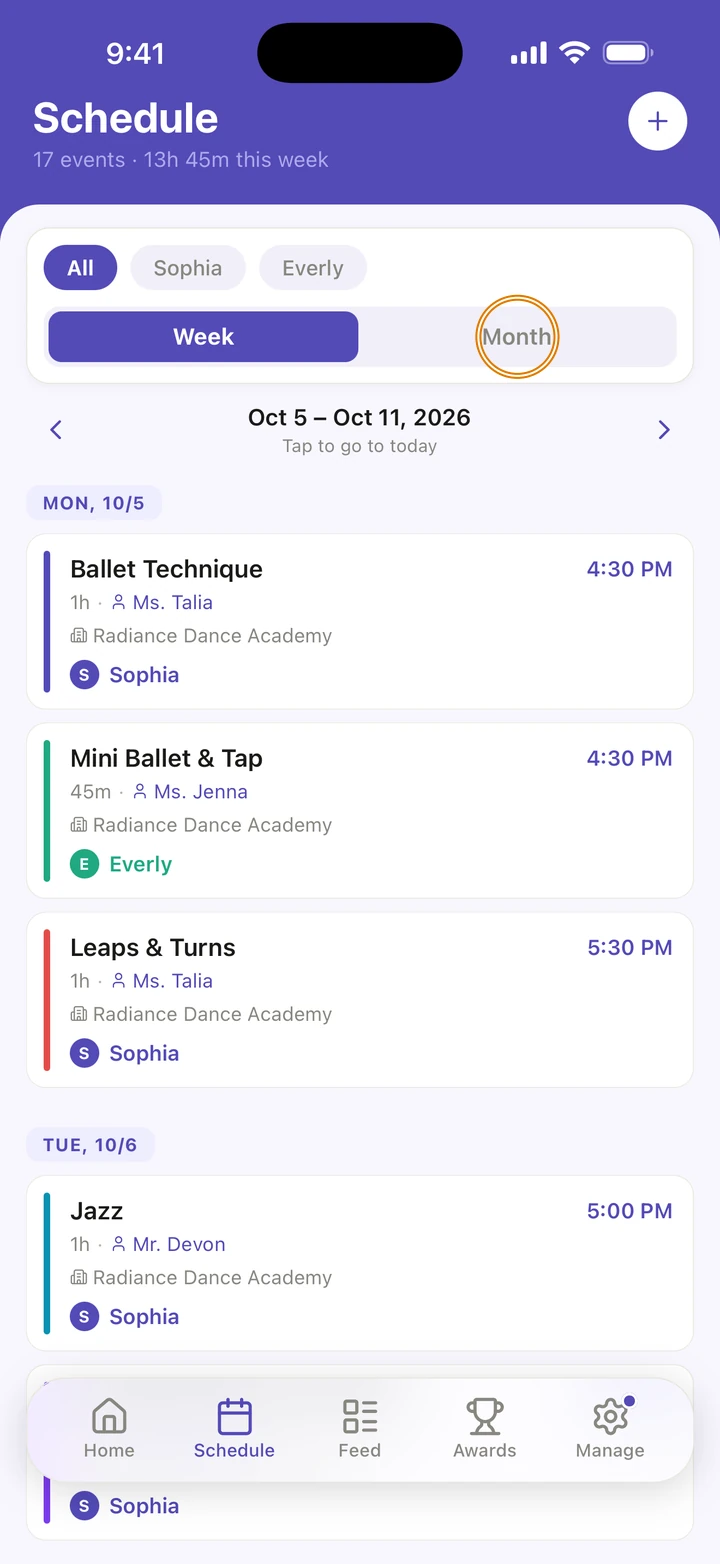
On the Schedule tab, tap Week or Month.
-
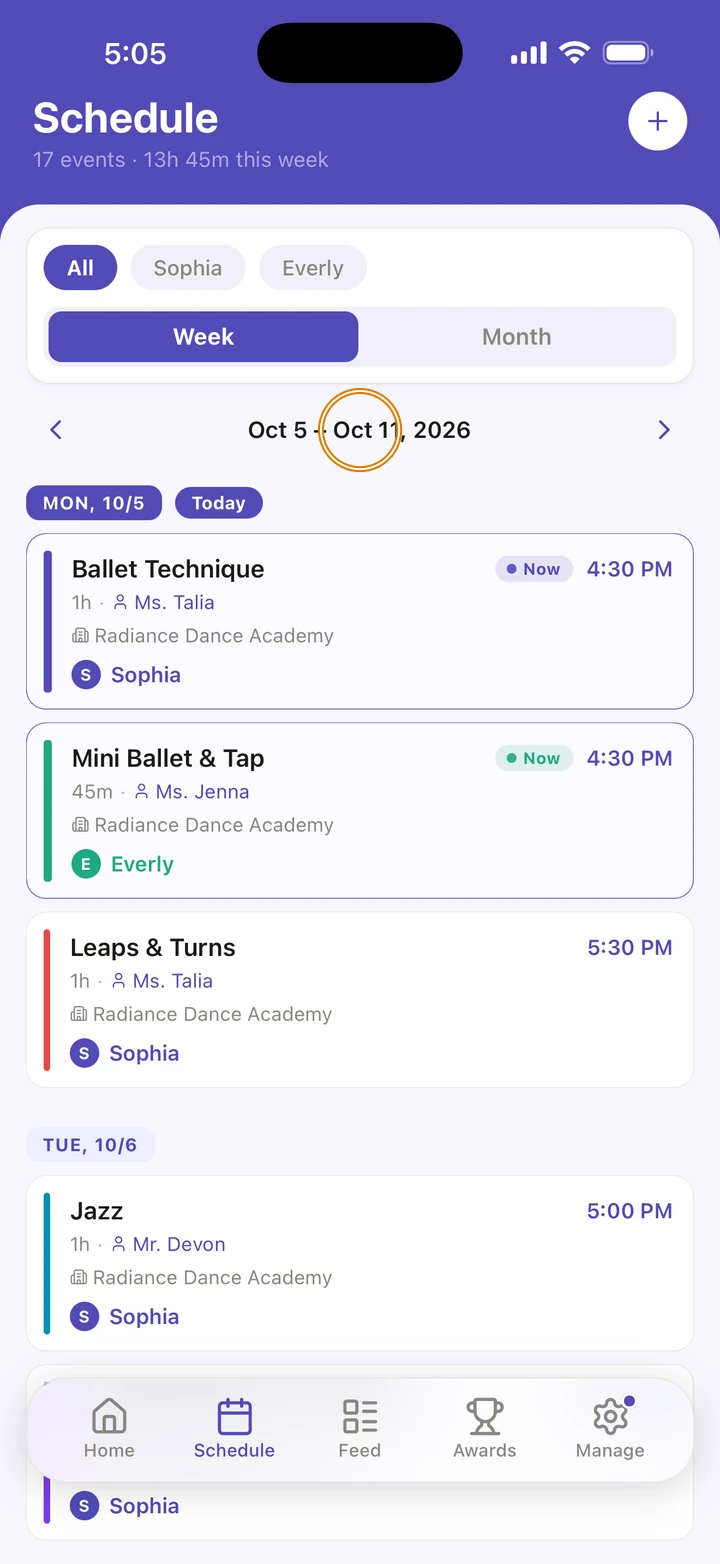
In Week, tap the arrows or swipe to move a week at a time. Tap the dates between the arrows to come back to this week.
-
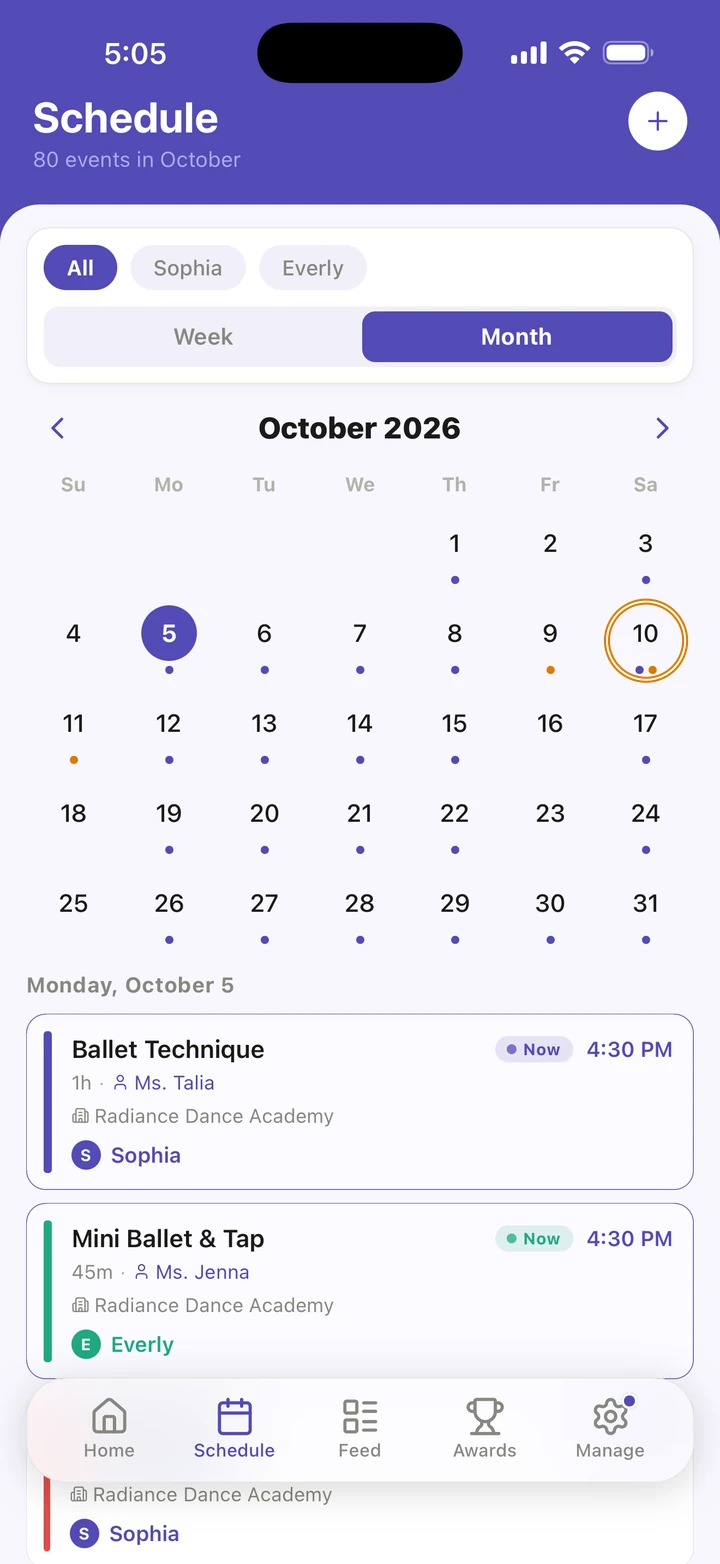
In Month, tap a date to see that day below the calendar. Purple dots mark days with classes or events, and orange dots mark competitions.
-
With more than one dancer, tap a name at the top to see only their schedule, or All for everyone.
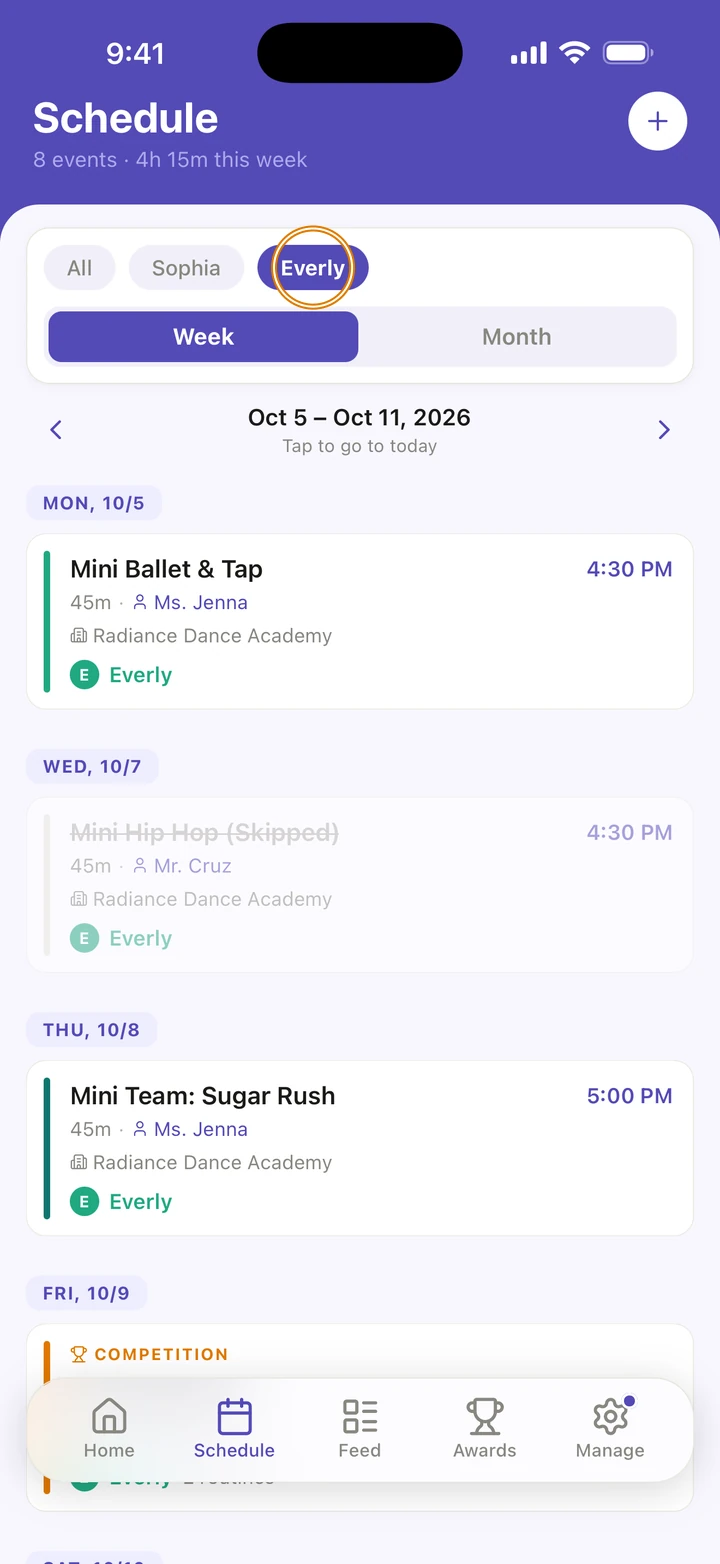
-
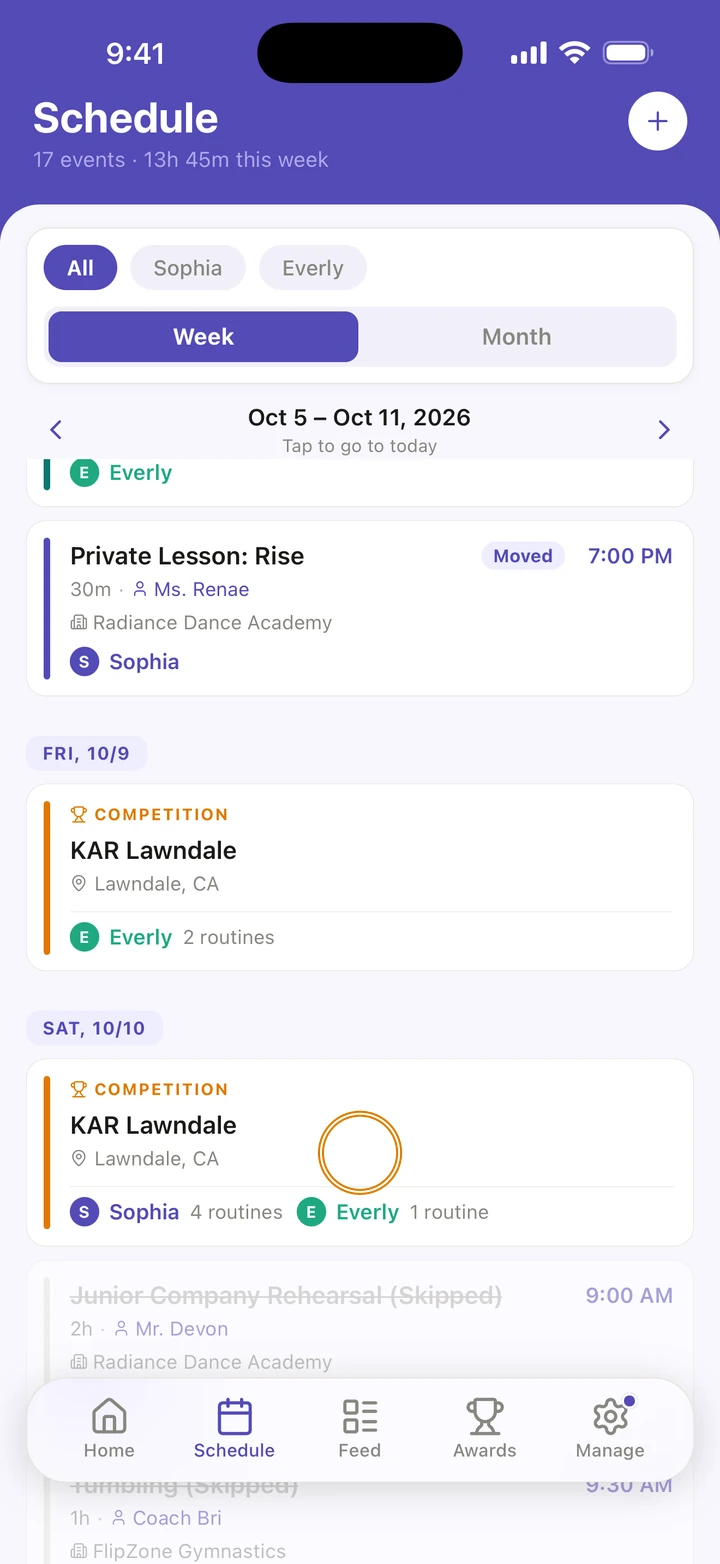
Tap anything to open it: a class, an event, or a competition or convention.
Good to know
- A class happening right now is marked Now. A class at a different time for one day is marked Moved.
- A skipped class stays on the schedule, struck through and marked (Skipped). Studio closures and days away show this way too.
- Home remembers whether you chose Today or Week, and the Schedule tab remembers Week or Month.
- Weeks run from Monday to Sunday.
If something goes wrong
- A class is missing? Check the name at the top is All or the right dancer.
- Nothing on the schedule yet? Tap + to add your classes, or + Add a class on an empty week ahead.
- For anything else, go to Manage → Get help. A real person reads every message.
Related
Checked on Ovation 1.1.5