Skip a class, or change its time for one day
Skip one date of a weekly class, or a few in a row, or change its time for just one day, without changing the rest of the season.
- About 2 minutes
Before you start
You can skip or change today and the dates ahead, not dates that have passed. A new time changes the start time on that same day; the class stays on its day.
-
Tap the class on Home or on the Schedule tab to open it.
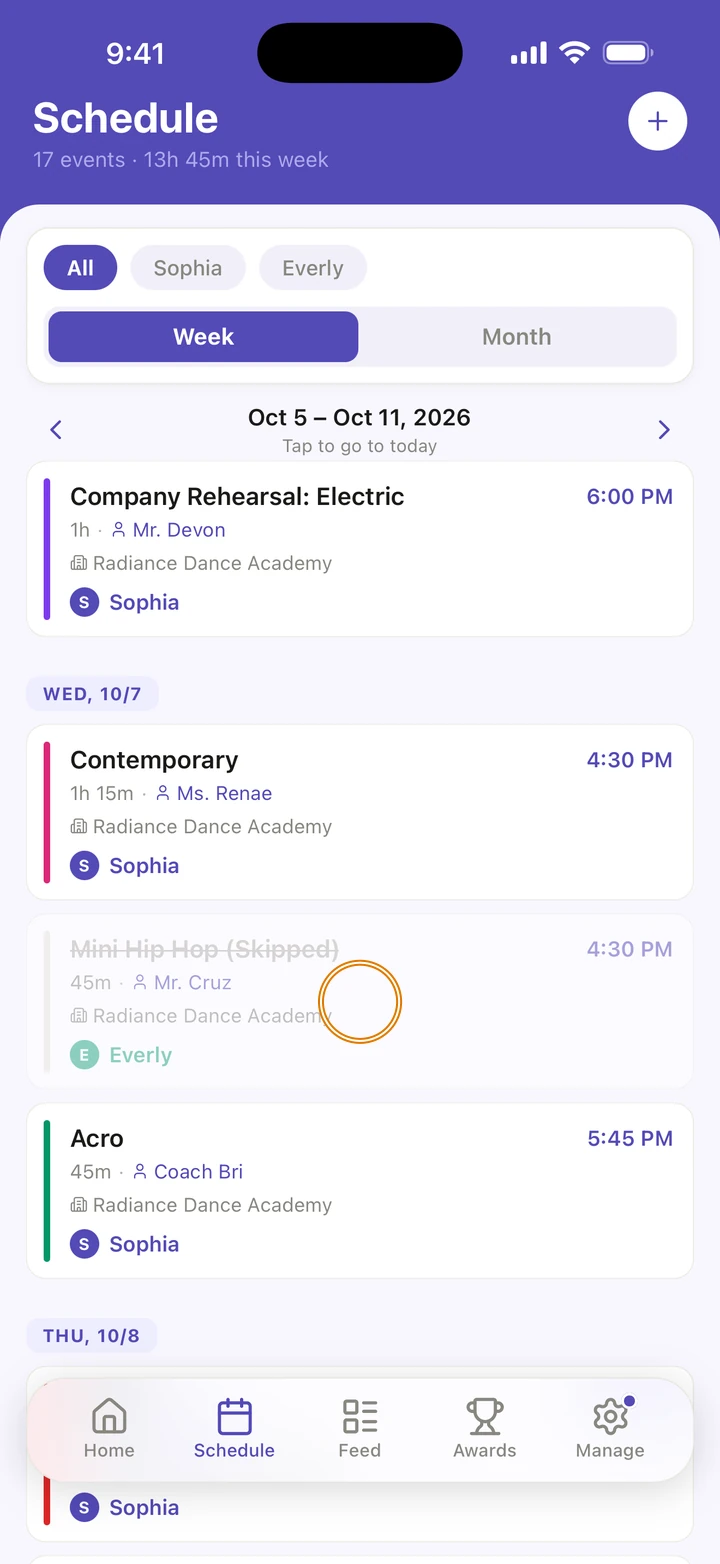
-
Under UPCOMING DATES, tap the date. Need a later one? Tap the See all link under the dates, for example See all 24 dates →.
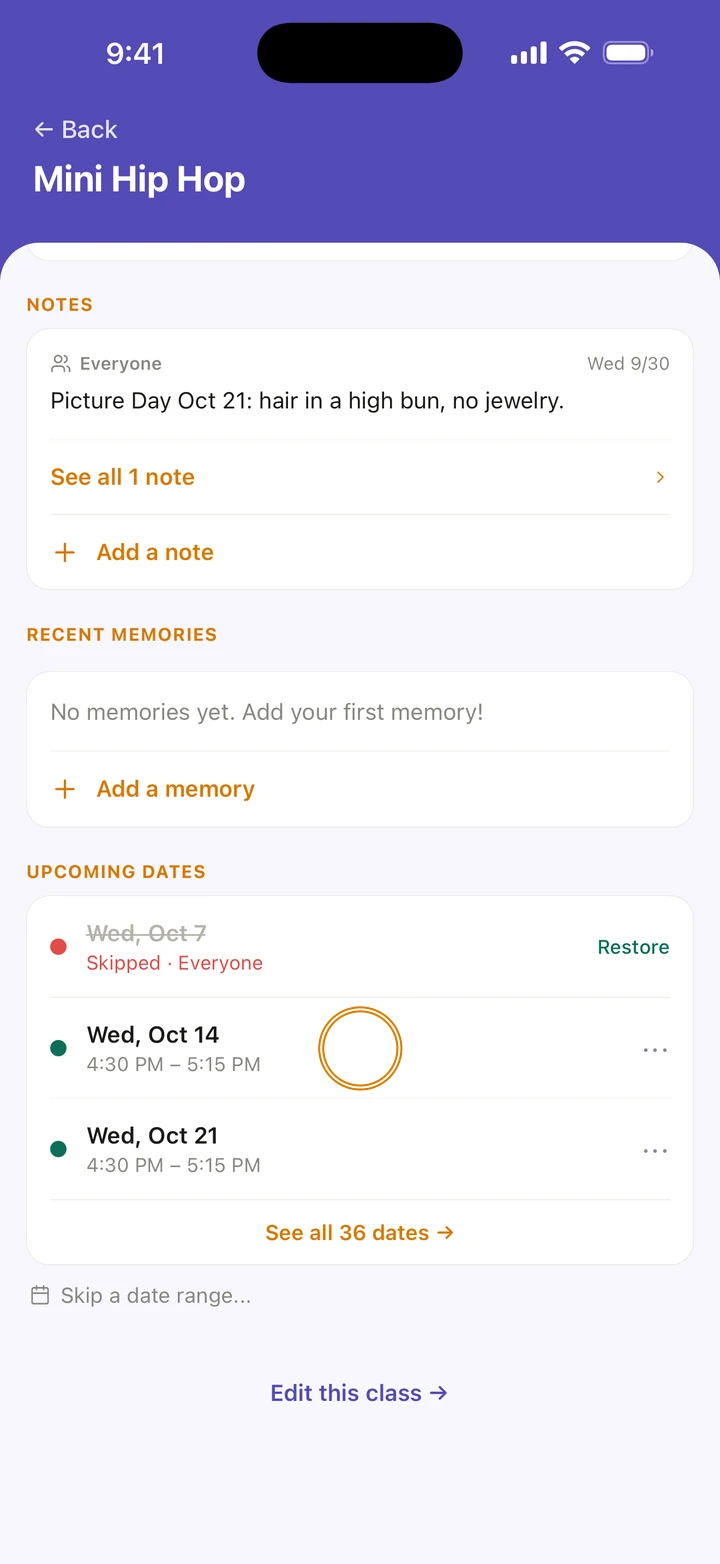
-
To skip it, tap Skip this day. If more than one of your dancers is in the class, choose Everyone or one dancer under SKIP FOR. Then tap Skip for everyone, or Skip for and their name.
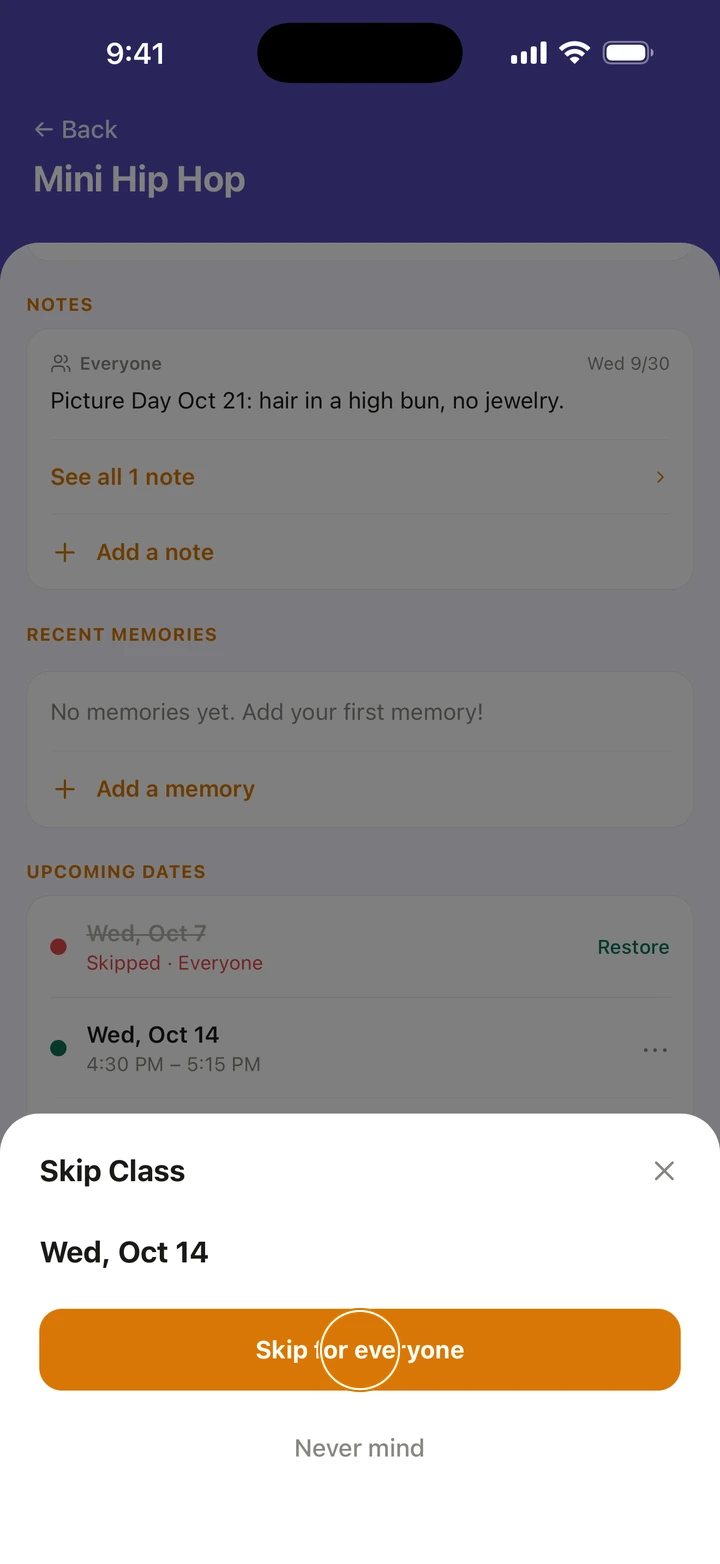
-
To change its time instead, tap Change time for this day, choose the new start time, and tap Save new time.
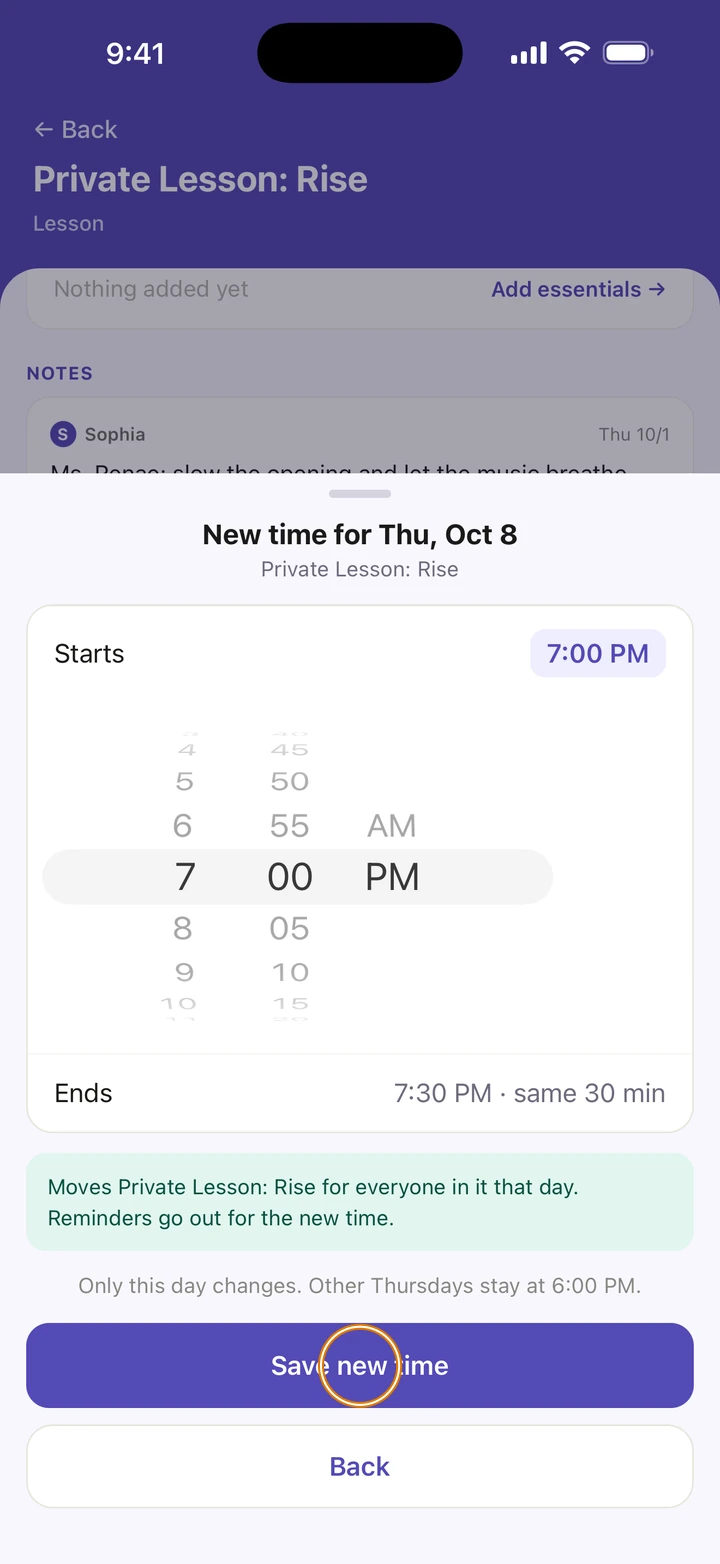
-
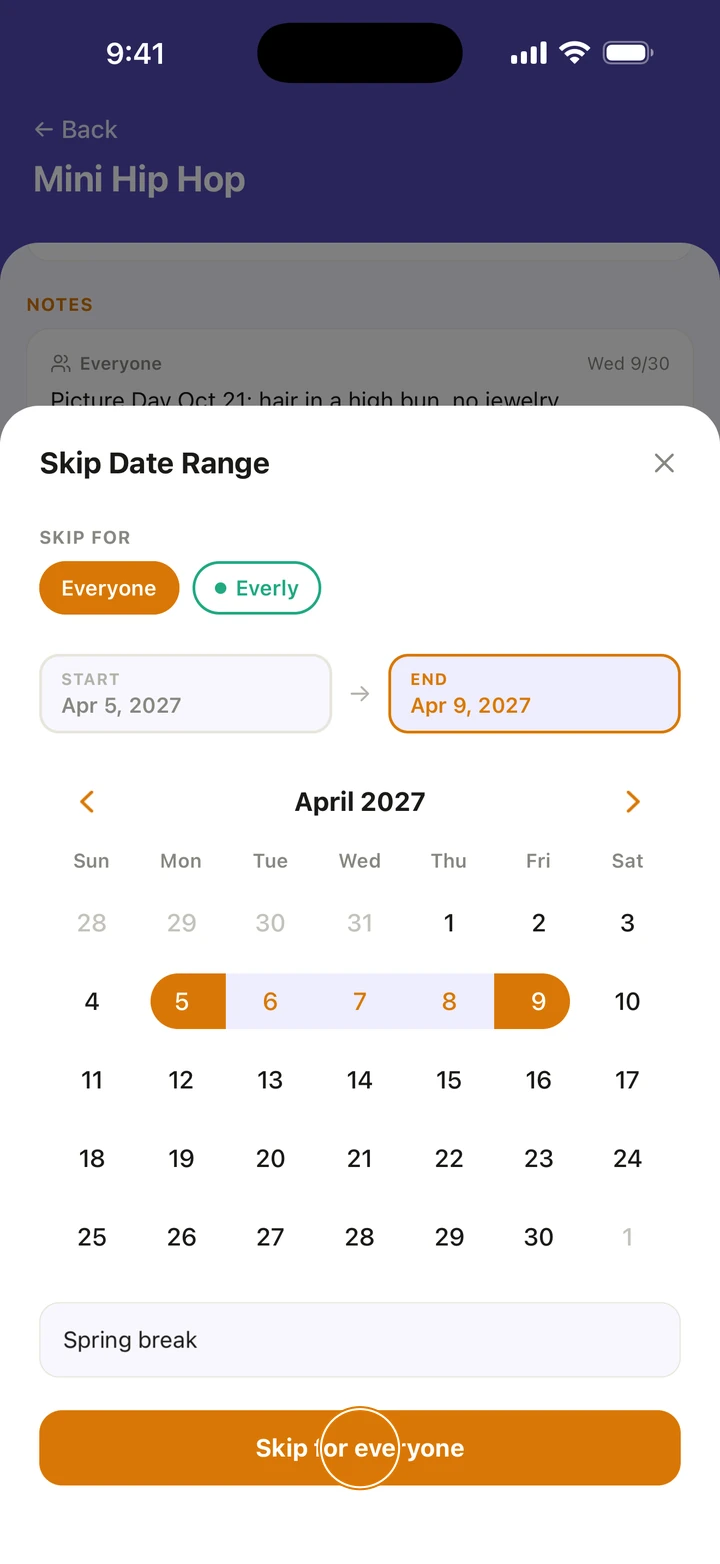
To skip several dates in a row, tap Skip a date range... under the dates. Tap the first and last day, add a reason if you like, and tap Skip for everyone.
Good to know
- Only that day changes. A new time moves the class for everyone in it that day, and reminders go out for the new time.
- A changed day is marked Moved, with the usual time struck through.
- A date skipped for everyone gets no class reminder. A date skipped for one dancer still does, because the class still meets for the others.
- To change the class every week, tap Edit this class → at the bottom of the class instead.
- Away for a few days across several classes? Use Mark days you're away under Class schedule.
If something goes wrong
- Skipped the wrong date? Tap it under UPCOMING DATES, then Restore.
- Changed the wrong time? Tap the date, then Back to usual time.
- For anything else, go to Manage → Get help. A real person reads every message.
Related
Checked on Ovation 1.1.5