Record results and awards
Type in each routine's award, and its score, placement and special awards if you have them, so the whole season adds up on the Awards tab.
- About 3 minutes
Before you start
You don't need the competition's schedule to record results. Only the award is needed; the score, placement and special awards are optional.
-
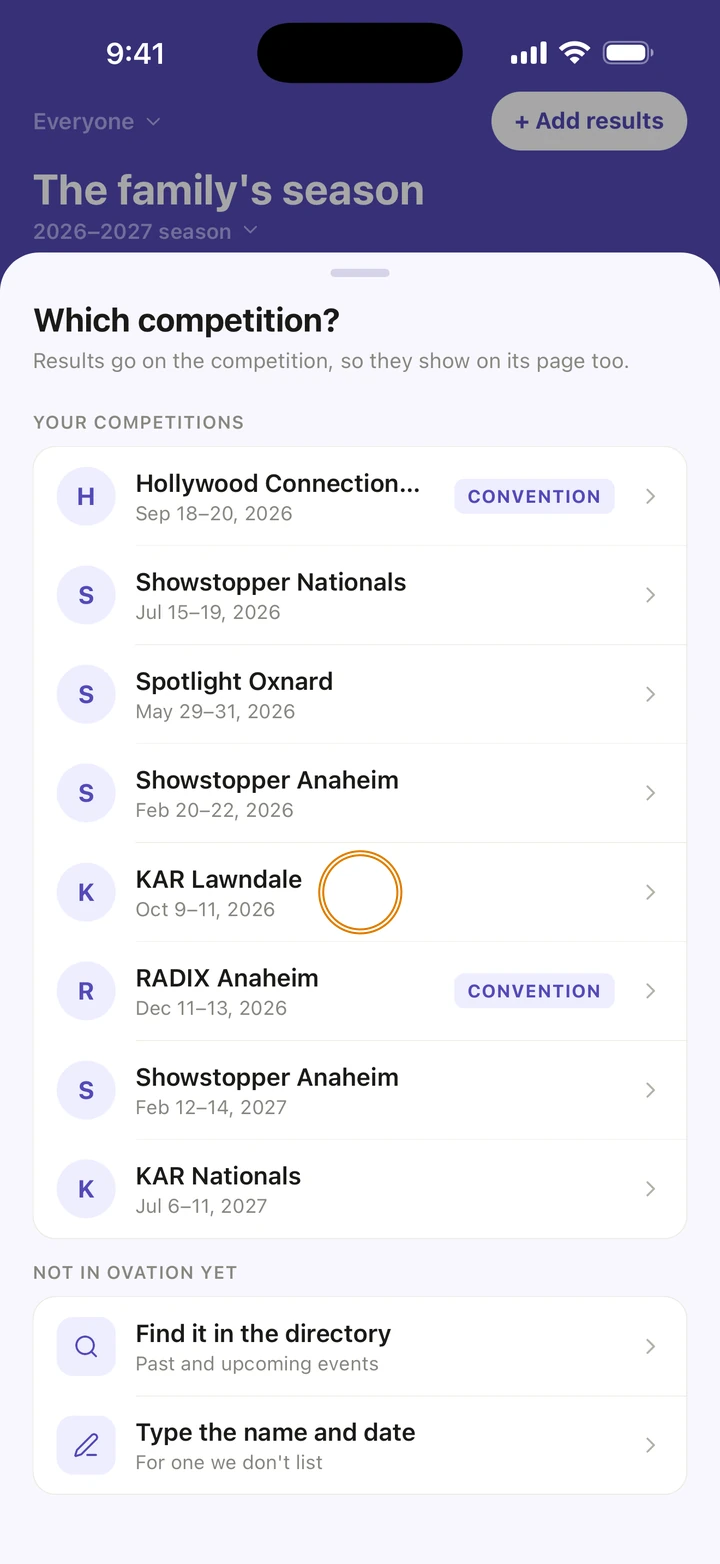
On the Awards tab, tap + Add results and choose the competition under Which competition?. Or open the competition and tap its Results tab.
-
If Ovation asks Which routines did your dancer dance, tick each routine, then tap the Continue button, for example Continue with 3 routines. Not in the list? Tap + A routine that isn't listed.
Screenshot coming soon -
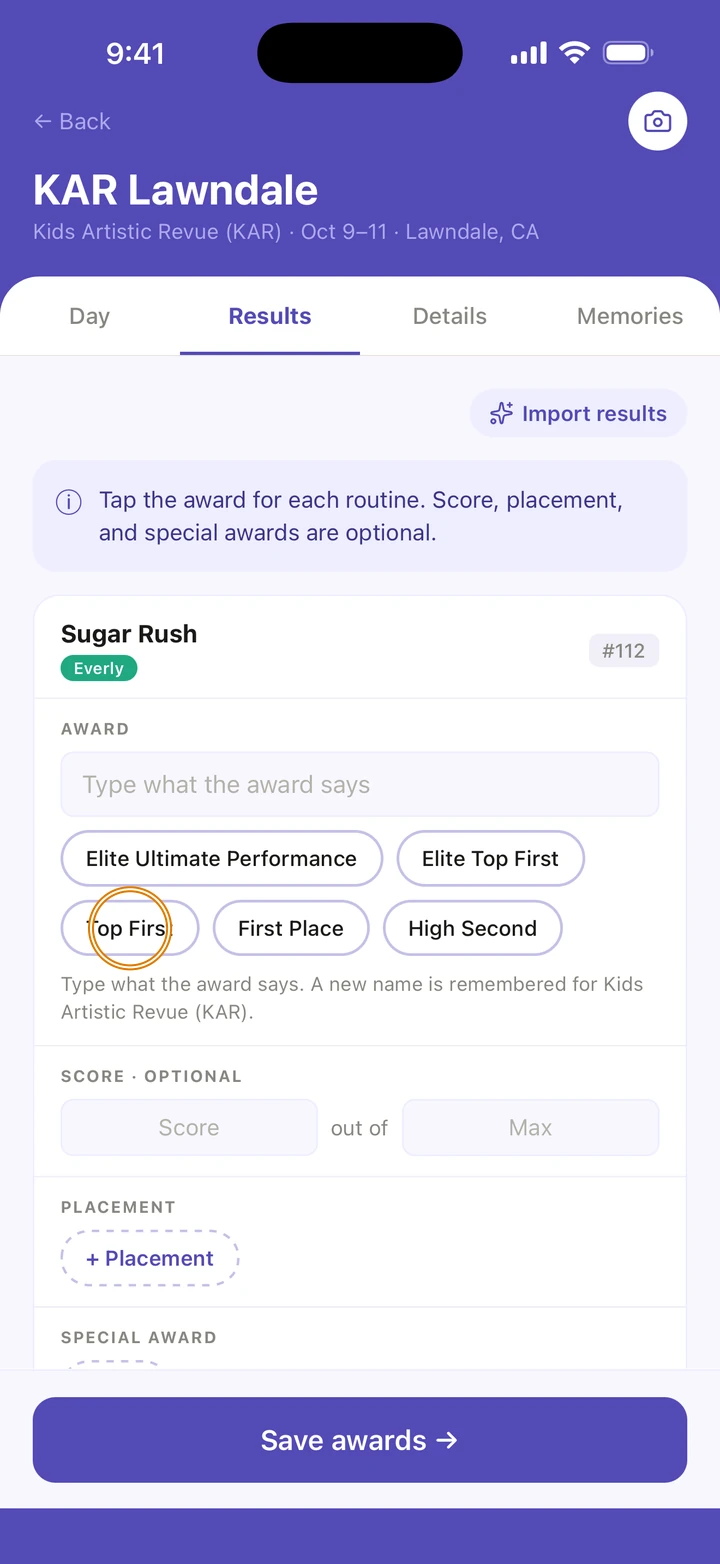
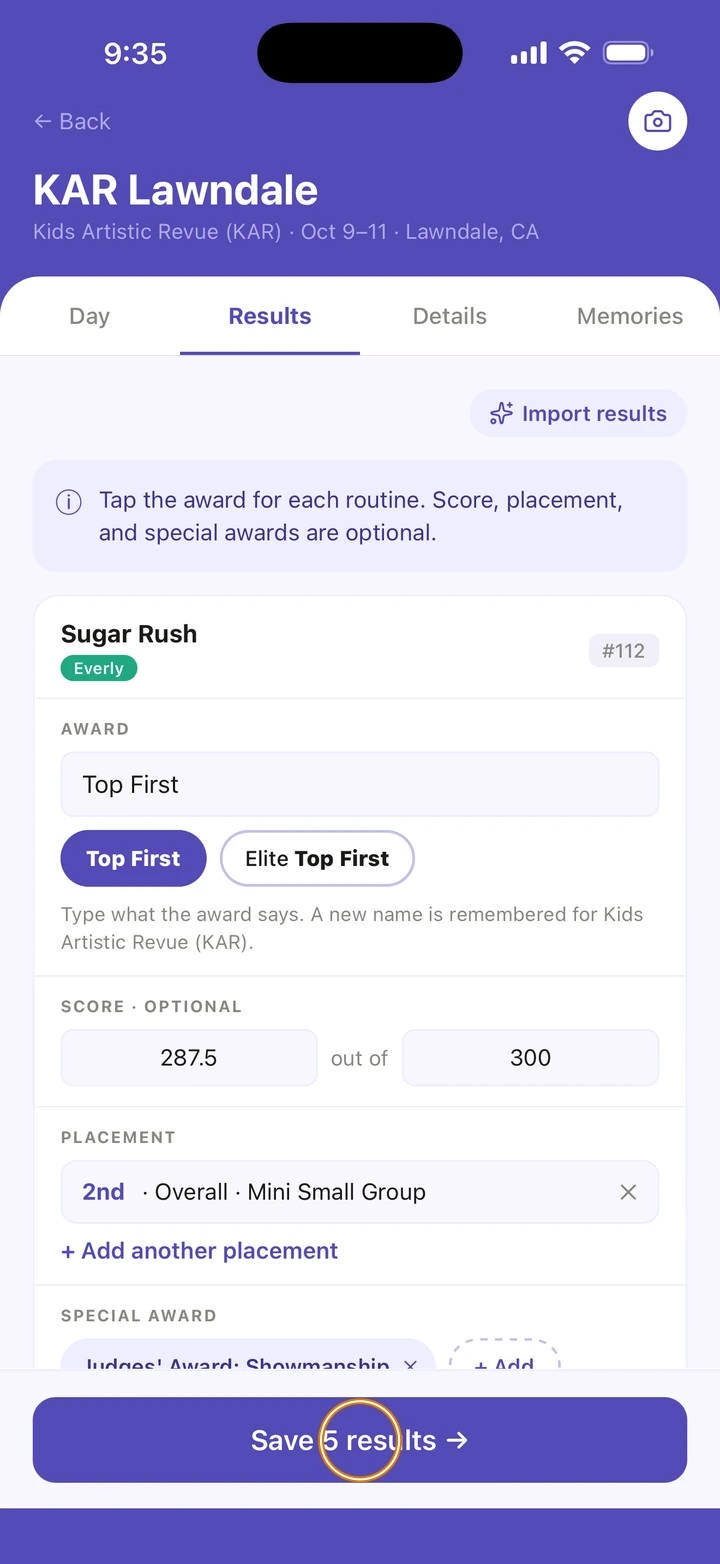
On each routine's card, under AWARD, tap a suggestion or type what the award says, for example Platinum or High Gold.
-
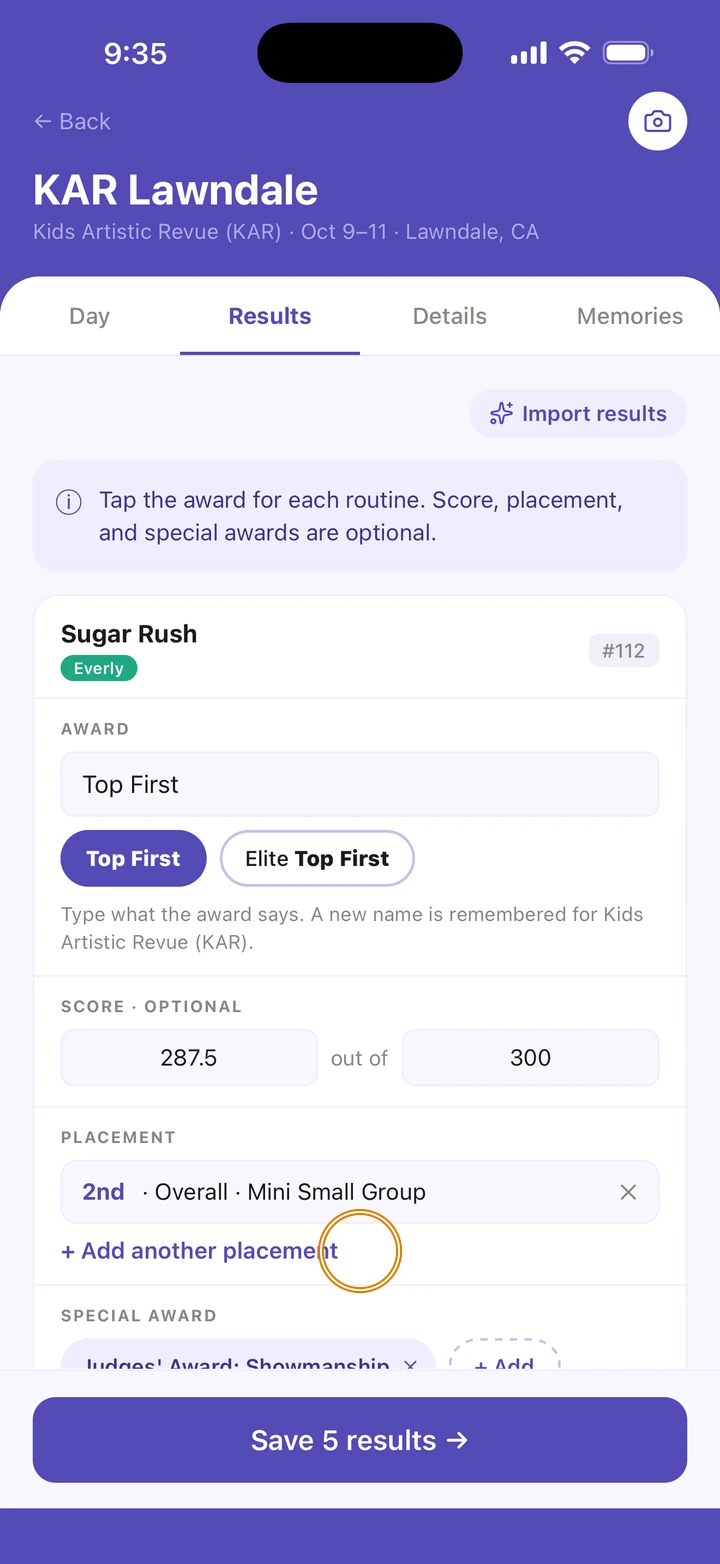
If you have them, add the score under SCORE · OPTIONAL, a placement with + Placement (the place, Overall or Category, and where), and any special award with + Add.
-
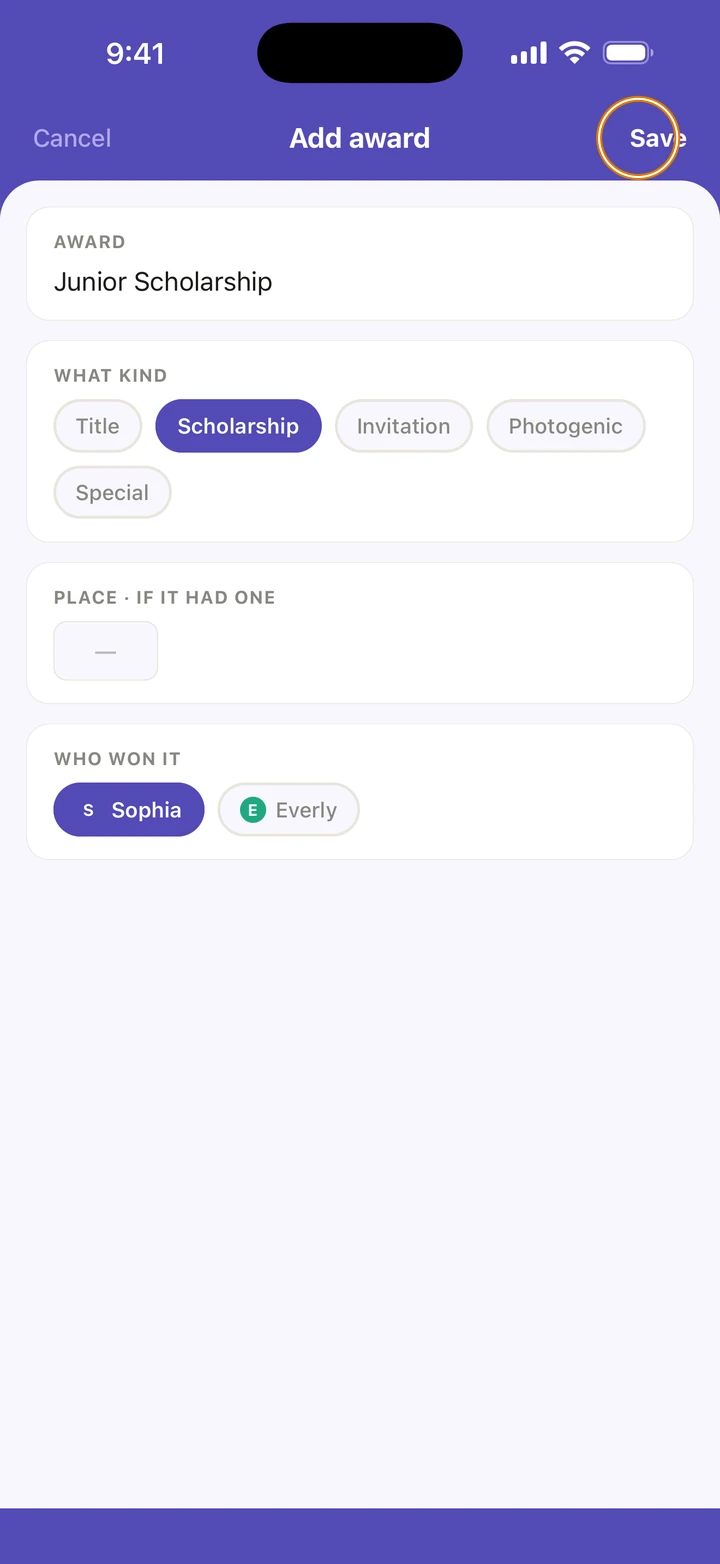
For an award your dancer won on their own, such as a title or a scholarship, tap + Add in the own awards section at the bottom. Type the AWARD, choose WHAT KIND, and tap Save.
-
Tap the save button, which counts your results, for example Save 3 results →, then OK.
Good to know
- Competition not in Ovation yet? Under Not in Ovation yet, tap Find it in the directory or Type the name and date, and you go straight to its results.
- Tap Add notes & critiques on a card to keep what the judges said. Only your family sees it.
- Tap the camera on a card to save a photo from that routine as a memory.
- To remove an award, clear its award and score, then save. Tap the ✕ on a placement or a special award to remove it.
- A convention's Results tab records your dancer's own awards, such as scholarships, titles and callbacks.
- Results appear on the Awards tab and on your dancer's Journey.
If something goes wrong
- If Ovation asks you to check a routine's score: a score and what it is out of must both be numbers under 1000, and the score can't be more than the total.
- Have the results sheet? Import results reads it for you.
- For anything else, go to Manage → Get help. A real person reads every message.
Related
Checked on Ovation 1.1.5