Choreography videos and music links
Keep the choreography videos your dancer practises from, and links to the music, on the routine they belong to.
- About 2 minutes
Before you start
Choreography videos are part of Ovation Pro: up to 3 per routine, each up to 5 minutes long. Links are free on every plan.
-
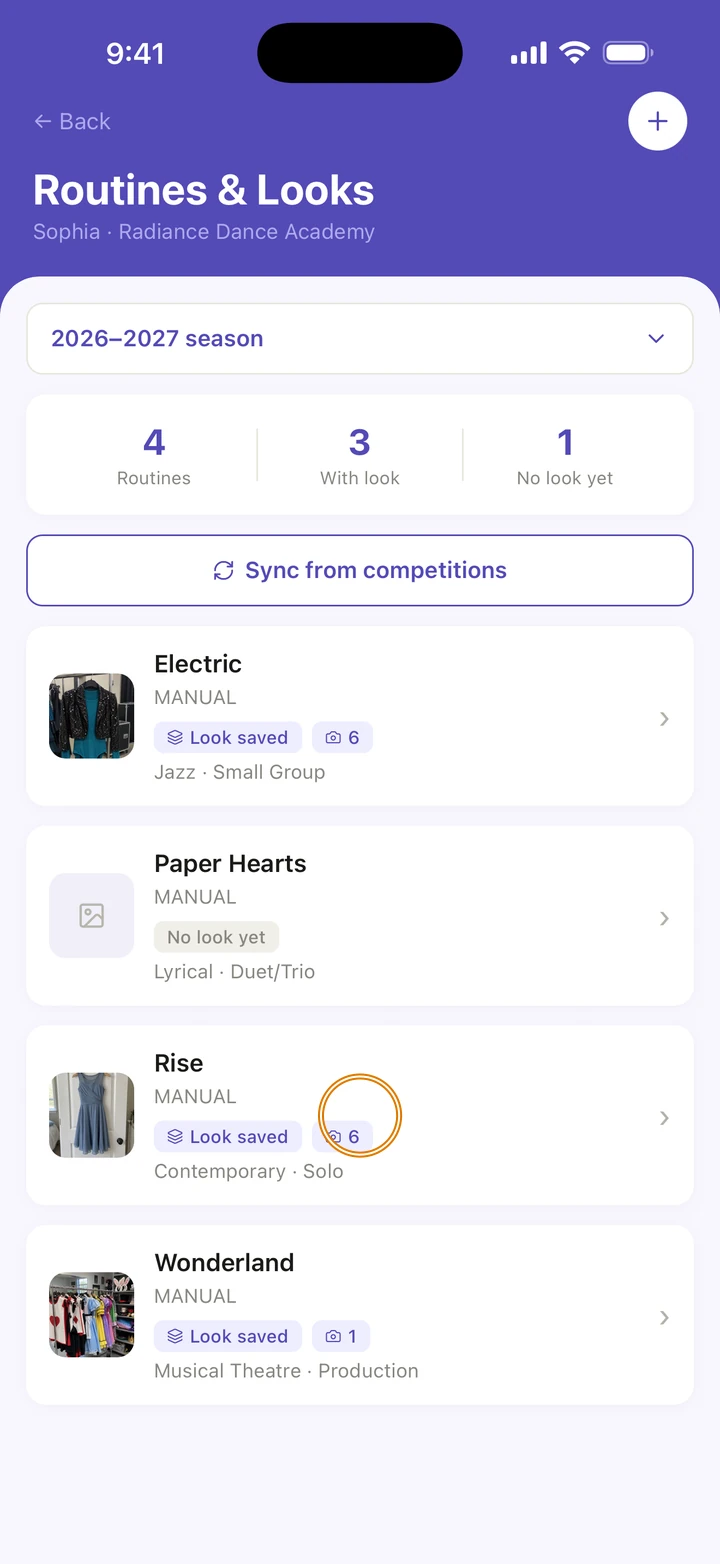
Go to Manage, tap your dancer under DANCERS, tap Routines & Looks, then the routine.
-
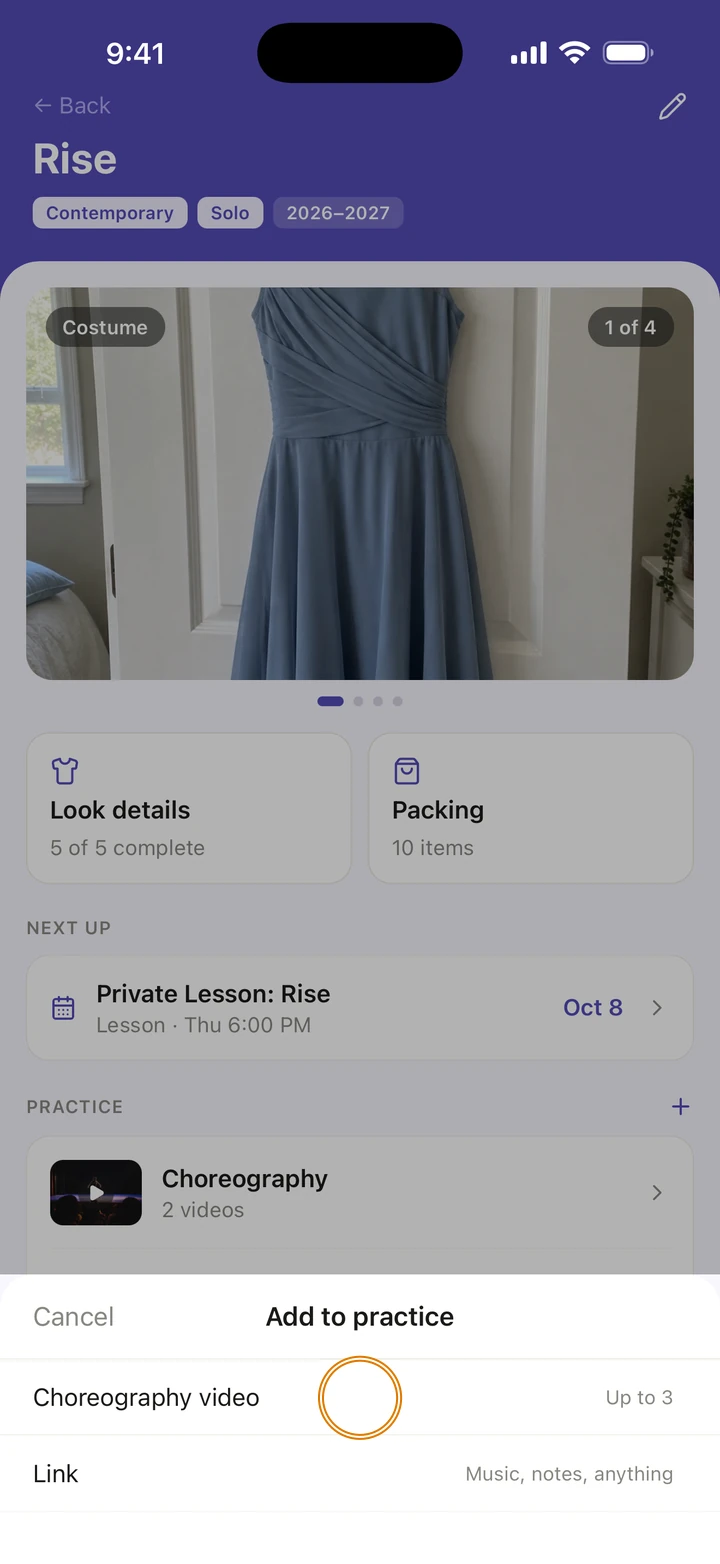
Under PRACTICE, tap +, then Choreography video.
-
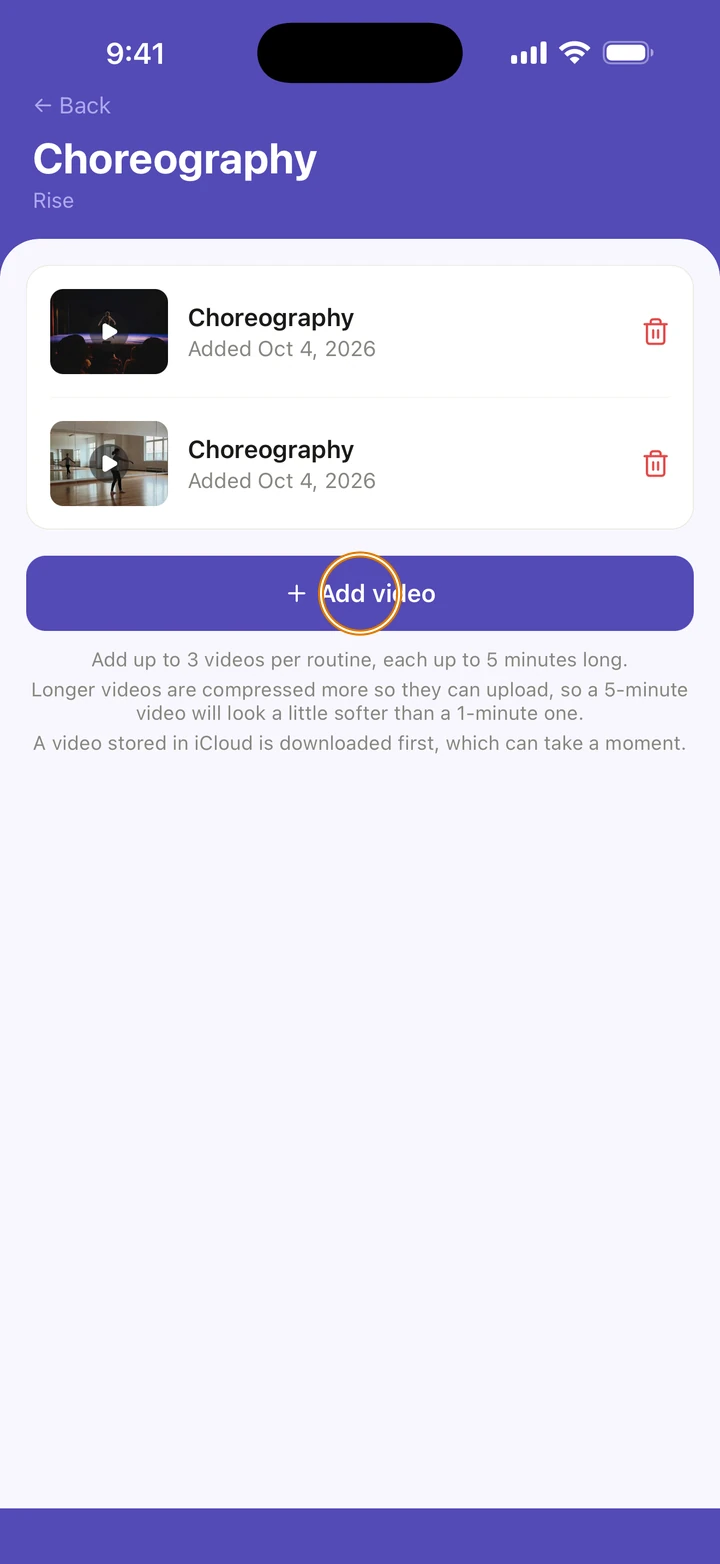
Choose the video from your library, and wait while Ovation prepares and uploads it.
-
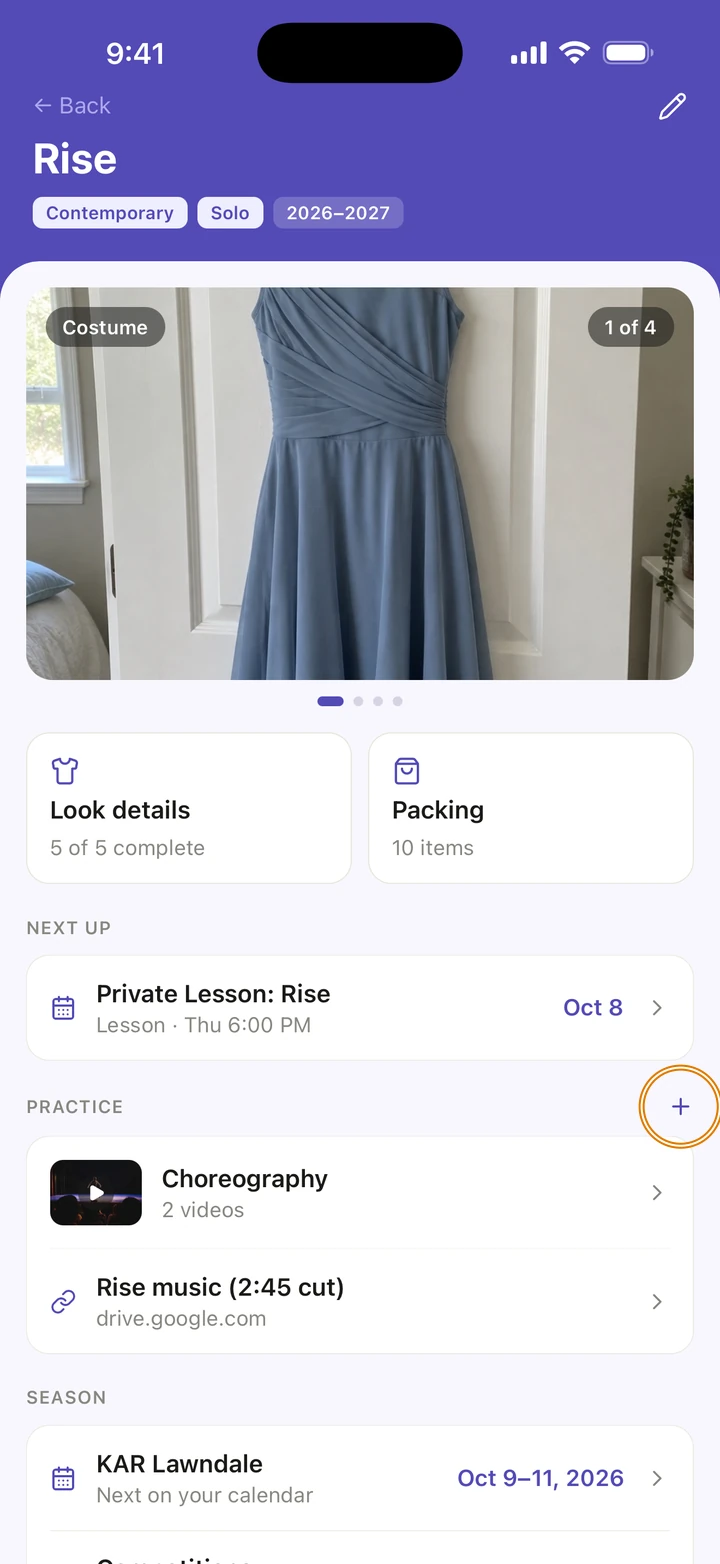
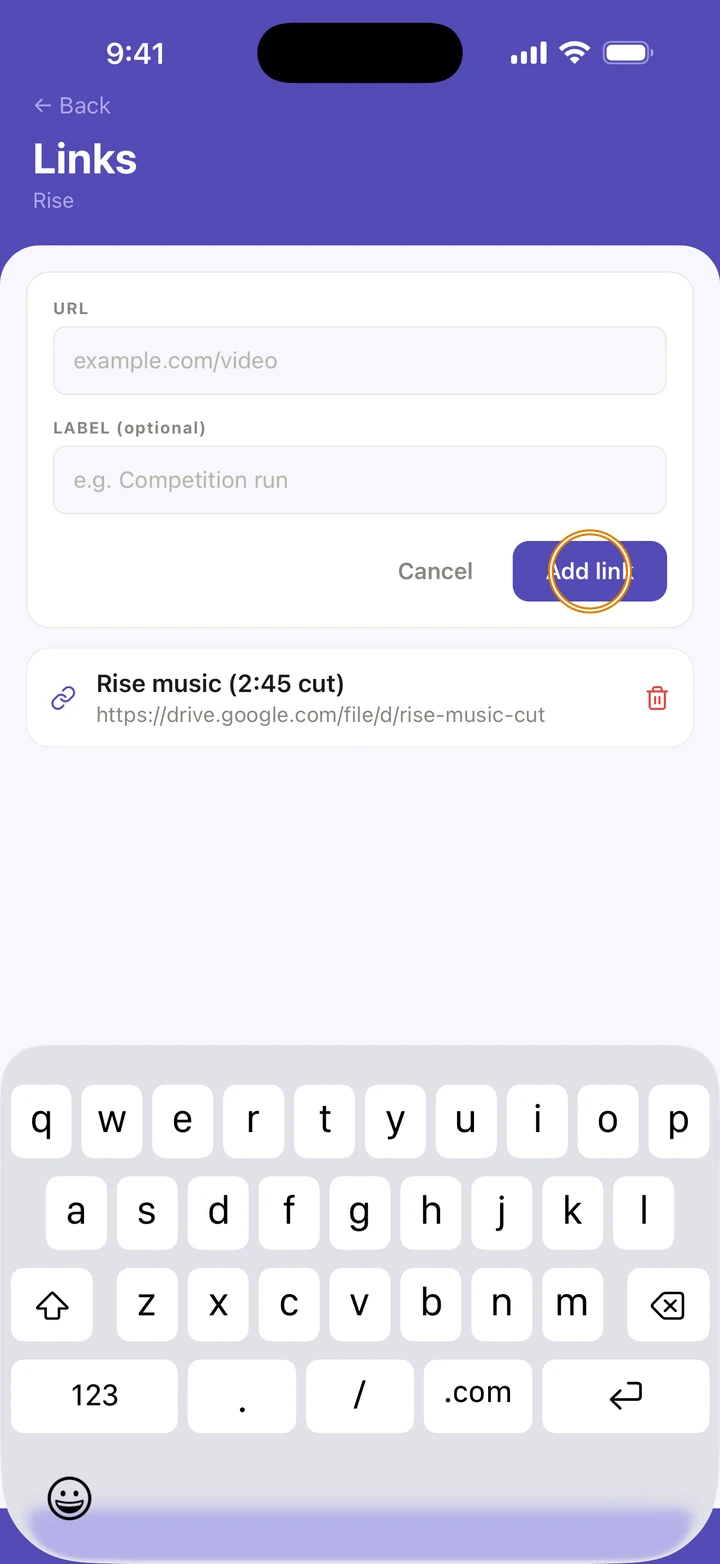
For the music, or anything else on the web, tap + under PRACTICE again, then Link.
-
Paste the address under URL, add a LABEL (optional) such as the song's name, and tap Add link.
Good to know
- Tap a video's picture to play it. Its links open in Ovation.
- The music itself isn't uploaded. Keep it as a link, for example to a file in Google Drive.
- Any web address works as a link: music, a video or a document.
- A rehearsal class linked to this routine shows its choreography videos too.
- Longer videos are compressed more so they can upload, so a 5-minute video looks a little softer than a 1-minute one.
- To remove a video, tap the row under PRACTICE to open Choreography, tap the bin, then Remove. To change or remove a link, tap +, then Link, and tap the link or its bin.
If something goes wrong
- If Ovation says This video is in iCloud, tap Pick again and it downloads the video first.
- If it says Video too large, the video is over 100 MB even after compressing. Try a shorter clip.
- For anything else, go to Manage → Get help. A real person reads every message.
Related
Checked on Ovation 1.1.5