Routines and looks
Keep each routine your dancer competes with, and its look: costume, hair, shoes, accessories and makeup, with photos, ready for competition day.
- About 3 minutes
Before you start
Photos of the look are free. Video in a look is part of Ovation Pro.
-
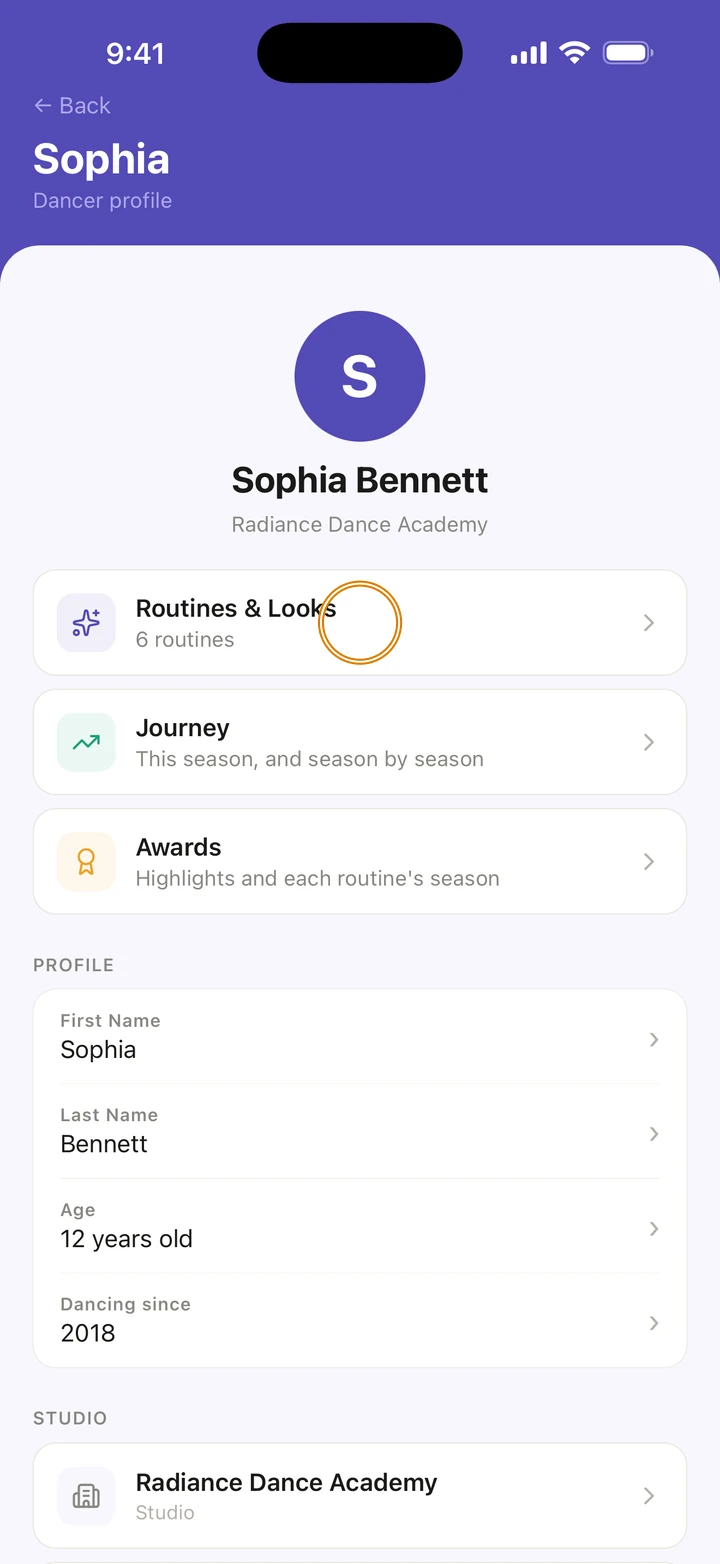
Go to Manage, tap your dancer under DANCERS, then tap Routines & Looks.
-
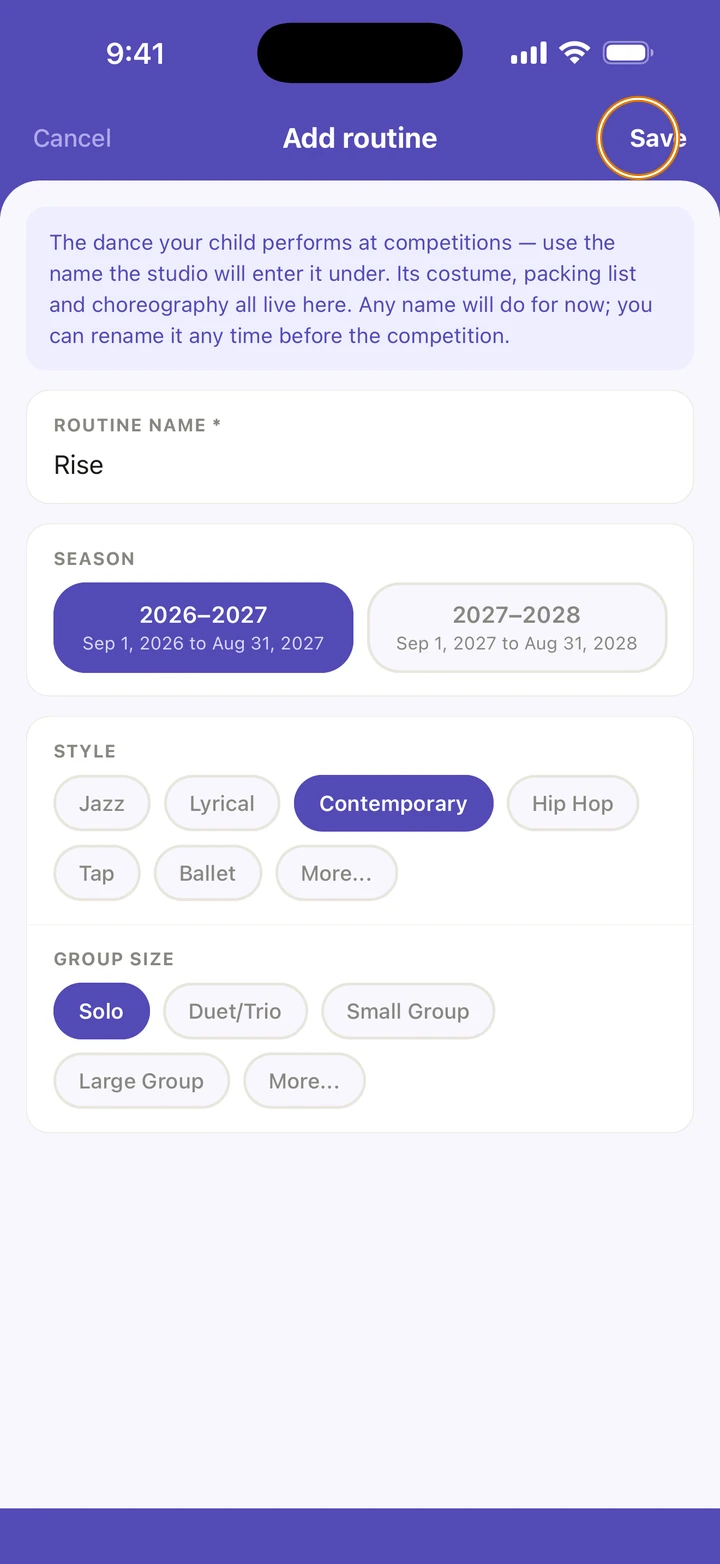
To add a routine, tap + at the top right. Type the ROUTINE NAME the studio enters it under, choose the SEASON, a STYLE and the GROUP SIZE, and tap Save.
-
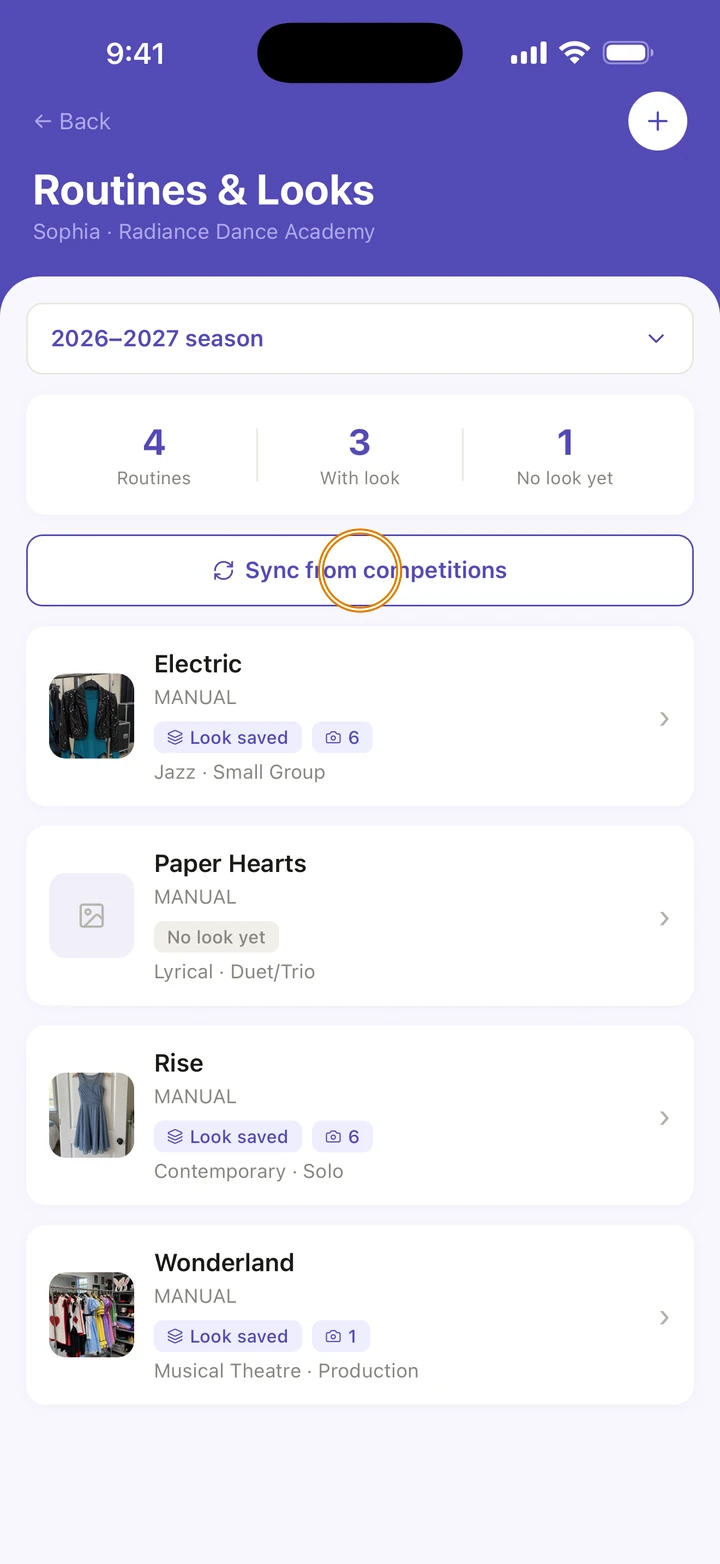
Already added competitions with your dancer's routines? Tap Sync from competitions to bring those routines in.
-
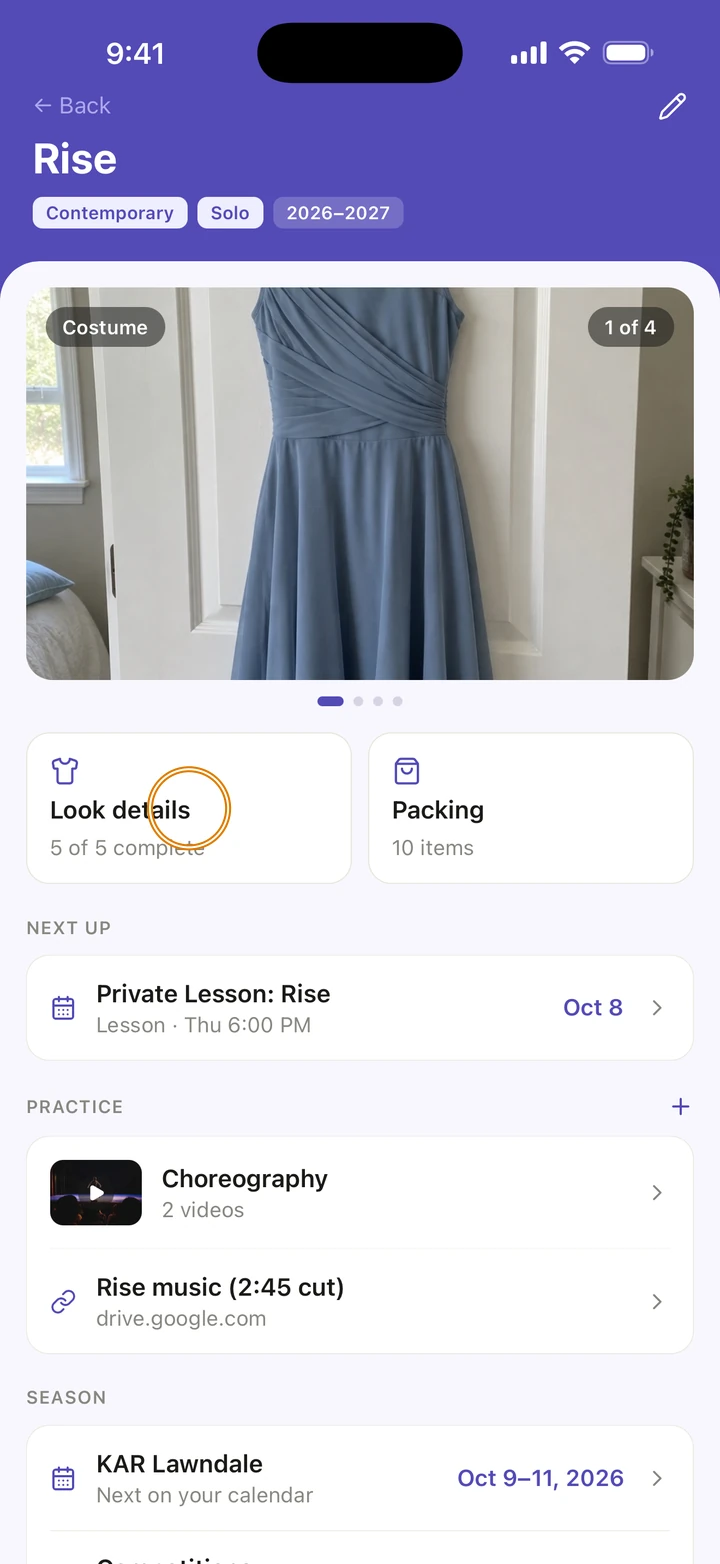
Tap a routine to open it, then tap Look details.
-
Tap a part of the look, such as COSTUME or HAIR, and type what it needs. Tap Photos to add up to three photos to that part.
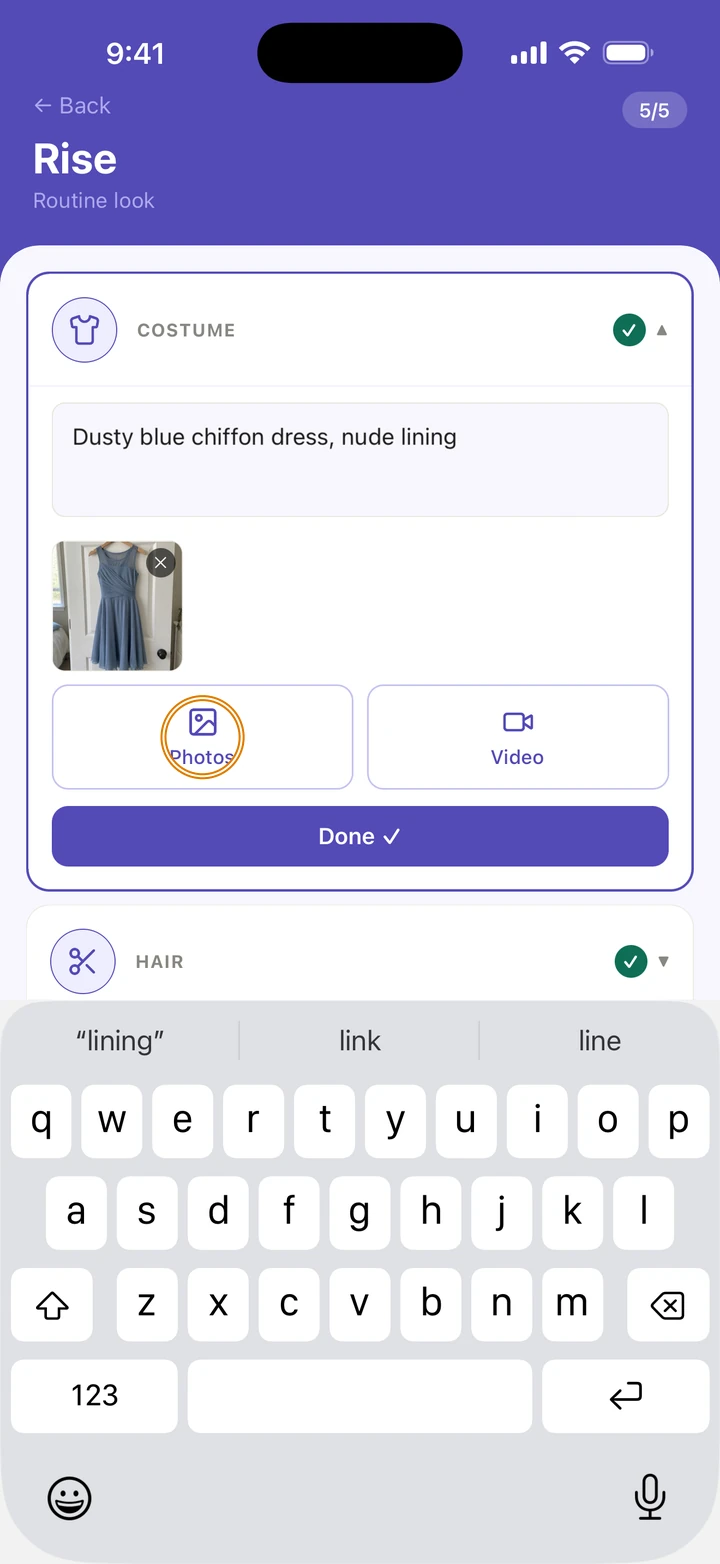
-
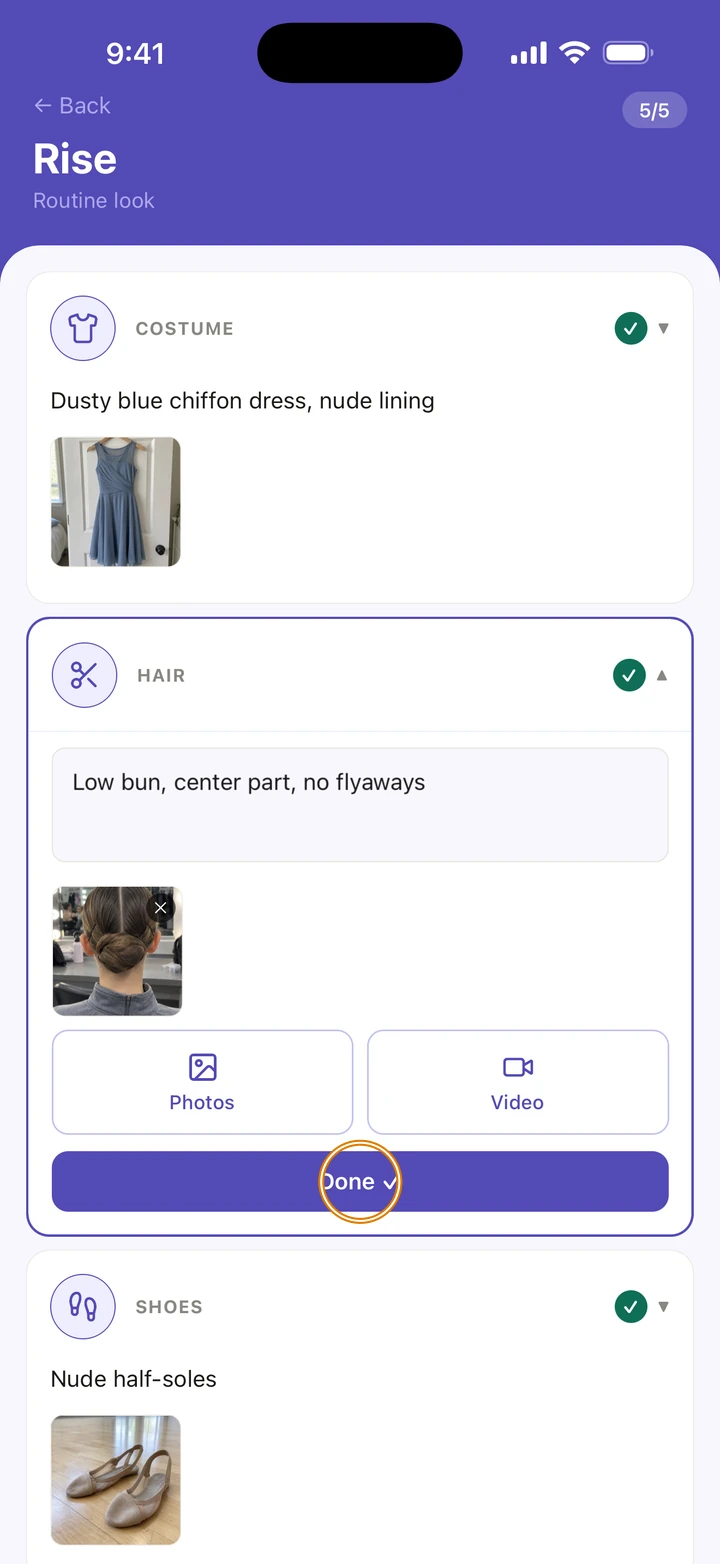
Tap Done ✓ to save what you typed. Do the same for SHOES, ACCESSORIES, MAKEUP and NOTES.
Good to know
- Look details counts how many of the five parts are filled in, for example 3 of 5 complete. Notes don't count toward it.
- On competition day, tap a routine on the Day tab to see its look.
- The routine also keeps its own Packing list, its choreography videos and links under PRACTICE, and its MEMORIES.
- To rename a routine or change its style or size, open it and tap the pencil next to its name.
- To delete a routine, touch and hold it in Routines & Looks, tap Delete, then Delete again. A routine in an upcoming competition can't be deleted until it is removed from that competition's schedule.
If something goes wrong
- If Maximum media reached appears, that part of the look already has three photos or videos. Delete one to add another.
- If a photo didn't upload, tap it to try it again.
- For anything else, go to Manage → Get help. A real person reads every message.
Related
Checked on Ovation 1.1.5