Notes from class
Write down what the teacher said, a costume fee or a new music cut, on the class it belongs to, and find every note again in one place.
- About 1 minute
-
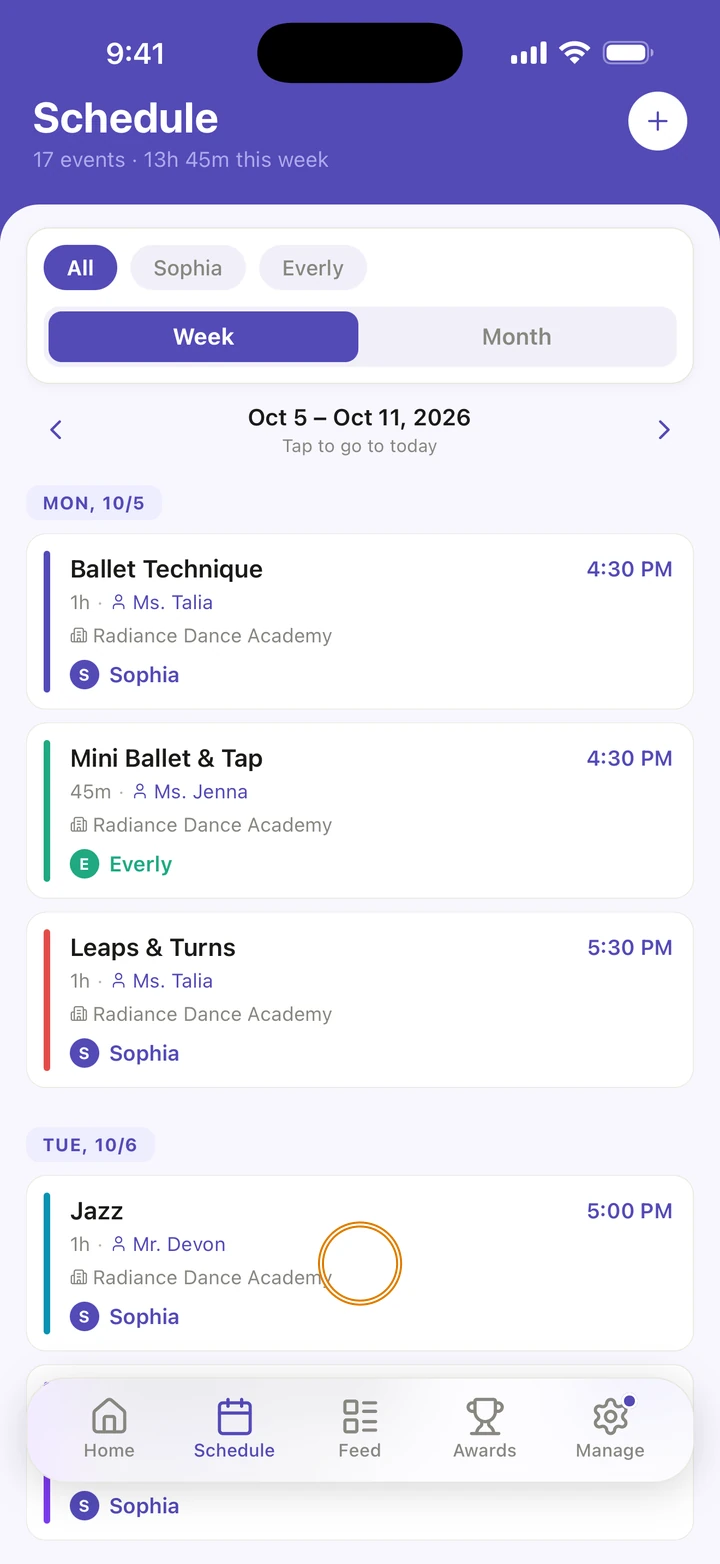
Tap the class on Home or on the Schedule tab to open it.
-
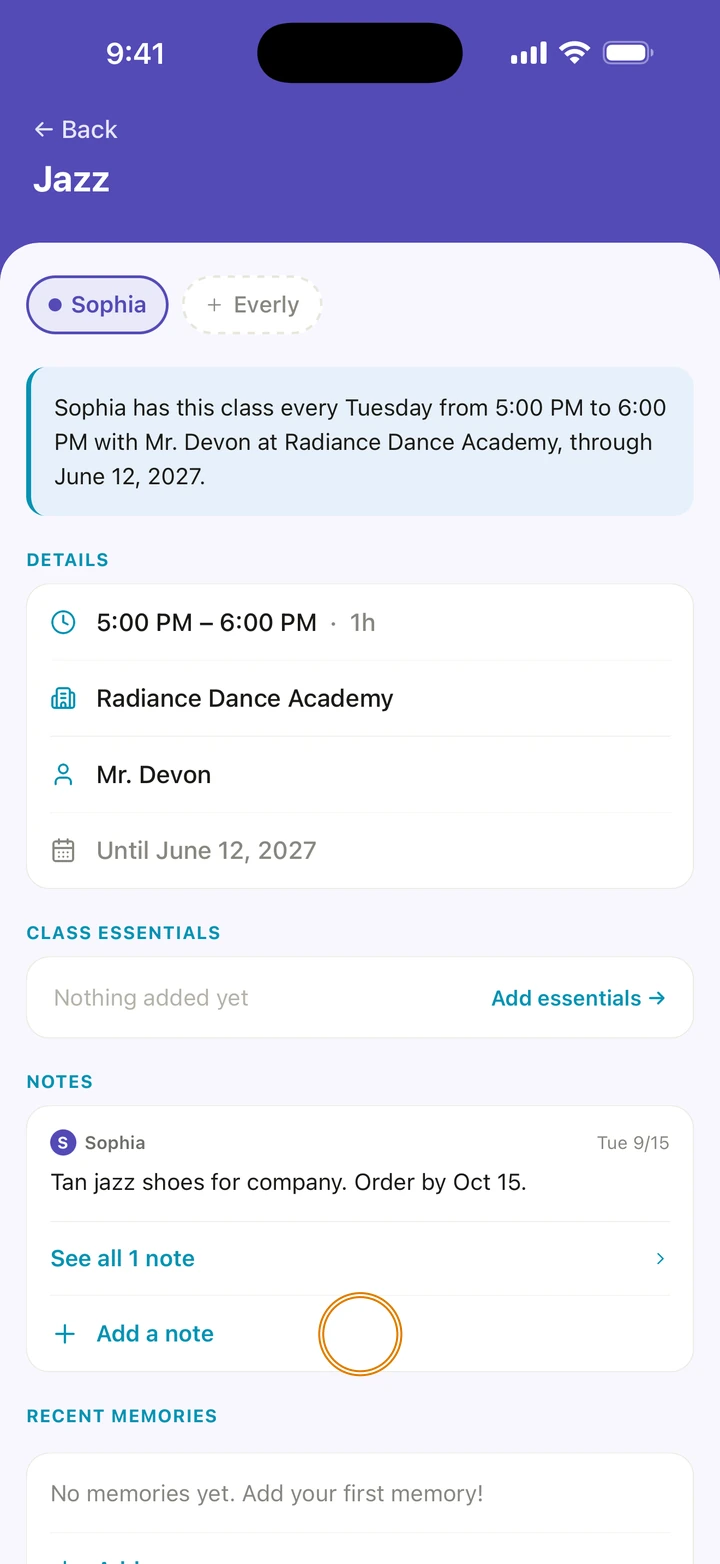
Under NOTES, tap Add a note.
-
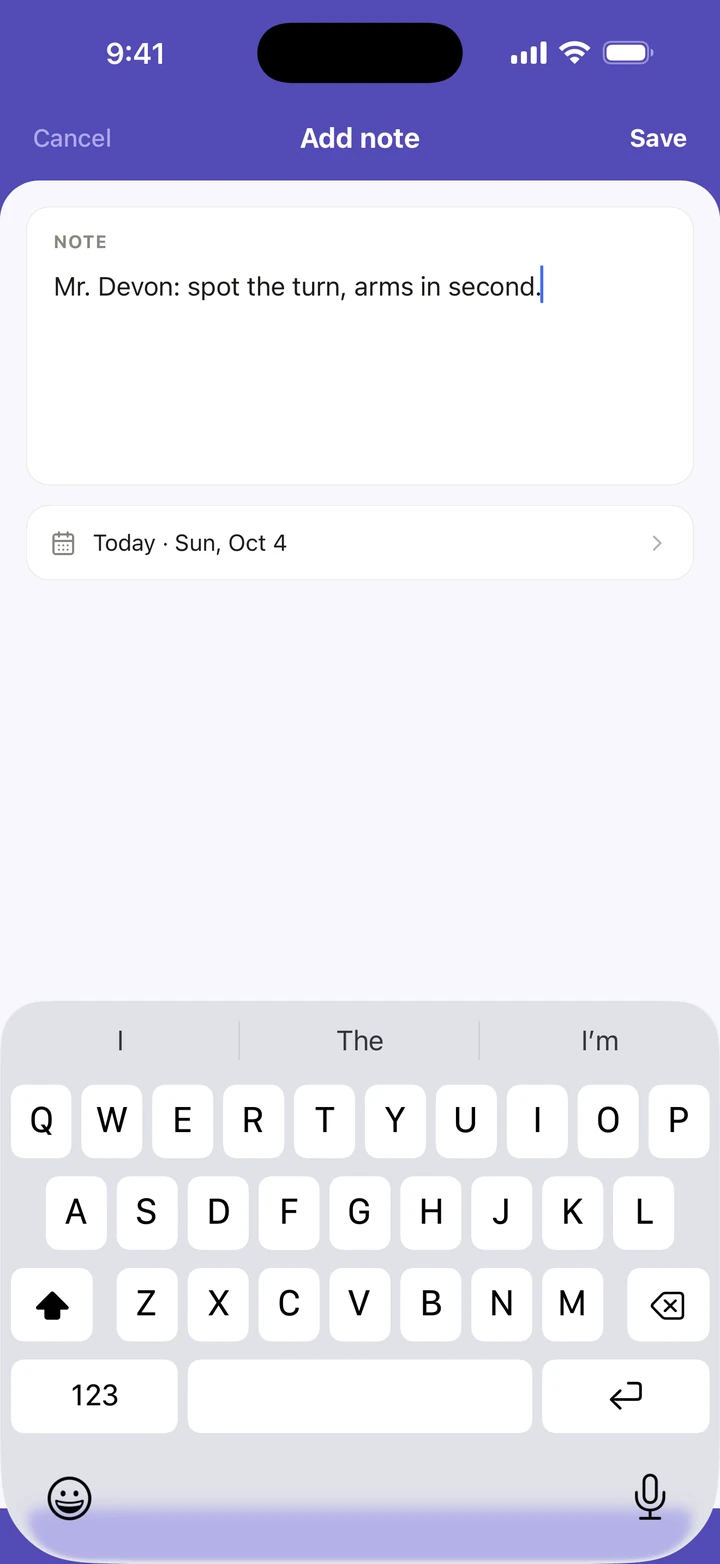
Type the note, or tap the microphone on your keyboard and speak it.
-
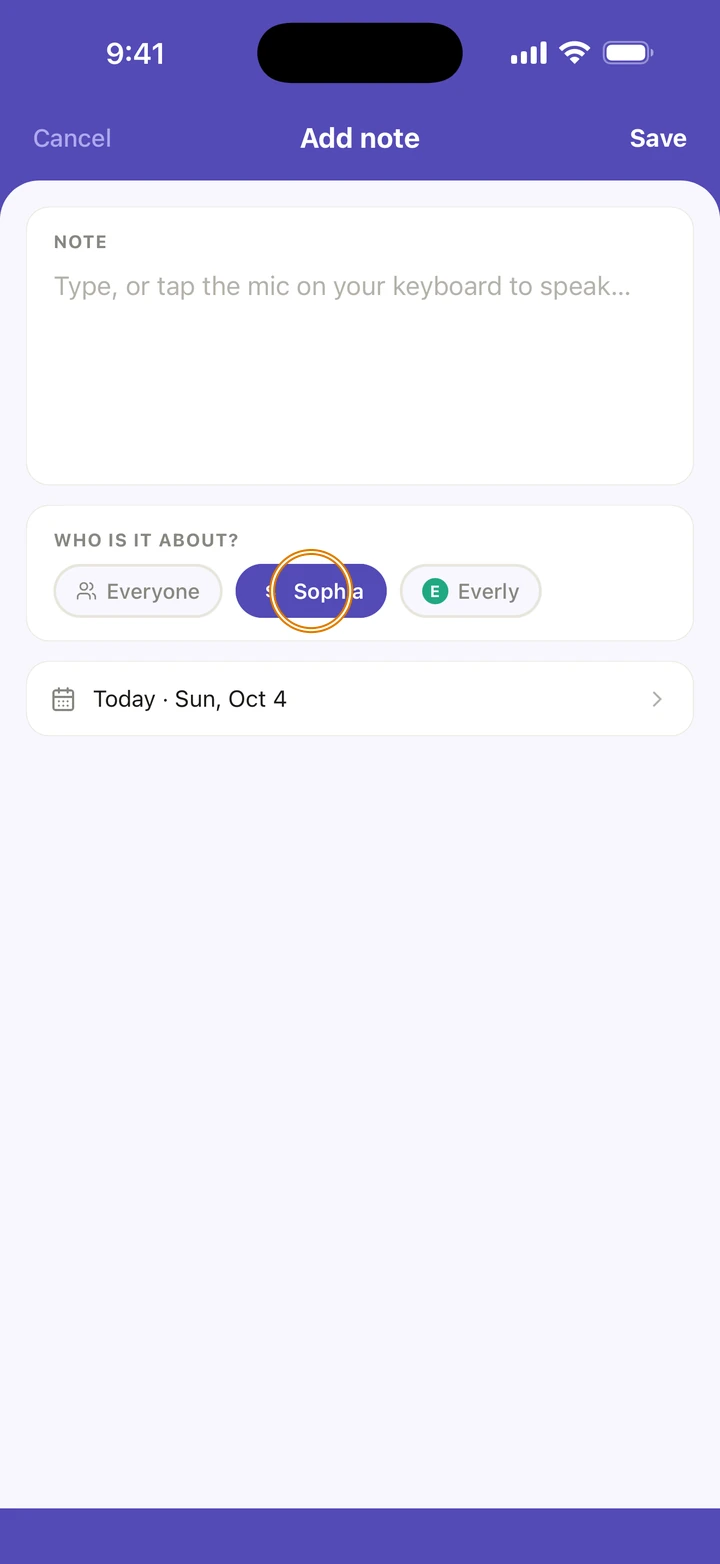
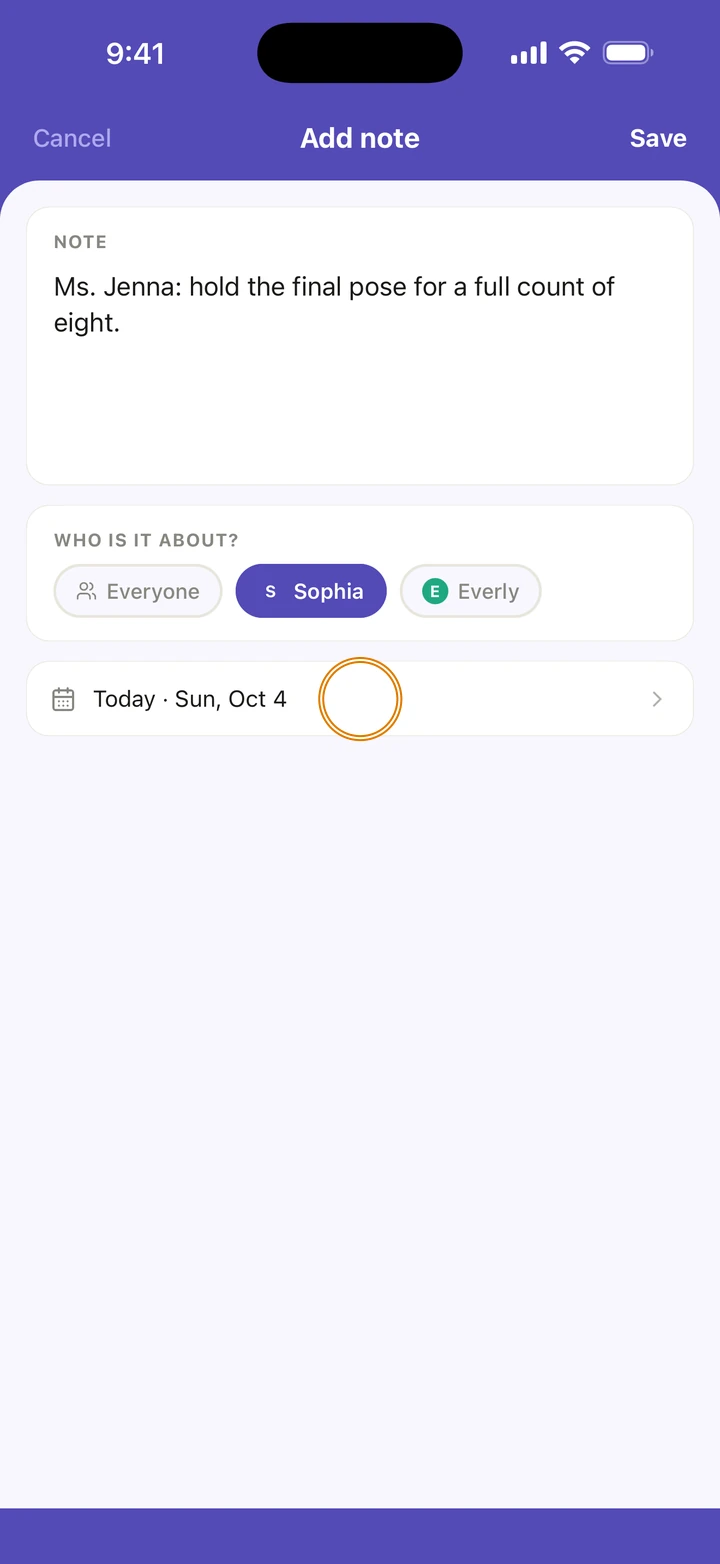
If more than one of your dancers is in the class, choose who it is about under WHO IS IT ABOUT?, or leave it on Everyone.
-
The note is dated today. To change the date, tap it and choose another.
-
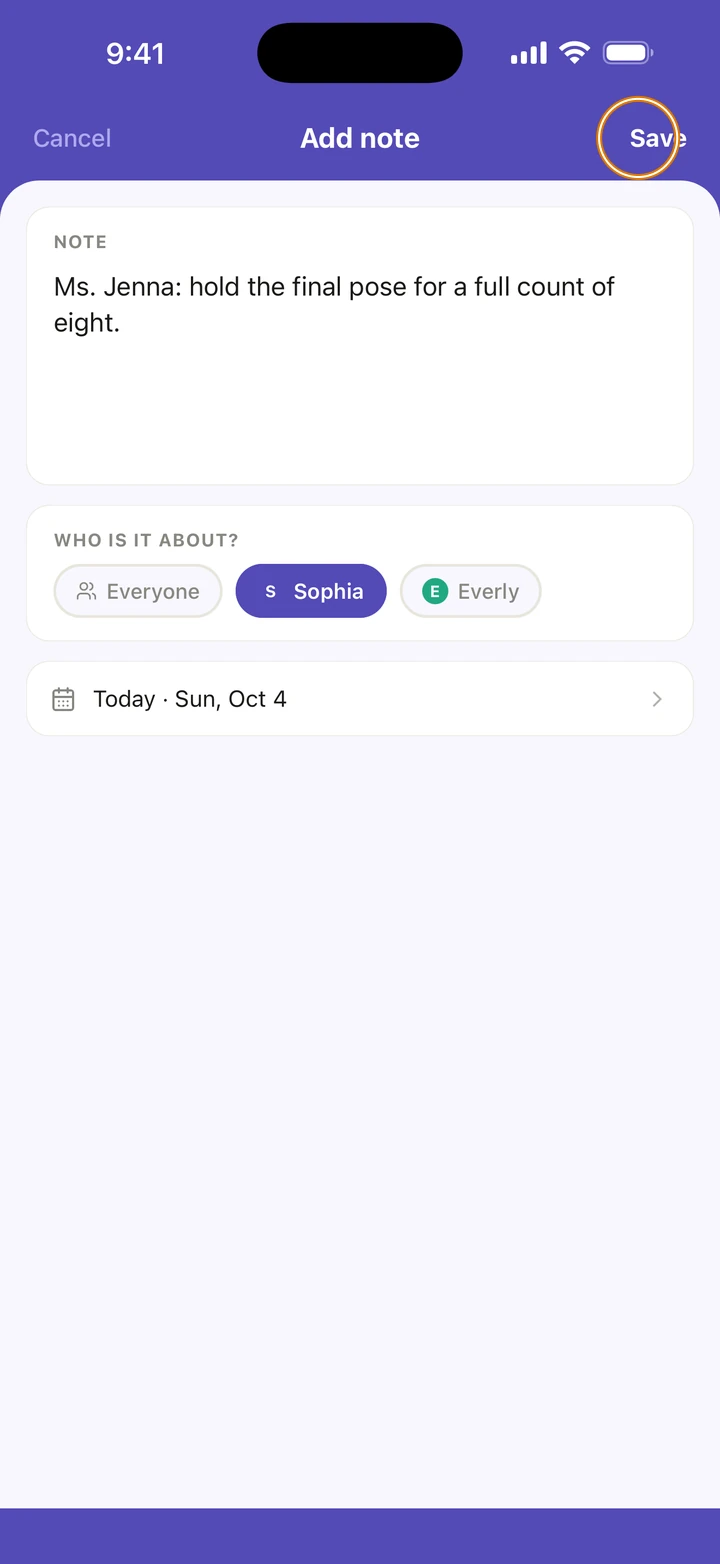
Tap Save.
Good to know
- Manage → Notes lists every note you have written, by date, with its class.
- The class shows its latest note. Tap See all under it for the rest.
- Links in a note can be tapped, and open in Ovation.
- Notes are kept with your account. They stay if you delete the class; deleting a dancer deletes the notes about them.
If something goes wrong
- To change or delete a note, tap it, then edit it and tap Save, or tap Delete note, then Delete.
- For anything else, go to Manage → Get help. A real person reads every message.
Related
Checked on Ovation 1.1.5